Install Boei with the Wix app
Add Boei from the Wix App Market to connect your site automatically. You don't need to copy installation code.
Already have a Boei account? Keep your current account and subscription. Follow the manual Wix installation guide instead.
Before you start
- Publish your Wix website so Boei can read its pages
- Sign in as the site owner, rather than a collaborator
- Use a site owner email that doesn't already belong to a Boei account
Step 1. Add the Boei app
Open Boei in the Wix App Market. Click Add to Site, choose your site, and review the requested permissions.
After you approve the installation, open Boei from your site's app dashboard. Boei creates your account using the site owner's email and signs you in.
You don't need to create a separate Boei login first.
Step 2. Start your trial through Wix
Choose Starter, Growth, Business or Scale in Boei. Continue to Wix to review the price and start your seven-day trial if you're eligible.
Wix asks for payment details. It shows when your first payment will happen before you confirm.
Cancel through Wix before the trial ends if you don't want to pay. Otherwise, Wix charges for your chosen plan automatically.
There is no separate Boei trial for accounts created through this app. Wix decides trial eligibility, so reinstalling the app doesn't start a new trial.
After Wix confirms your trial or subscription, return to Boei and click Continue setup. If confirmation takes a moment, click Refresh status.
Step 3. Train and test your AI assistant
Boei reads your published website during setup. Wait for training to finish, then ask a few questions that customers often ask.
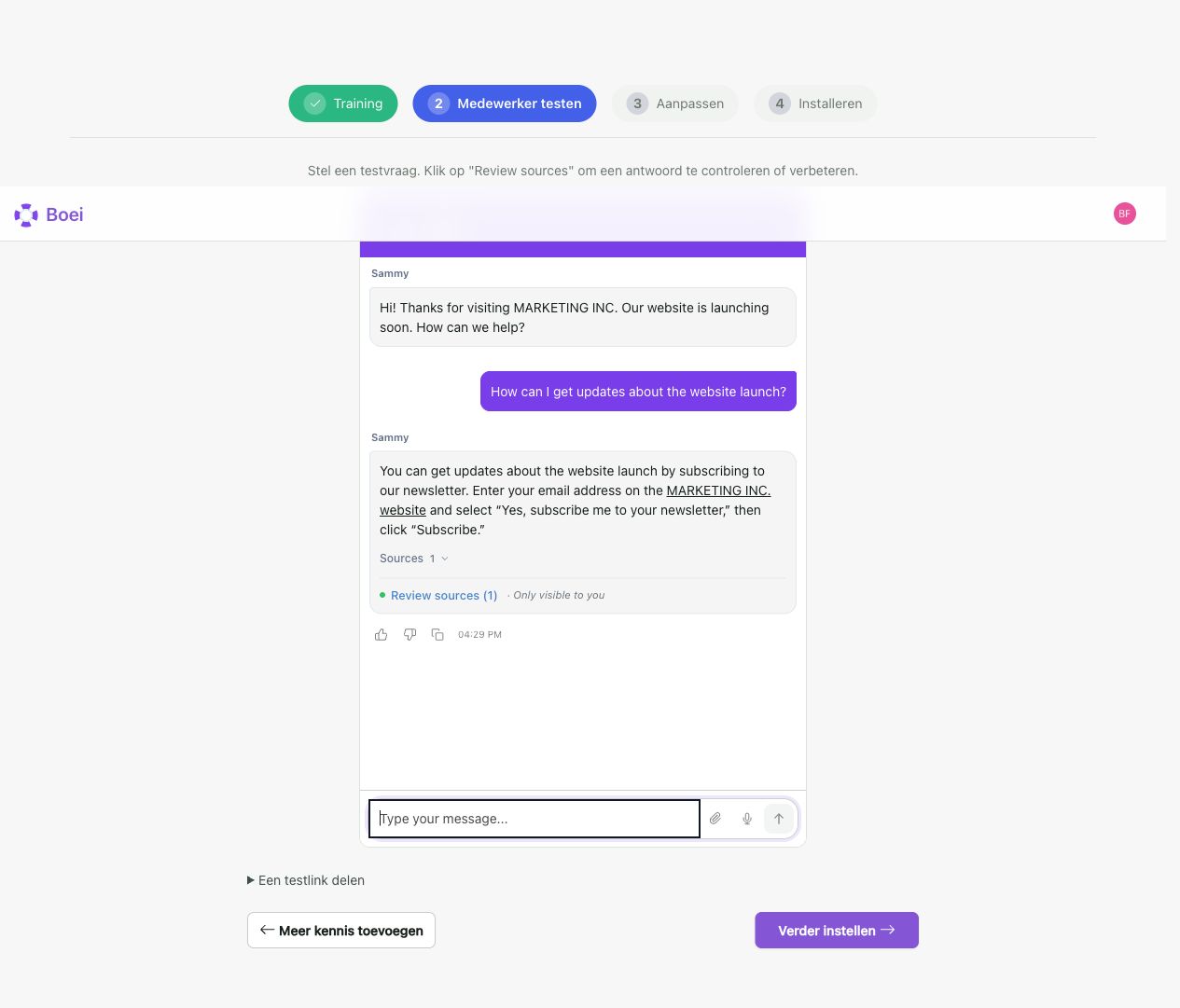
Check the answers and their sources. Add missing information before you make the assistant available to visitors.
Step 4. Match the widget to your business
Choose your colours, assistant name and contact options. Turn on the options you want, such as AI chat, live chat or WhatsApp.
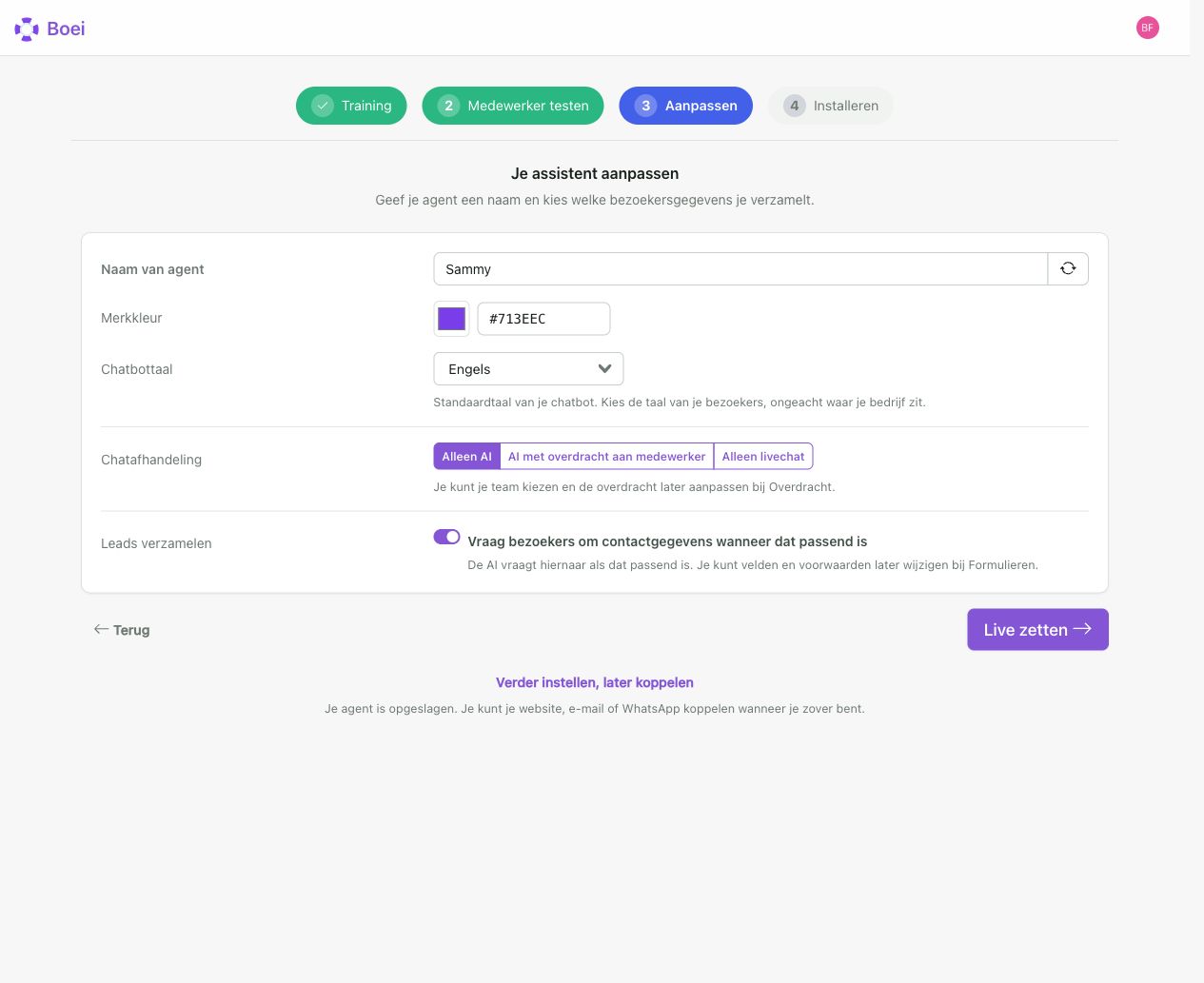
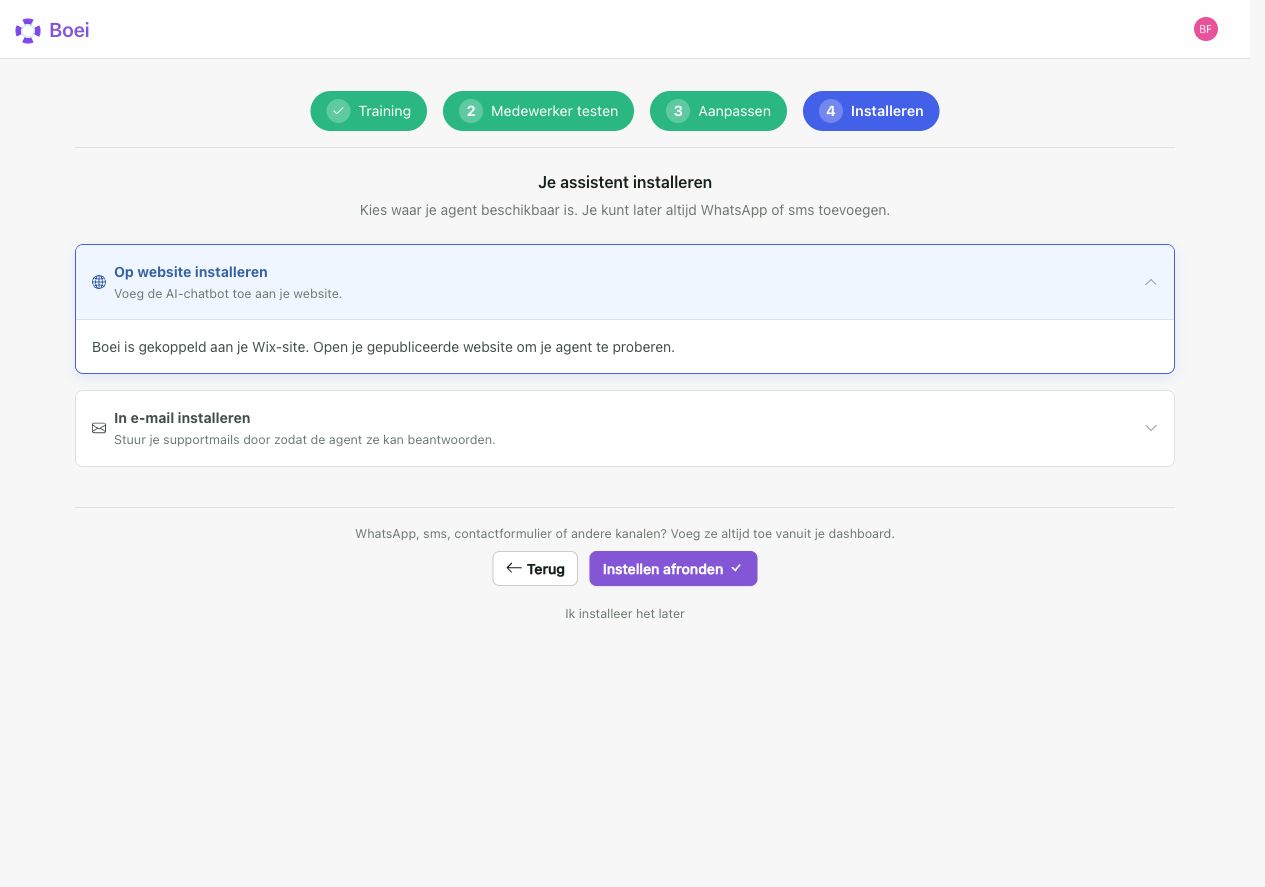
Finish the setup. Your original Wix site is connected automatically, so you don't need to paste a script there.
Step 5. Check your published website
Open your public website in a fresh browser tab. Refresh the page, open the widget, and send a test question.
Use the Boei dashboard to change your widget, update its knowledge, and manage conversations. You can return through Manage Apps in Wix.
Adding more websites
Your plan's website limit applies to the whole Boei account: Starter includes one site, Growth three, and Business and Scale ten each.
Only the original Wix site connects automatically. Add extra websites inside the same Boei account, then install the Boei code on those sites.
For an extra Wix website, follow the manual Wix installation steps. That manual route requires a Wix plan that supports custom code.
Don't buy the app again for an extra website. All sites share the original subscription and its limits.
Changing or cancelling your plan
Open Settings > Account and billing in Boei. Click Change plan to see your available options and continue to Wix.
For invoices, payment details or cancellation, use the buttons in Payments and invoices. Wix opens in a new tab.
To cancel renewal, find Boei in your Wix subscriptions, open Actions, and choose Cancel app. Check the end date shown by Wix.
Cancelling a paid subscription keeps access until its current period ends. Access then ends for the whole Boei account, including extra websites.
For a free trial, cancel before its end date to avoid the first charge. Cancelling during the trial ends access immediately.
Uninstalling the widget isn't a substitute for cancelling the subscription.
Troubleshooting
I already have a Boei account
The app doesn't replace or attach to your existing subscription. Use your existing account and the manual installation guide.
My trial or purchase hasn't appeared in Boei
Open Account and billing and click Refresh status. Check that Wix shows a confirmed trial or subscription for the same site.
If it still doesn't match, contact Boei support. Include the site address and your site owner email. Don't send payment card details.
The widget isn't visible
Check your published site rather than the editor preview. Refresh the page and try a browser without an ad blocker.
Reopen Boei from the original Wix site's Manage Apps page. If it remains missing, contact Boei support.
- Install on AdPage
- Install on Adobe Muse
- Install on BigCommerce
- Install on Blogger
- Install on carrd
- Install on Divi
- Install on Drupal
- Install on Ecwid
- Install on Elementor
- Install on Framer
- Install on Ghost
- Install on Google Tag Manager
- Install on HTML
- Install on Hostinger
- Install on Jimdo
- Install on Joomla
- Install on JouwWeb
- Install on Kajabi
- Install on Lightspeed
- Install on Magento
- Install on OpenCart
- Install on Phoenix
- Install on Prestashop
- Install on Shopify
- Install on Squarespace
- Install on Strato
- Install on Tilda
- Install on Umbraco
- Install on Webflow
- Install on Webnode
- Install on Weebly
- Install on Wix
- Install with the Wix app
- Install on WordPress
- Other