How to install Boei on your Tilda website
You can install Boei on your Tilda website in just a few minutes. No coding required.
Just grab a cup of coffee ☕️, and you can do the installation in 5-mins yourself.
Step 1. Create an account
Create a Boei account if you don't have one yet. The onboarding trains your AI chatbot on your website content. You can also add other ways customers can reach you, like WhatsApp, email, or phone.
Step 2. Copy installation code
In your Boei dashboard, open your widget and click the Install tab. Select Other / Script and copy the installation code.
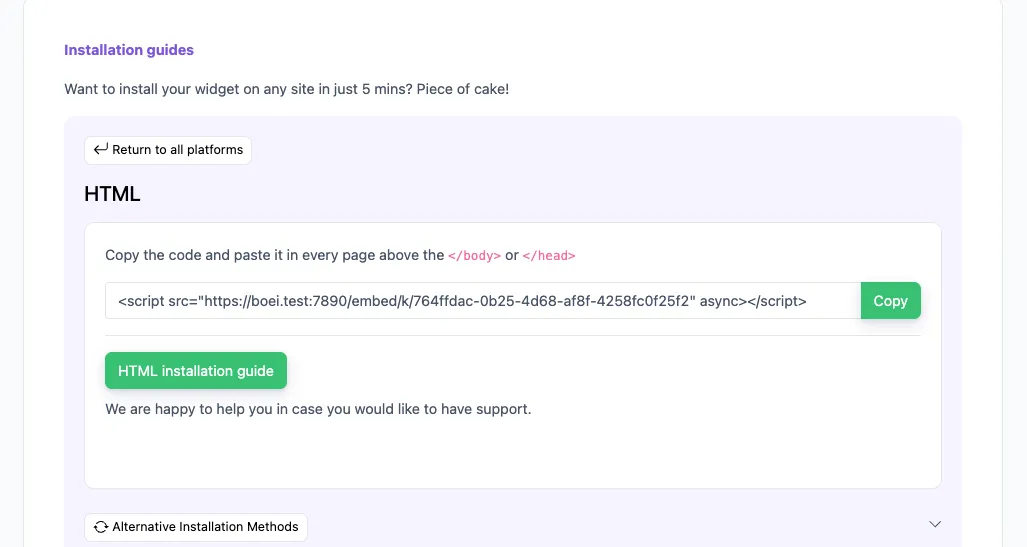
Tip: The Install tab also offers a landing page link, QR code, and iframe embed.
Step 3. Open Tilda Site Settings
Log in to Tilda and open your project. Click Site Settings in the top menu, then go to the More tab.
Step 4. Add the script
Scroll down to HTML code for the section or Custom code before . Paste the Boei script code into the code area.
Step 5. Republish your site
Click Save and then republish your site pages for the changes to take effect. Visit your site to confirm the chatbot appears.
Congrats, you are done! You now have the Boei AI chatbot installed on Tilda.
Troubleshooting
If the Boei chatbot doesn't appear on your site:
- Hard-refresh the page (Cmd+Shift+R on Mac, Ctrl+Shift+R on Windows) to bypass browser cache.
- Republish your Tilda pages after saving (changes only go live after republishing).
- Disable ad blockers in your test browser. Some block third-party scripts.
Common questions
Will it slow down my site? No, Boei loads asynchronously after your page renders.
Does it work on mobile? Yes, the chatbot is fully responsive.
Can I show it only on certain pages? Yes, set page rules in your Boei dashboard.
- Install on AdPage
- Install on Adobe Muse
- Install on BigCommerce
- Install on Blogger
- Install on carrd
- Install on Divi
- Install on Drupal
- Install on Ecwid
- Install on Elementor
- Install on Framer
- Install on Ghost
- Install on Google Tag Manager
- Install on HTML
- Install on Hostinger
- Install on Jimdo
- Install on Joomla
- Install on JouwWeb
- Install on Kajabi
- Install on Lightspeed
- Install on Magento
- Install on OpenCart
- Install on Phoenix
- Install on Prestashop
- Install on Shopify
- Install on Squarespace
- Install on Strato
- Install on Tilda
- Install on Umbraco
- Install on Webflow
- Install on Webnode
- Install on Weebly
- Install on Wix
- Install on WordPress
- Other