How to install Boei on your Drupal website
You can install Boei on your Drupal website in just a few minutes, no module required.
Just grab a cup of coffee ☕️, and you can do the installation in 5-mins yourself.
Step 1. Create an account
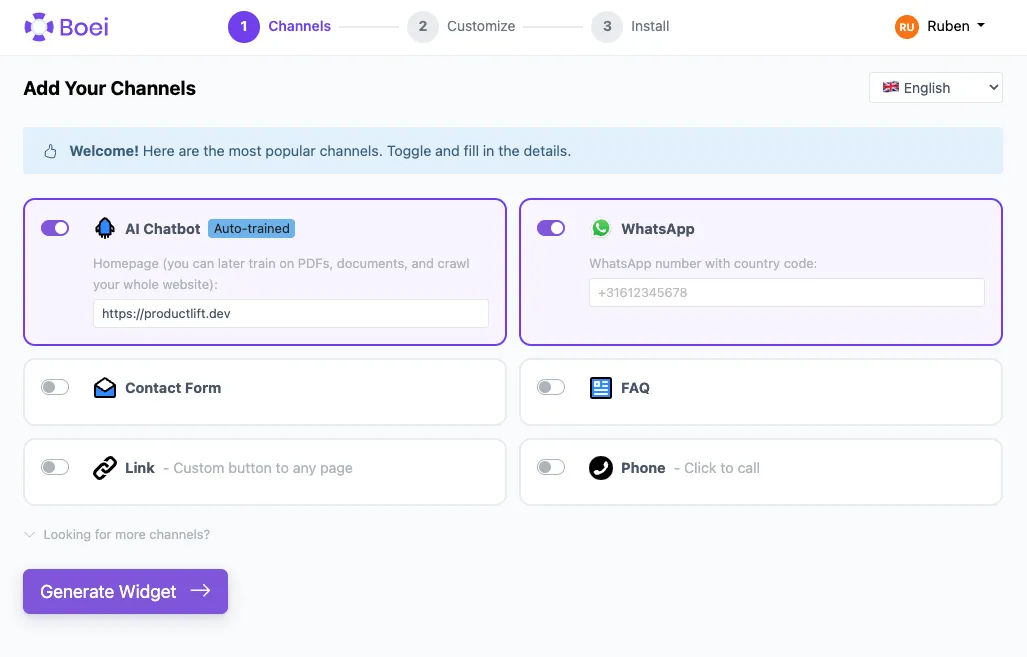
Create a Boei account if you don't have one yet. The onboarding will guide you through selecting channels, choosing a theme, and positioning your widget.
Step 2. Copy installation code
In your Boei dashboard, open your widget and click the Install tab. Select Other / Script and copy the installation code.
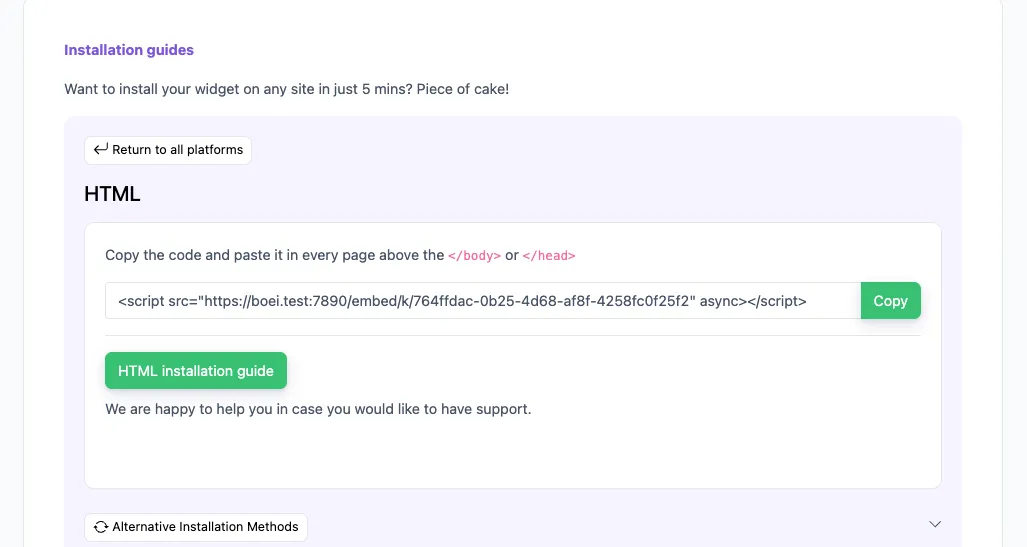
Tip: The Install tab also offers a landing page link, QR code, and iframe embed.
Step 3. Log in to Drupal
Open your Drupal admin panel and navigate to Configuration → Development → Asset Injector (if you have the Asset Injector module). Alternatively, you can edit your theme's template directly.
Step 4. Add the script
Option A — Asset Injector module: Click Add JS Injector, give it a label like "Boei Chatbot", paste the script code, and set it to appear on all pages.
Option B — Theme template: Open your active theme's html.html.twig file (usually in themes/your_theme/templates/). Paste the Boei script code just before the closing </body> tag.
Step 5. Clear cache
Go to Configuration → Performance and click Clear all caches. Visit your site to confirm the chatbot appears.
Congrats, you are done! You now have the Boei AI chatbot installed on Drupal.
- Install on AdPage
- Install on Adobe Muse
- Install on BigCommerce
- Install on Blogger
- Install on carrd
- Install on Divi
- Install on Drupal
- Install on Ecwid
- Install on Elementor
- Install on Framer
- Install on Ghost
- Install on Google Tag Manager
- Install on HTML
- Install on Hostinger
- Install on Jimdo
- Install on Joomla
- Install on JouwWeb
- Install on Kajabi
- Install on Lightspeed
- Install on Magento
- Install on OpenCart
- Install on Phoenix
- Install on Prestashop
- Install on Shopify
- Install on Squarespace
- Install on Strato
- Install on Tilda
- Install on Umbraco
- Install on Webflow
- Install on Webnode
- Install on Weebly
- Install on Wix
- Install on WordPress
- Other
 from Utrecht