
Dr. Kirk Sanford
CEO & Founder, Longevity Medical Institute
★★★★★
It's all upside — Boei dramatically improves responsiveness, patient conversion, and operational efficiency, and the ROI is easily justified.
from 159 reviews
200M+
Monthly active Discord users
19M+
Active servers worldwide
4B+
Messages sent daily
#1
Community platform for gaming
A Discord widget is a floating button on your website that lets visitors join your Discord server in one click. When someone clicks the button, they are redirected to your server's invite link where Discord opens: either in the desktop app, the mobile app, or directly in the web browser. And prompts them to join your community instantly.
The Discord widget uses Discord's invite link system. You create a permanent (never-expiring) invite link in your Discord server settings, and Boei wraps it into a customizable floating button on your website. The invite URL follows the format https://discord.gg/your-invite-code. When a visitor clicks, Discord handles the rest: existing users join immediately, while new users are guided to create a free Discord account first.
Unlike traditional live chat where you need to monitor a dashboard in real-time, Discord communities are always-on. Members interact with each other, answer questions, and build relationships even when your team is offline. This creates a self-sustaining ecosystem around your brand.
Discord has evolved far beyond its gaming origins. With 200 million monthly active users and 19 million active servers, it is now the go-to platform for communities of all kinds. Here is why adding Discord to your website makes strategic sense:
Unlike email lists or contact forms where communication is one-directional, Discord creates a two-way community. Members talk to each other, share ideas, answer questions, and create content organically. Your community becomes an asset that grows in value over time. A thriving Discord server is worth more than any mailing list because members are actively engaged, not passively subscribed.
Discord is the only major platform that combines text channels, voice channels, video calls, screen sharing, and live streaming in one place. Host live Q&A sessions in voice channels, run product demos via screen share, or just let community members hang out in always-on voice rooms. No other community platform offers this level of real-time interaction for free.
Discord is free to use for both you and your community members. There are no per-seat charges, no message limits, and no file sharing restrictions (up to 25MB per file, 500MB with Nitro). Compare that to Slack, which charges per user on paid plans and limits message history on the free tier. For large communities, Discord's pricing model is unbeatable.
Structure your server with dedicated channels: #general for casual conversation, #support for help requests, #announcements for news, #feedback for product suggestions, and #off-topic for community bonding. Category folders keep everything organized. Members find what they need without scrolling through irrelevant conversations.
Discord's role system lets you create tiers: free members, premium subscribers, beta testers, moderators, and admins. Each role can have different permissions and access to specific channels. AutoMod filters spam, slurs, and unwanted content automatically. Moderation bots add additional protection against raids and trolls.
Thousands of Discord bots handle everything from welcome messages and reaction roles to ticket systems, music playback, and custom commands. Popular bots like MEE6, Carl-bot, and Dyno automate community management so you spend less time on administration and more time on engagement. Developers can also build custom bots using Discord's API.
Discord works everywhere. Native apps for Windows, macOS, Linux, iOS, and Android ensure members stay connected on any device. The web app requires zero downloads. This universal accessibility means no member is left out regardless of their device or operating system.
Real scenarios where Discord communities drive engagement and growth
Join our Discord server!
I'd like to join the community
There are several ways to add Discord to your website. Here is how they compare:
| Feature | Boei | Discord Native Widget | Other Widget Tools | DIY (Custom Code) |
|---|---|---|---|---|
| Setup time | 5 minutes | 10-15 minutes | 20-30 minutes | 1-4 hours |
| Coding required | No | Basic HTML | Sometimes | Yes (HTML/CSS/JS) |
| Monthly cost | From €8 | Free (limited features) | €15-40/month | Free (maintenance cost) |
| GDPR compliant | Yes (EU servers) | US servers only | Varies | Your responsibility |
| Custom branding | Full customization | Limited (Discord styling) | Partial | Full (manual work) |
| Multi-channel (50+ channels) | Yes | Discord only | Limited | No |
| Display rules (page/device/country) | Yes | No | Some | Manual |
| Analytics & tracking | GA, Pixel, GTM | Server Insights only | Varies | Manual |
| QR code support | Yes | No | Rarely | No |
| Free trial | 7 days (no card) | N/A | Varies | N/A |
Discord offers a built-in embeddable widget that shows online members and channels directly on your website. However, this native widget has significant limitations: it uses an iframe that cannot be styled to match your branding, it loads Discord's JavaScript which may affect page performance and GDPR compliance, and it only shows Discord. You cannot combine it with other channels. If you only need a basic member count display and do not care about branding, analytics, or multi-channel support, the native widget is a free option. For everything else, Boei provides a superior experience.
You can always write a custom Discord invite button with raw HTML and CSS. But you lose smart display rules, analytics integration, QR codes, multi-channel support, and the ability to update your widget without touching code. Custom solutions also require maintenance when Discord changes their invite system. Boei handles all of this automatically.
Adding a Discord widget is the first step. Building a server that visitors actually want to join and stay in requires strategy. Here are proven best practices from successful Discord communities:
Before adding the Discord widget to your website, ensure your server is ready for new members. Create clear categories (Welcome, General, Support, Off-Topic) with descriptive channel names. Write channel descriptions explaining what each one is for. An empty, disorganized server makes a terrible first impression. Have at least a few conversations happening before you start driving traffic.
When generating your Discord invite link, always set it to never expire and unlimited uses. Temporary invite links break after hours or days, sending your website visitors to a dead page. In Discord, go to Server Settings > Invites, or right-click any channel and select Create Invite. Set both the expiration and max uses to their maximum values.
Do not create too many channels at launch. It dilutes conversation. Start with 5-8 channels across 2-3 categories. Typical structure: a Welcome category (#rules, #introductions), a Community category (#general, #off-topic, #share-your-work), and a Support category (#help, #bug-reports, #feature-requests). Add channels only when conversation volume justifies it.
Enable Discord's built-in AutoMod to filter spam, profanity, and suspicious links. Add a moderation bot like MEE6 or Carl-bot for automatic warnings, timeouts, and ban management. Create a #rules channel with your community guidelines. Require members to agree to rules before accessing the rest of the server using Discord's membership screening feature or a verification bot.
New members should immediately understand what your server is about and how to get started. Use a welcome channel with a pinned message that explains: what the community is for, how to introduce themselves, which channels to visit first, and how to get help. A welcome bot that sends a DM to new members with a quick-start guide increases engagement significantly.
Roles are not just for permissions. They create identity and incentive. Create roles for different user types (Customer, Beta Tester, Contributor, VIP). Let members self-assign interest-based roles through reaction roles. Active contributors earn special roles that unlock exclusive channels. This gamification keeps members engaged and gives them reasons to participate.
Discord is ideal for community building, but not every visitor wants to join a server. Offer a contact form for quick inquiries, email for formal communication, and phone for urgent matters. Use Boei's multi-channel widget to show all options from a single button. Visitors choose what works for them.
Three steps to start growing your community
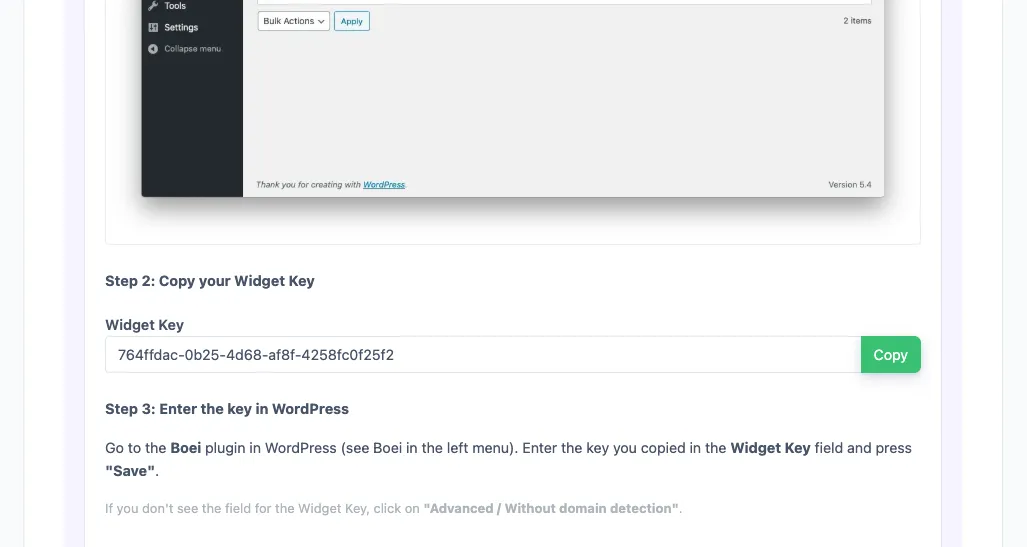 1
1 In your Boei dashboard, open your widget and click the Install tab. Select WordPress and copy the WordPress plugin key.
Tip: The Install tab also offers a landing page link, QR code, and iframe embed.
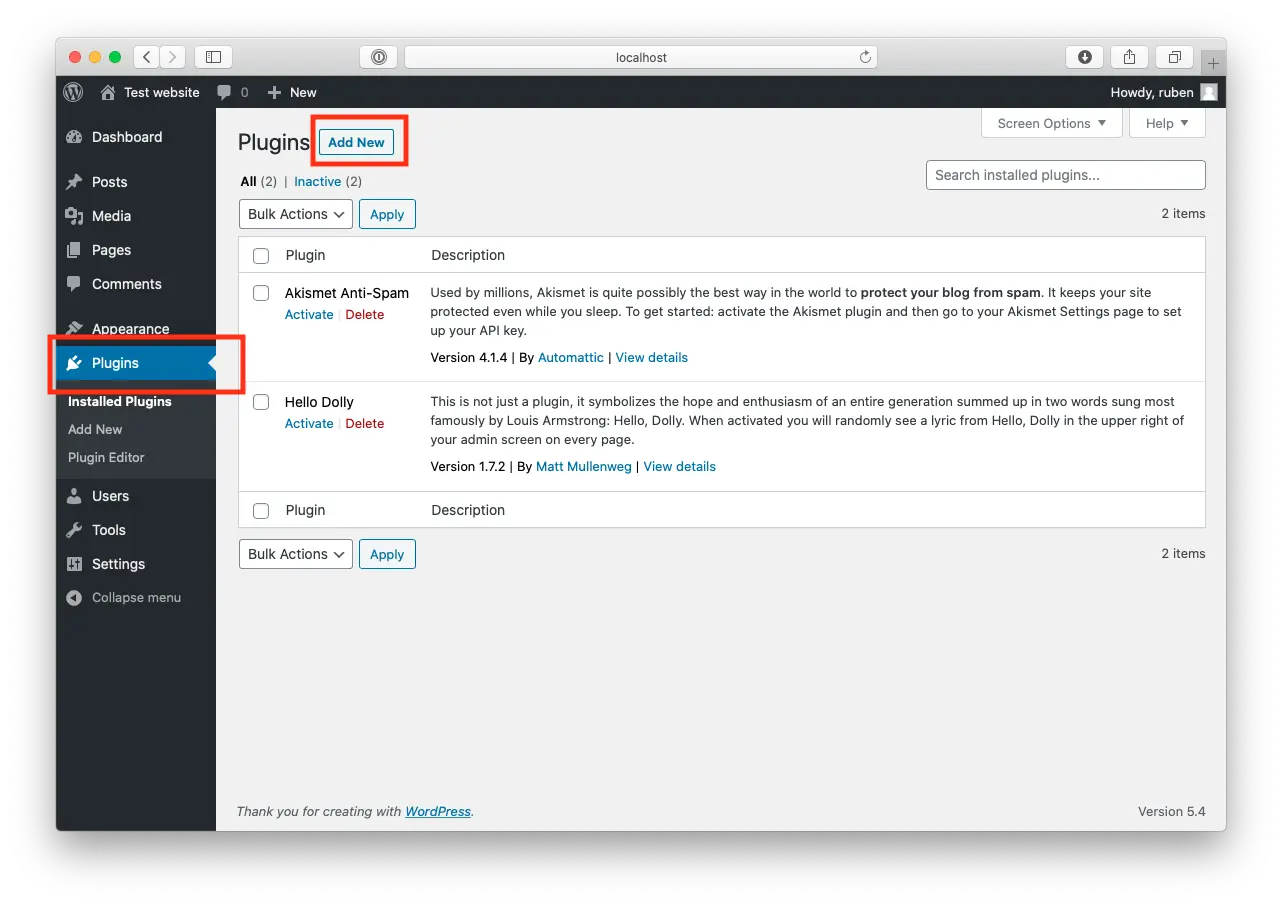 2
2 Open WordPress and click on "Plugins".
Now, click "Add New" at the top of the page.
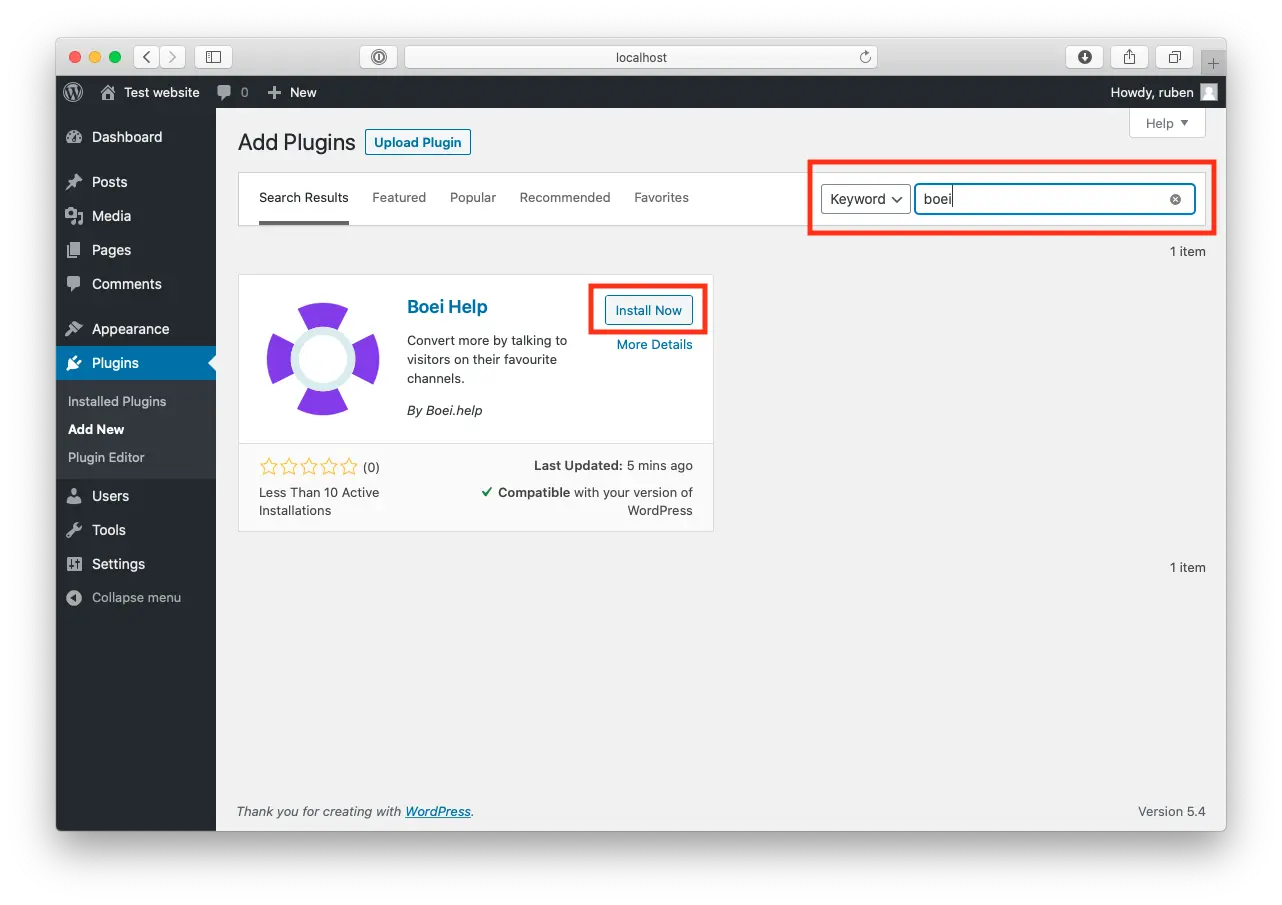 3
3 Search for "Boei" and find our plugin.
Click "Install Now".
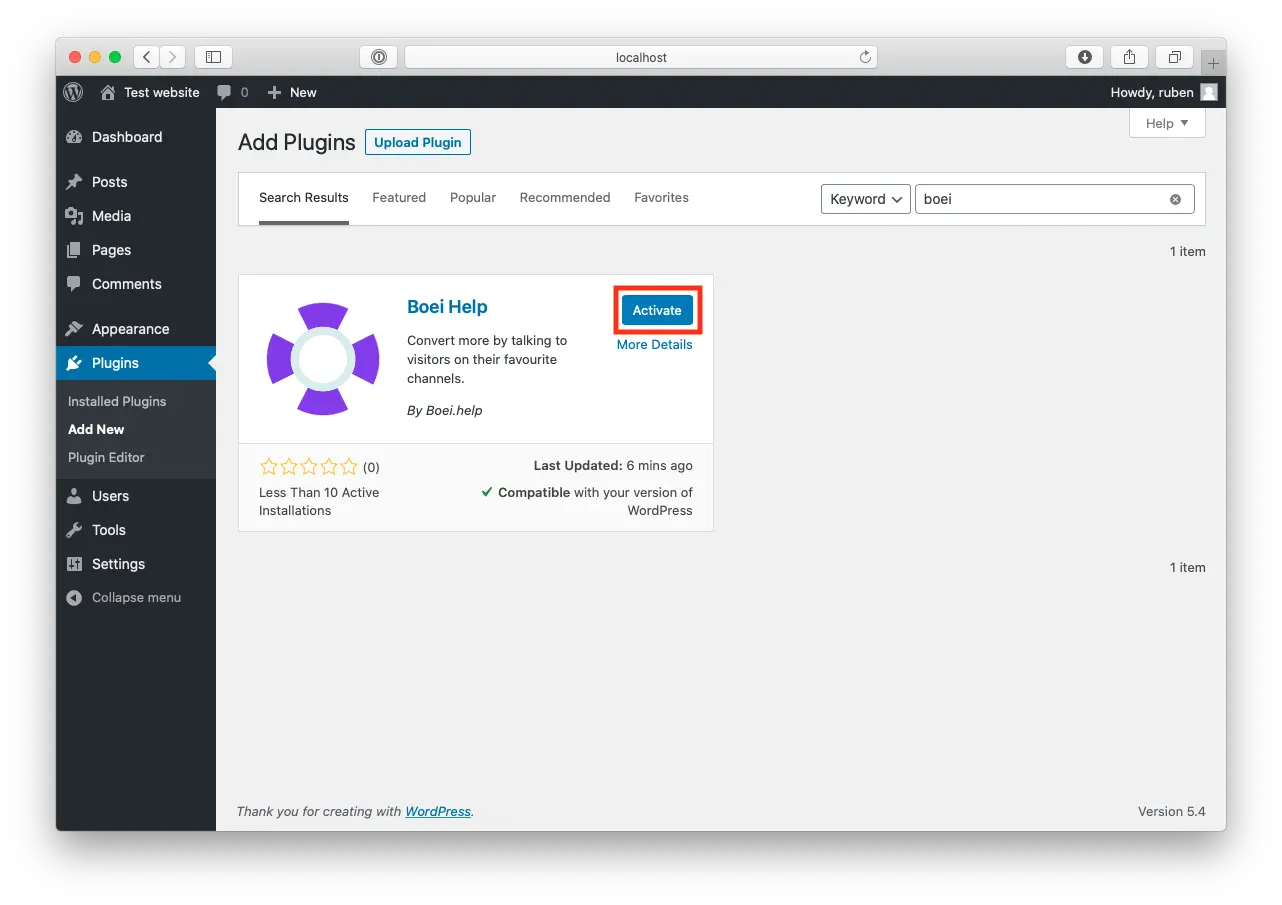 4
4 When the plugin is installed, press "Activate".
Go to the Boei plugin in WordPress (see Boei in the left menu).
Enter the key you copied in the Widget Key field and press "save".
If you don't see the field for the Widget Key, click on "Advanced / Without domain detection".
Congrats, you are done!
 1
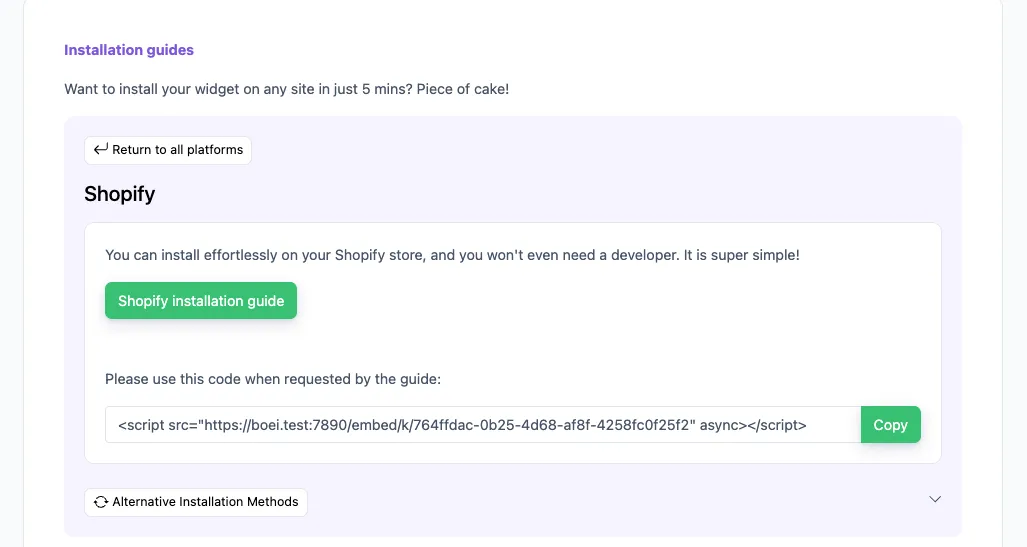
1 In your Boei dashboard, open your widget and click the Install tab. Select Shopify and copy the installation code.
Tip: The Install tab also offers a landing page link, QR code, and iframe embed.
In your Shopify admin, go to Online Store → Themes.
On your live theme (the one labeled "Current theme"), click the ... menu next to Customize and choose Edit code.
In the Layout folder on the left, click theme.liquid. This is the master template that wraps every page on your store, so installing Boei here means it loads everywhere.
Press Ctrl+F (Windows) or Cmd+F (Mac) inside the editor to open the search box. Search for </body> to jump straight to it. You'll see it near the bottom of the file.
Click on the line just above </body> and paste the Boei code from Step 2. Click Save in the top right.
Open your storefront in a new tab. The Boei chatbot should appear in the corner.
If you don't see it immediately, hard-refresh the page (Cmd+Shift+R on Mac, Ctrl+Shift+R on Windows) to bypass Shopify's cache.
Stuck? If the chatbot doesn't appear, double-check that the Boei code is on the line just above </body>, not above </html> or somewhere else in the middle of the file.
Congrats, you are done! You now have Boei live chat installed on Shopify.
 1
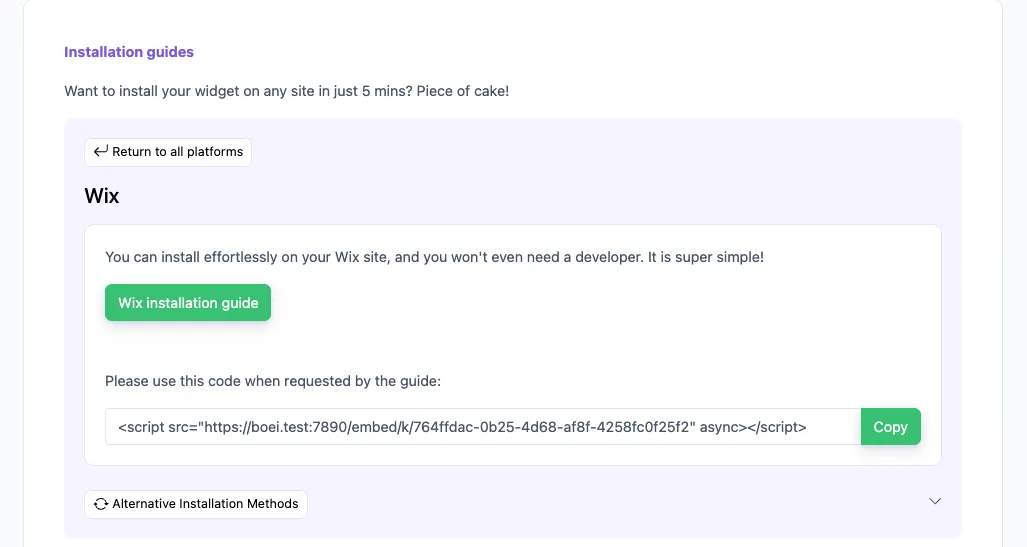
1 In your Boei dashboard, open your widget and click the Install tab. Select Wix and copy the installation code.
Tip: The Install tab also offers a landing page link, QR code, and iframe embed.
 2
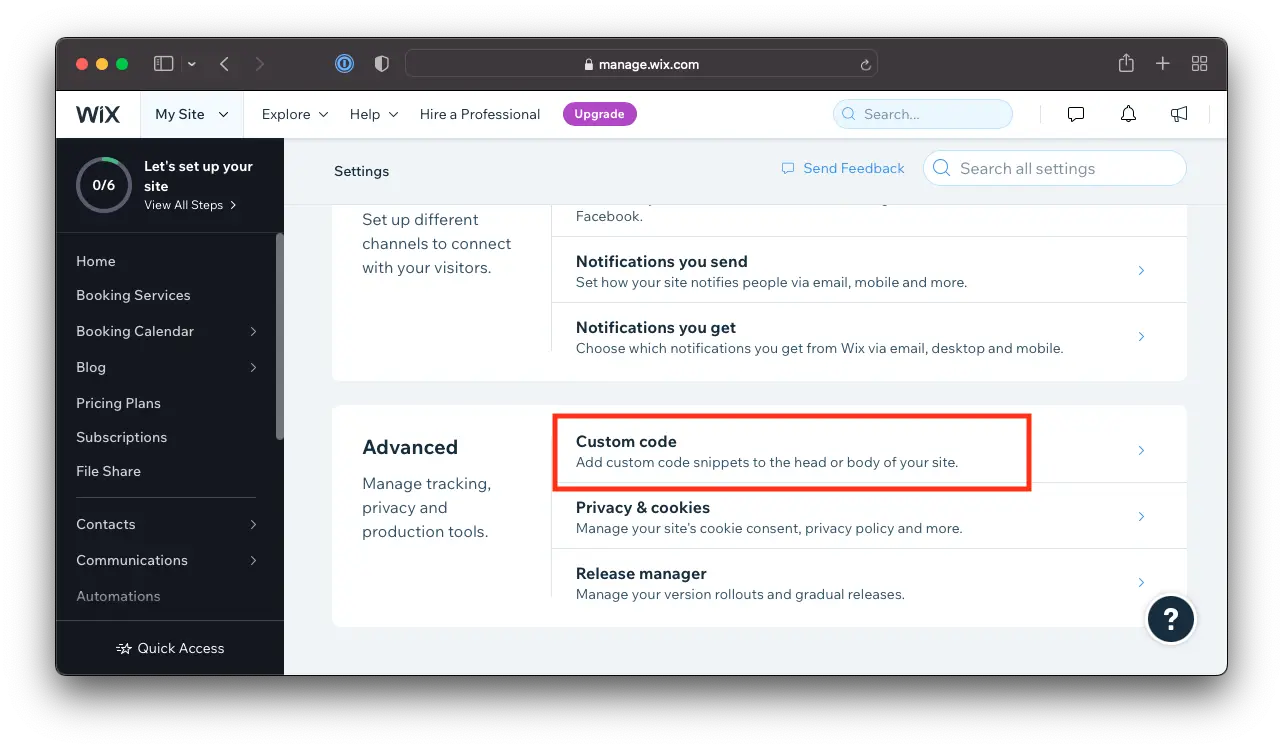
2 Open Wix and go to Settings -> Custom Code.
Click Apply in Wix. Congrats, you are done!
 1
1 In your Boei dashboard, open your widget and click the Install tab. Select Squarespace and copy the installation code.
Tip: The Install tab also offers a landing page link, QR code, and iframe embed.
 2
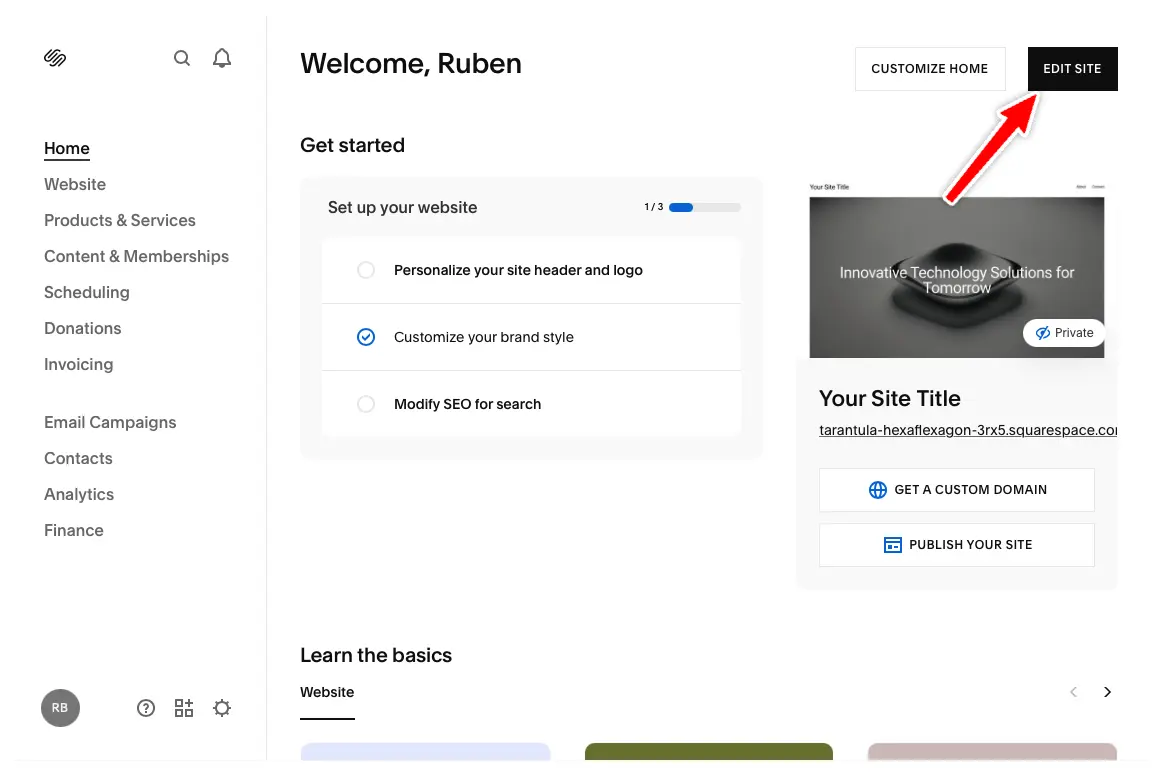
2 In your Squarespace dashboard, click "Edit Site" in the top right corner.
 3
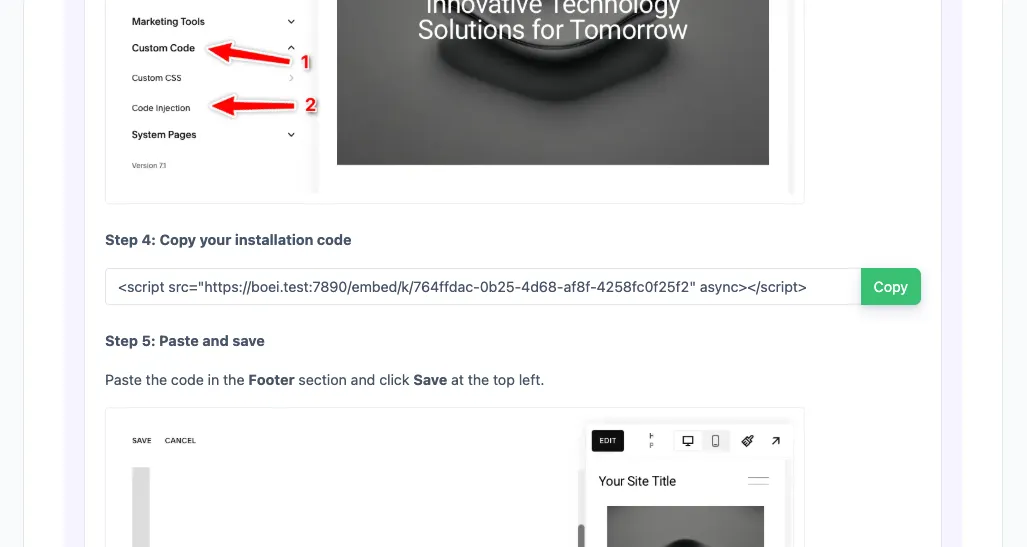
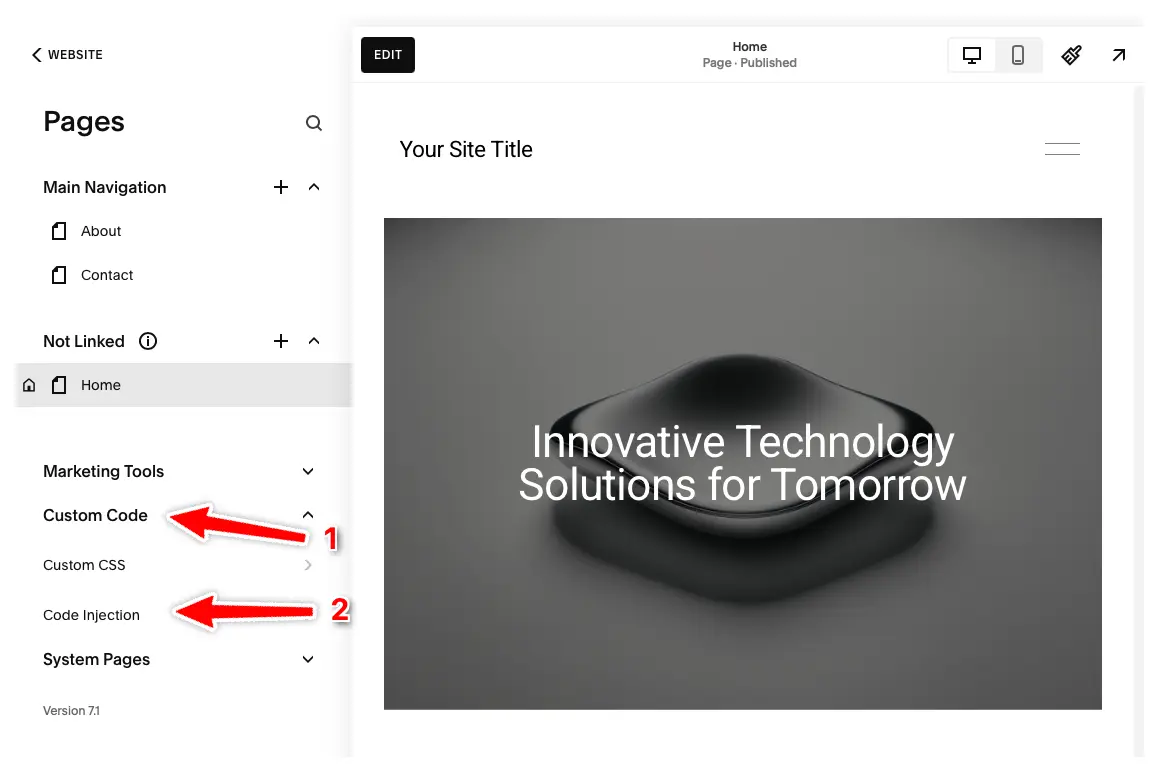
3 Click "Pages" in the left menu, then click "Custom Code" and select "Code Injection".
 4
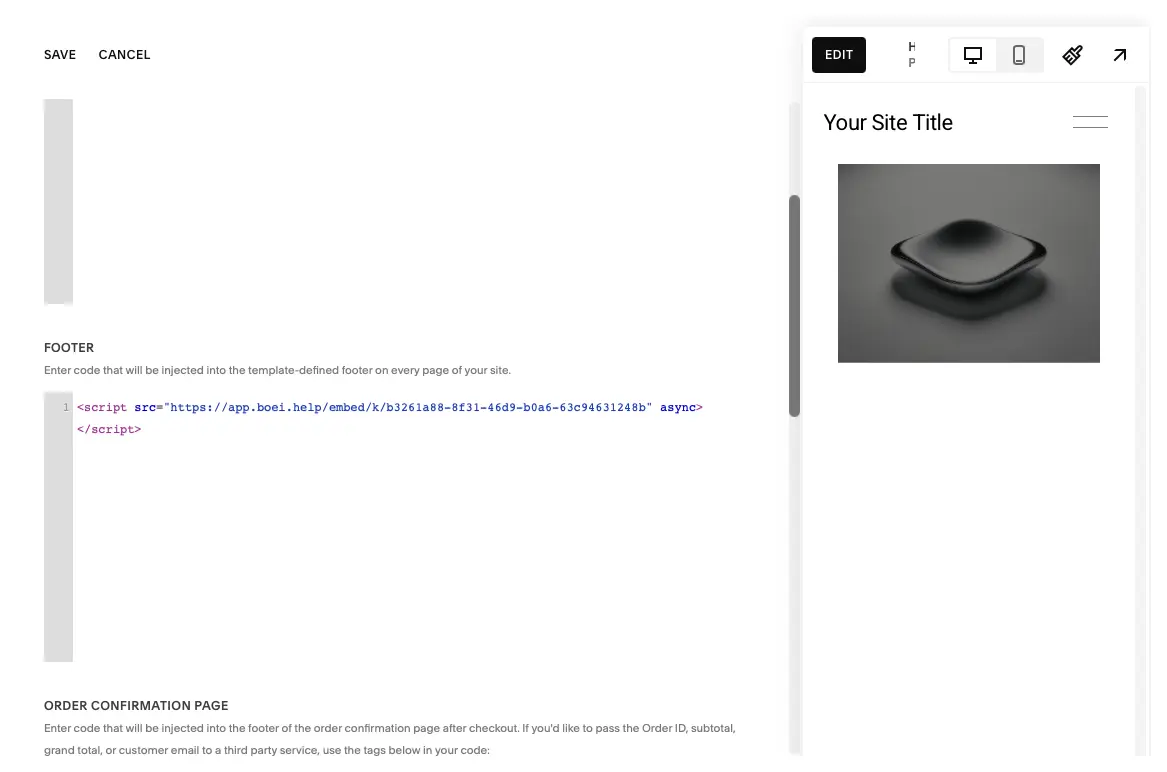
4 Enter your Boei code in the Footer section and press "Save" at the top left.
The Boei chatbot will now appear on all pages of your Squarespace site. Congrats, you are done!
Customize Your Bot
Brand Colors
Smart Responses
Friendly
Personality
Dr. Kirk Sanford
CEO & Founder, Longevity Medical Institute
It's all upside — Boei dramatically improves responsiveness, patient conversion, and operational efficiency, and the ROI is easily justified.

Susan Jones
Founder/CEO, WebMaxSEO
We initially installed Boei on our agency website to test its capabilities, and the results were so impressive that we've now implemented it across approximately 10 client sites. The AI chatbot not only learns from each website's unique content but also provides valuable data for our SEO strategies.

Koen Rens
Owner, Luxe Kattenhotel
It's super easy for end users to contact us using Boei. It's clear and extremely user-friendly. With the drag and drop editor, I was ready in only a few minutes.

David K.
CEO Small-Business (50 or fewer emp.)
What do you like best about Boei? I'm giving 10 points. Why? This app is super easy. You can configure your chat widget in 5 minutes, add a JS script to your "header" in your theme and wooollaaa done. Nothing hard. We have been using Boei mainly for small corporate websites. It really solves our need to have a small chat widget which does not add up 150Kb and XXXXX JS scripts. It's really lightweight and it does not affect your website speed.

Seif Ahmed
@seif588
I have been using Boei for over a year. It is very simple yet effective to implement it. Support is great - Ruben is always responsive and helpful. The product has also added new features which I have not yet needed but good to know Ruben is always working hard to add value to users of Boei. I am sure there are other similar solutions but for the price, support and features (and future updates), this is a great value.

Irfan
@mak_web_media
I have been using BOEI for over a year and absolutely amazed with the growth and new features. I recommend BOEI to anyone who is looking to increase website engagement with multiple communication channels.

Peter C
@peter_c1
Great founder Ruben , responds personally to emails, and always looking to improve Boei.

Andrew Lee
@fromlife89
It's a great tool especially for managing multiple websites and agencies.

Grzegorz G.
I have a quick chat on each page, so it simplifies the way my clients can get in touch with me. It was very easy to implement and they continue to improve this software and are open to feedback. An easy way to add a communication widget to the website. I like best that it supports Messenger and Whatsaap, phone, email and live chat and it is easy to translate for multilingual pages. I can't think about real drowbacks. The [SENSITIVE CONTENT] reply all the support questions quickly and effectively, they are open to feedback. I had no issues at all with this software. Maybe if they could add some protection against spammers if you use the contact form and in some future add a chatbot, that would be fantastic.

Joshua G.
I was looking for a chat app to easily communicate with my customers. I didn't want to install anything overly complex and I just wanted something that worked within minutes. After briefly using Boei, I knew it was right for me. It's super lightweight and easy to use, plus it has all the chat bots that you might need! Highly recommend to anyone looking for something simple. I wish there was a better UI or more design options.

Ronald D.
Director Small-Business (50 or fewer emp.)
What do you like best about Boei? Simple, easy to use and implement with little technical support What do you dislike about Boei? Logo deisgns can be improved and some customization of logos of different widgets What problems is Boei solving and how is that benefiting you? On multiple sites, users require different feedback channels. This allows simple customization

Fahd T.
Founder Small-Business (50 or fewer emp.)
What do you like best about Boei? The best part is the simplicity of the product and ease of use. What do you dislike about Boei? The weak part is the lack of depth for advanced users. What problems is Boei solving and how is that benefiting you? Helps capture visitors using different communication channels under one platform.

Vance W.
We have been using Boei for many clients over the past year and the impact on the page speed is negligible and helps convert website visitors to warm leads. Ease of deployment, lightweight code, and overall flexibility and functionality. The form component isn't exactly flexible and extensive enough for most uses so we often have to use another form solution.

Julien V.
Développeur d'e-commerce Small-Business (50 or fewer emp.)
What do you like best about Boei? Lightweight, opens instantly, lot of features (whatsapp, messenger, contact form, links) What do you dislike about Boei? Not including a built-in chat app, more design customizations could be good What problems is Boei solving and how is that benefiting you? Allowing website visitors to contact us through their preferred channel (whatsapp, phone call, etc)

Chandra Kusuma
The greatest chat widget for websites I have ever tried. It's quite light and not reduce the site loading speed. Quite easy to install on any type of sites/CMS platform. The features and integrations is continuously developed. The support Ruben and his team provide is the best. Easily number one pick.

Cristian Trappolini
I want to leave this review because I want to tell you 2 important things: one is that those who don't speak English well often find themselves having to live with Google Translate as their best friend, and the other is that BOEI is fantastic, simple and intuitive even for those who don't speak English well. I am really enthusiastic about the ease of use from the first time, which I rarely find in a similar app. Personally I recommend it to everyone!
Renaat Sioncke
Boei.helps is an easy-to-use app to connect a support/help icon to your website. I just set up four websites with different social media links, all in no time. Boei helps to customize and speed up my website building work-flow.

Fran Tully
Very happy to give 5 Stars for this plugin. Over 70% of my business enquiries are coming from Smartphone users based on my Google Analytics. Boei allows those users to contact me on their preferred social Channel with one click. I also can follow up on that channel later or over time with the conversion thread preserved. It's a pop up with a GIF that looks great on my site. And it gives the prospective client the opportunity to fill out a standard contact form as well. I am implementing it on all my sites now, and I am very happy to recommend. I would try the free version first so you are sure. Thanks Fran

Proinsias M.
It was very easy to configure and setup on my website. The only issue I had to deal with was to decide what channels not to include in the pop up on the website. I need to be clear what are the essential channels to include for each site that I design. Very happy to give Top Marks to this Plugin. Most of my business enquiries are coming from Smartphone users based on my Analytics. Boei allows those users in particular contact me on the preferred social Channel with one click. I also can follow up on that channel later or over time with the conversion thread preserved. Its a pop up and also give the prospective client the opportunity to fill out a standard contact form as well. I am implementing it on all my sites now and I am very happy to recommend. I need to make sure I am not including channel options that are not relevant, so I need to be sure of my target audience to avoid clutter when the pop up is activated.
Gavin S.
It makes it easier for website visitors to engage with me on the channel of their choice. Installing Boei was simple, took less than 5 minutes, and I was up and running. What I liked is that you can install it on Wordpress, HTML, and even on other page builders. You can use it with WhatsApp, Telegram, Live chat, Facebook messenger, or any combination of them at once so that visitors can pick the channel they're most comfortable with. None at the moment, everything is working as it should be.

Sara Hall
How is this possible? I have been searching for a service like boei, without success for over a year. What magic is this? Isn't set up supposed to be supremely complicated, involving a coding degree, extensive technical knowledge and possibly a miracle? Boei just works. It works so well I was suspicious of it for nearly a whole week, sending endless texts and emails to myself in utter disbelief, when it failed to keel over! Set up is straight forward, easy and takes minutes. Seriously, I cannot recommend Boei enough.

Mike Foston
Just about as easy as it gets. It uses all the ways you already have to connect to you, lets your customers choose how they want to connect, and doesn't give you another place to check for messages. Has plenty of configuration options, and support has been very responsive, and willing to listen to ideas to make improvements. Really pleased with how it looks on my sites as well. Bit of a bargain!

Lukáš H.
Ease of use and the number of possible integrations. Honestly I can't say there is anything I didn't like when using Boei.

Bikram K. S.
Boei has been a time saver for me. I was looking for a way to integrate various social media chat options into my website so that my customers can contact me using the platform of their choice. I tried 3-4 other platforms but nothing came closer to the experience I finally got from Boei. Its WhatsApp and Google Map integration bought me over. I just wish it has support for Frase assistant and Gist assistant. Ease of use, and painless integration of various chat platforms. lacking integration with Frase and Gist and some of the labels are confusing.
Jay F.
I like that Boei is an AI that learns and continues improving by using our website's information to best answer user questions and guide them on our site. The ease of use is fantastic, requiring no coding or extensive setup work. I was able to have it running on our website in less than 30 minutes even with full customization. If I were to grade the setup ease on a scale of 1 to 10, I would give it an 11.
Ilias A.
SEO Specialist
Boei is pretty straight-forward to setup. It is lightweight and converts website visitors into leads without over-effort. It simply works on autopilot, while you receive weekly reports on its performance with suggestions for improvement! After setting it up, I just have more leads. Simple.
Jon
I have followed the intuitive process to set this up on a number of my sites. It has always been easy and it has worked right out of the box. I like the fact that it is a simple widget that can be customized to any channels you wish to add.
Weboo.gr
Setting up Boei is a piece of cake. It's lightweight and does all the hard work for you — converting visitors into leads without too much effort. And, to top it off, you get weekly reports with recommendations on how to optimize performance! The support is direct and to the point, and its features are improving steadily.
Dieter Staudinger
Boei is the superglue that bonds together our communication with our leads and customers, in the channels they most value. Boei is simple to setup and easy to use. Our team loves Boei and we highly recommend you take a look how Boei can help up your communication game!
Jeremy Smith
Boei is reliable, and brilliant at combining multiple tools together for taking care of prospects or customers. You can integrate tools you already use, plus add a few on their own. Great software.
Brendah Akoth
Very great app! It does as it says and it's the most editable chat plugin compared to the others. A few days after installing it, I got inquiries and it opened my eyes to my audience. So it works and saves me time! Great automation partner!
Alexander Martenson
I'm impressed with Boei. The application is simple and intuitive. Having this kind of availability for my prospects coming through my website is vital to my business.
Sheeny
Love this service. My customers can contact me with over a dozen different communication apps whatever they prefer so you never lose out on a customer that might be shy of say WhatsApp and use Viber instead.
Nuno
Boei is a lightweight alternative to live chat plugins, talk to customers on their favorite channels. It has many integrations and you can use on WordPress, Shopify or any website using custom HTML. Not only Boei has good customer service but will also help yours.
Robert-Jan
CEO/Founder
Ruben has built an amazing and straightforward chat solution. Just let the client chose which option he wants to use! But it doesn't stop there. You can also add buttons that link to an external website, other pages on your website, integrate your chatbot, and so on. So simple, yet so powerful!
CyberCooker
Nowadays, omnichannel offers us great advantages, but when we want to incorporate all the channels in our site we face a great dilemma: to include icons for each channel, generating visual saturation and confusion. It is here where Boei becomes a fantastic tool, since in a simple way it gives us the necessary order to provide our customers with a wide range of channels so that they can choose the one they feel most comfortable to communicate with us.

Eddine
Boei is genuinely one of the most underrated tools on AppSumo. It's lightweight, super easy to install, and gives you so many options to connect with your website visitors. Whether it's WhatsApp, Messenger, email, or a simple contact form, Boei covers it all in one clean, customizable widget. What I love most is how versatile it is — it fits seamlessly with my site, doesn't slow things down, and caters to every visitor's preferred way of communication.
Jairo R.
Account Executive
Excellent product and service. I can't complain about the level of support I've received. They are receptive to customer feedback and have a public roadmap.
Jaime M.
Co-Founder
A simple and minimalistic tool with a lot of power! Displaying all of our contacts in a compact and easy to access way.
Stefan M.
CEO
The integration of communication channels like WhatsApp, Facebook Messenger and Telegram as chat widgets on every page I like, the customizability and the very easy setup. Best Chat and Communication Widget I ever used.
Albert H.
Trainer
I used Replain before, but that is very complicated to manage. I searched for this solution for a long time and I really like it very much! Best solution for communication through your website!
Andres S.
Director
I use the tool on my website to get in touch with my visitors and without having to publish a form that could be abused by spammers. Communication is more fluent and direct as each user can choose their preferred channel to get in touch. Easy to use, many messaging options, customization, easy to implement on virtually any website, reports and analytics, fast to load.
Guides, platform docs, and related tools
Discord is perfect for community building, but not every website visitor wants to join a server. Smart businesses offer multiple channels so every visitor finds their preferred way to engage:
Boei's multi-channel widget shows all your channels in one floating button. Use display rules to show Discord on community and docs pages, a contact form on pricing pages, and WhatsApp on product pages. Every visitor finds the right channel for their needs.
Join 17,000+ businesses using Boei to connect their website visitors with Discord
✓ 7-day free trial • ✓ No credit card required • ✓ 5-minute setup • ✓ GDPR compliant (EU servers) • ✓ Dutch company, Nuremberg servers