Let visitors join your Slack workspace or community channel with a single click. 44 million professionals already use Slack daily — give your SaaS users, developers, and customers the fastest way to connect. Free to try, no coding required, GDPR-compliant.
44M+
Slack daily active users
750K+
Organizations use Slack
10,000+
Businesses trust Boei
#1
Business messaging platform
A Slack widget is a floating button on your website that lets visitors join your Slack workspace or community channel with a single click. When someone clicks the button, they are directed to your Slack workspace invite link where they can sign up or sign in to join your community instantly.
The Slack widget uses your workspace's shared invite link. In Slack, workspace admins can generate invite links under Settings & Administration > Manage Members > Invite People. Boei takes that link and presents it as a professional floating button on your website. When a visitor clicks, they land on a Slack-hosted page where they enter their email and join your workspace. You can also create channel-specific invite links for public channels if you want visitors to join a specific community channel rather than your entire workspace.
Many businesses run two separate Slack workspaces: an internal one for employees and an external community workspace for customers, users, and developers. Your Slack invite widget should always point to the external community workspace, never to your internal team workspace. This separation keeps proprietary information secure while giving visitors easy access to your user community, support channels, and product discussions.
The joining flow is straightforward: the visitor clicks your Slack button, lands on your workspace invite page, enters their email address, receives an email confirmation, and joins the workspace. If they already have a Slack account, they skip the signup step and join immediately. On mobile, visitors who have the Slack app installed are redirected directly into the app after joining. The entire process takes under 30 seconds for existing Slack users.
Slack is not just an internal team tool anymore. It has become the platform of choice for professional communities, developer ecosystems, and SaaS user groups. Here is why adding a Slack invite button to your website makes business sense:
Slack carries a professional connotation that other community platforms lack. When visitors see a Slack invite on your website, they associate your brand with serious, enterprise-grade communication. Slack workspaces feel organized, searchable, and productive. Unlike casual chat platforms, Slack signals that your community is business-focused and well-managed.
SaaS companies like Figma, Notion, and Webflow have built thriving user communities on Slack. These communities drive product adoption, reduce support ticket volume, and create feedback loops that improve the product. When users help each other in Slack, your support team can focus on complex issues while the community handles common questions. A Slack widget on your website is the gateway to this self-sustaining ecosystem.
Developers strongly prefer Slack for technical communities. The code formatting, thread organization, file sharing, and integrations with tools like GitHub, Jira, and CI/CD pipelines make Slack a natural fit for developer-facing products. If you offer an API, SDK, or developer tool, a Slack community is practically mandatory. Developers expect it, and your competitors likely already have one.
Premium and enterprise customers increasingly expect dedicated Slack channels for support. Shared Slack channels between your organization and the customer's workspace create a direct, low-friction support experience. A Slack invite widget lets prospects and customers request access to this support channel directly from your website.
Slack communities generate invaluable product feedback organically. When users discuss workflows, share frustrations, and request features in public channels, your product team gains real-time market intelligence. Channels like #feature-requests, #bugs, and #feedback become living roadmaps. The Slack invite widget on your website ensures a steady flow of new community members contributing insights.
Real scenarios where Slack invite widgets drive community growth
Build user communities around your software product. Let customers ask questions, share workflows, and help each other. Reduce support tickets by up to 30% as community members answer common questions before your team needs to step in. Companies like Figma and dbt have thousands of active users in their Slack communities.
Create developer communities where users share code snippets, debug integration issues, and discuss best practices. Slack's native code formatting, threading, and GitHub integrations make it the preferred platform for technical communities. Essential for API products, SDKs, and open-source projects.
Industry groups, mastermind communities, and professional associations use Slack for ongoing networking. Members share job opportunities, industry news, and advice. The professional tone of Slack attracts senior professionals who would not join a Discord server.
Course creators and bootcamps use Slack for student engagement. Dedicated channels per module, Q&A threads, and peer study groups keep learners active. Alumni channels maintain long-term community value. Slack's organized structure prevents important content from getting lost in fast-moving chat.
Premium support via dedicated Slack channels gives enterprise clients direct access to your team. Shared channels between workspaces create seamless communication. Support tickets become conversations, response times drop, and customer satisfaction increases. A Slack widget makes onboarding new support clients effortless.
Open source maintainers use Slack to coordinate contributors, discuss roadmaps, and provide user support. A Slack invite widget on your project's website removes friction for new contributors who want to get involved but hesitate to open a GitHub issue. Many major open source projects maintain active Slack communities alongside GitHub.
Our Slack invite widget goes beyond a simple link. Generate workspace invite buttons with full customization, tracking, and smart display logic to grow your Slack community from your website.
There are several ways to invite website visitors to your Slack workspace. Here is how they compare:
| Feature | Boei | Slack Native Invite Page | Discord | DIY (Custom Code) |
|---|---|---|---|---|
| Setup time | 5 minutes | Instant (just a link) | 5 minutes | 1-4 hours |
| Floating website widget | Yes | No (just a URL) | Embed only | Custom build required |
| Custom branding | Full (colors, position, text) | None | Limited | Full (but dev work) |
| Click tracking / Analytics | GA, Pixel, GTM | None | None | Manual implementation |
| Business hours logic | Yes | No | No | Custom build required |
| Multi-channel (50+ channels) | Yes | Slack only | Discord only | No |
| Display rules (page, device) | Yes | No | No | Custom build required |
| QR code support | Yes | No | No | Manual |
| GDPR compliant (EU servers) | Yes | US servers | US servers | Your responsibility |
| Monthly cost | From €8 | Free | Free (server costs) | Free (but dev time) |
| Free trial | 7 days (no card) | N/A | N/A | N/A |
You can paste a Slack invite link on your website, but that's like putting a phone number in plain text instead of adding a click-to-call button. A raw link offers zero tracking, no customization, no display logic, and no fallback when your community is offline. With Boei's Slack widget, you get a professional floating button that matches your brand, tracks conversions, respects business hours, and combines Slack with other channels in one widget.
Discord excels at gaming and casual communities, but Slack wins for B2B, SaaS, and professional environments. Here's why: Slack integrates with 2,400+ business tools (Salesforce, HubSpot, Jira, GitHub), offers enterprise-grade security (SOC 2, SAML SSO), provides better search and knowledge retention, and carries professional credibility. When enterprise buyers evaluate your product, a Slack community signals maturity. A Discord server may signal the opposite. Choose Slack for professional audiences, Discord for gaming and casual communities, or offer both using Boei's multi-channel widget.
Adding a Slack invite widget is step one. Building a thriving community requires strategy. Here are proven best practices from successful Slack communities:
Before opening your community to the public, prepare your workspace. Create a clear channel structure: #general for announcements, #introductions for new members, #support for questions, #feedback for product ideas, and topic-specific channels for deeper discussions. Pin important messages, add channel descriptions, and set up a welcome bot to guide new members. A well-organized workspace retains members; a chaotic one drives them away.
Use consistent naming conventions like #help-api, #help-billing, #discuss-features, #announce-releases. Prefix channels by category so they sort logically. Keep the channel list manageable — too many channels overwhelm new members. Archive inactive channels regularly. For large communities, consider using sections to group related channels visually.
Post clear rules in #general or a dedicated #rules channel. Cover expectations around respectful communication, self-promotion limits, off-topic content, and how to get help. Establish what happens when guidelines are violated. Communities without clear rules devolve into spam or go silent. Pin the guidelines and reference them in your automated welcome message.
Assign community moderators who can welcome new members, redirect off-topic conversations, and enforce guidelines. Active moderation in the first weeks sets the tone for the entire community. Respond to questions promptly, highlight helpful members, and create a culture where participation is rewarded. Use Slack's workflow builder to automate welcome messages and common responses.
First impressions matter. Set up Slackbot to send a welcome DM to new members explaining the workspace structure, key channels to join, and how to introduce themselves. A #introductions channel gives new members an easy first action. Many successful communities see 3x higher retention when they invest in onboarding workflows versus leaving new members to figure things out.
Slack is the better choice when your audience is professional (B2B, enterprise, developers), when you need integration with business tools, when searchability and knowledge retention matter, and when you want to project a professional image. Discord is better for gaming communities, consumer brands targeting younger audiences, and communities that benefit from voice channels. Many organizations offer both — Slack for professionals and Discord for casual community — and let visitors choose via a multi-channel widget.
The hardest part of community building is maintaining momentum. Schedule regular events like AMAs, product demos, or weekly discussion threads. Share exclusive content, early access to features, or behind-the-scenes updates in Slack. Recognize top contributors. Post conversation starters. The goal is making your Slack workspace a destination people check daily, not a ghost town they joined once and forgot.
Three steps to go live
In your Slack workspace, go to Settings & Administration > Manage Members > Invite People. Generate a shared invite link (set it to never expire for community workspaces). Copy the invite URL.
Create a free Boei account (no credit card needed). Paste your Slack invite URL, customize colors and position to match your brand, set display rules and business hours, and configure analytics tracking.
Copy one line of HTML code to your website, or install our plugin for WordPress, Shopify, Wix, or Squarespace. Your Slack invite button goes live immediately and starts driving community signups.
In your Boei dashboard, open your widget and click the Install tab. Select WordPress and copy the WordPress plugin key.
Tip: The Install tab also offers a landing page link, QR code, and iframe embed.
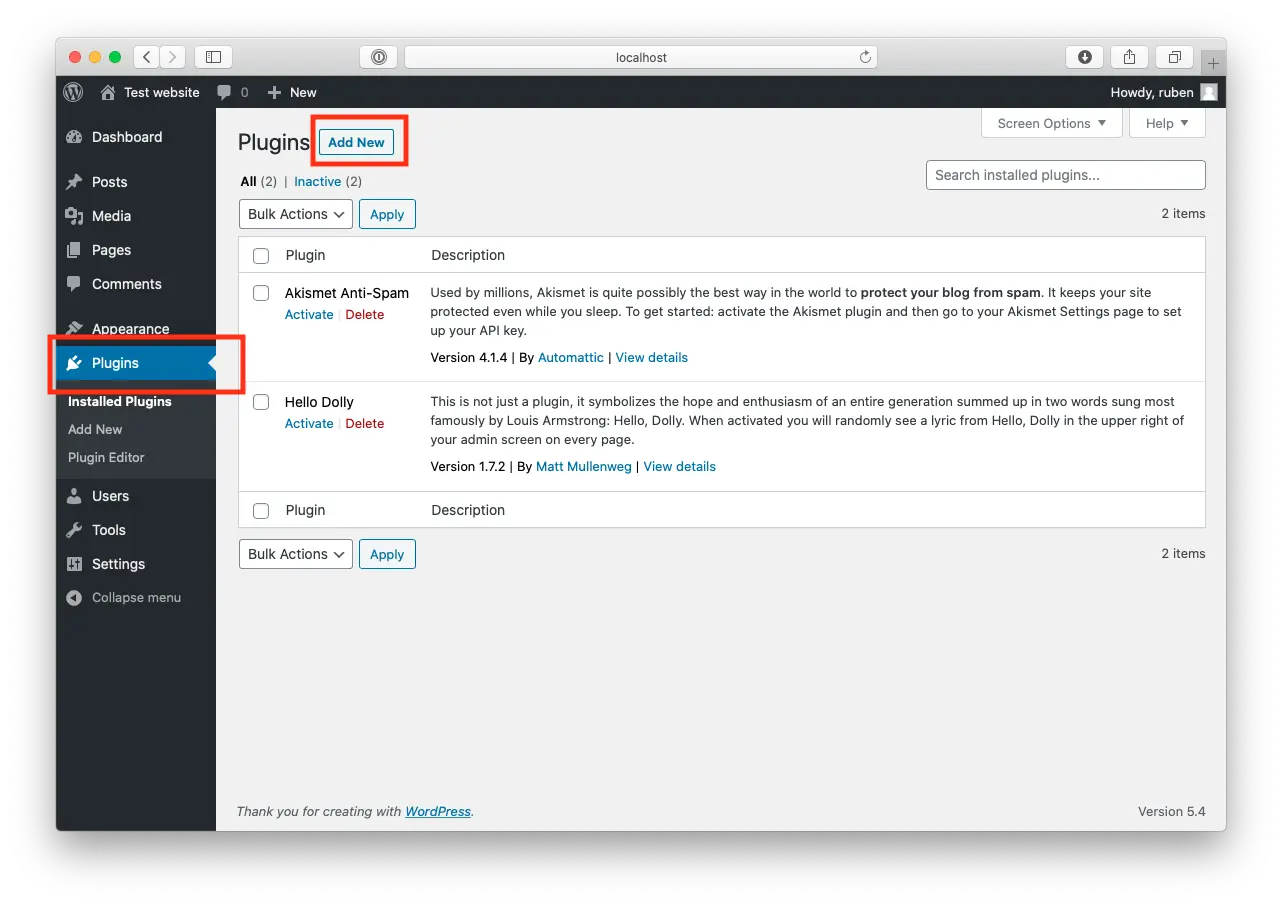
Open WordPress and click on "Plugins".
Now, click "Add New" at the top of the page.
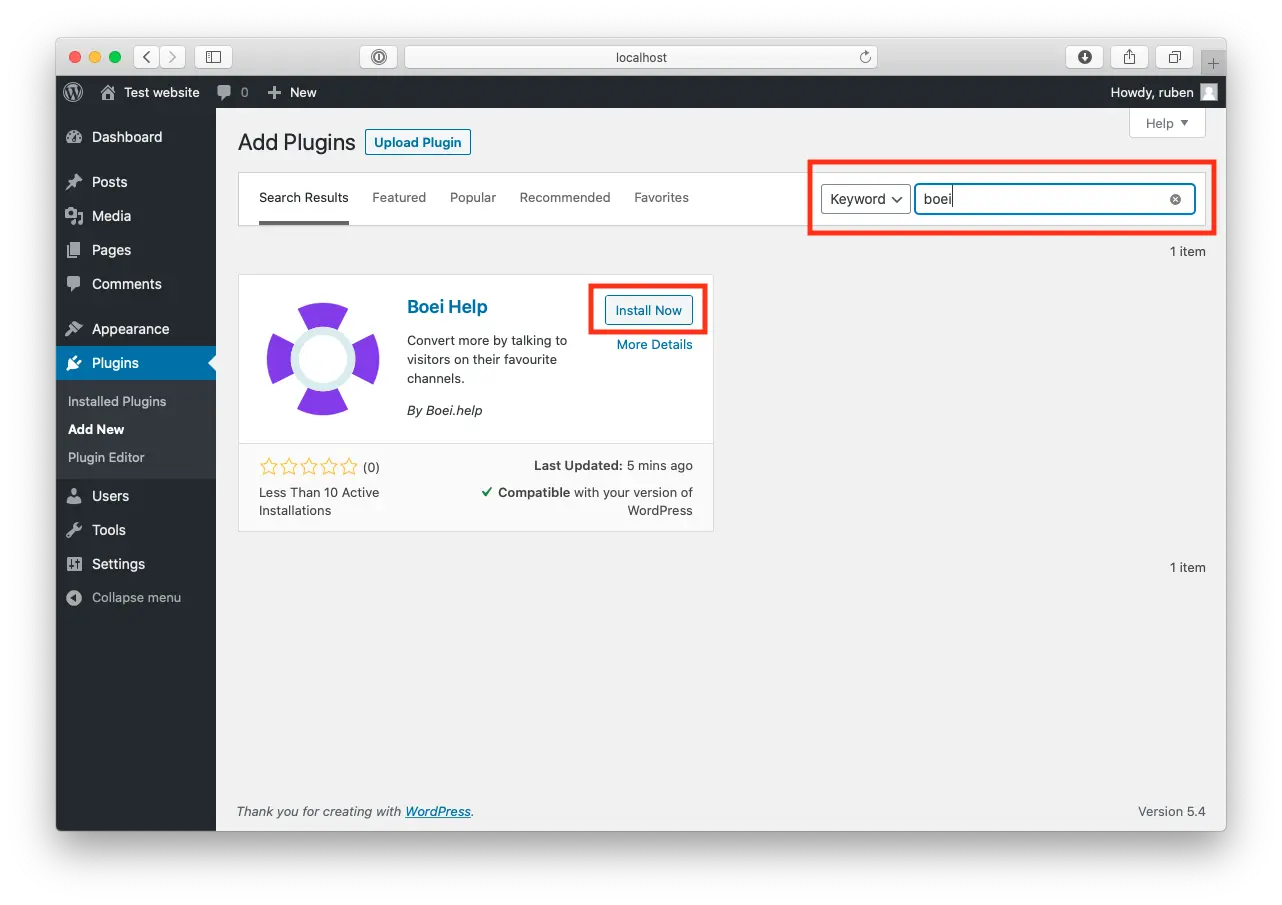
Search for "Boei" and find our plugin.
Click "Install Now".
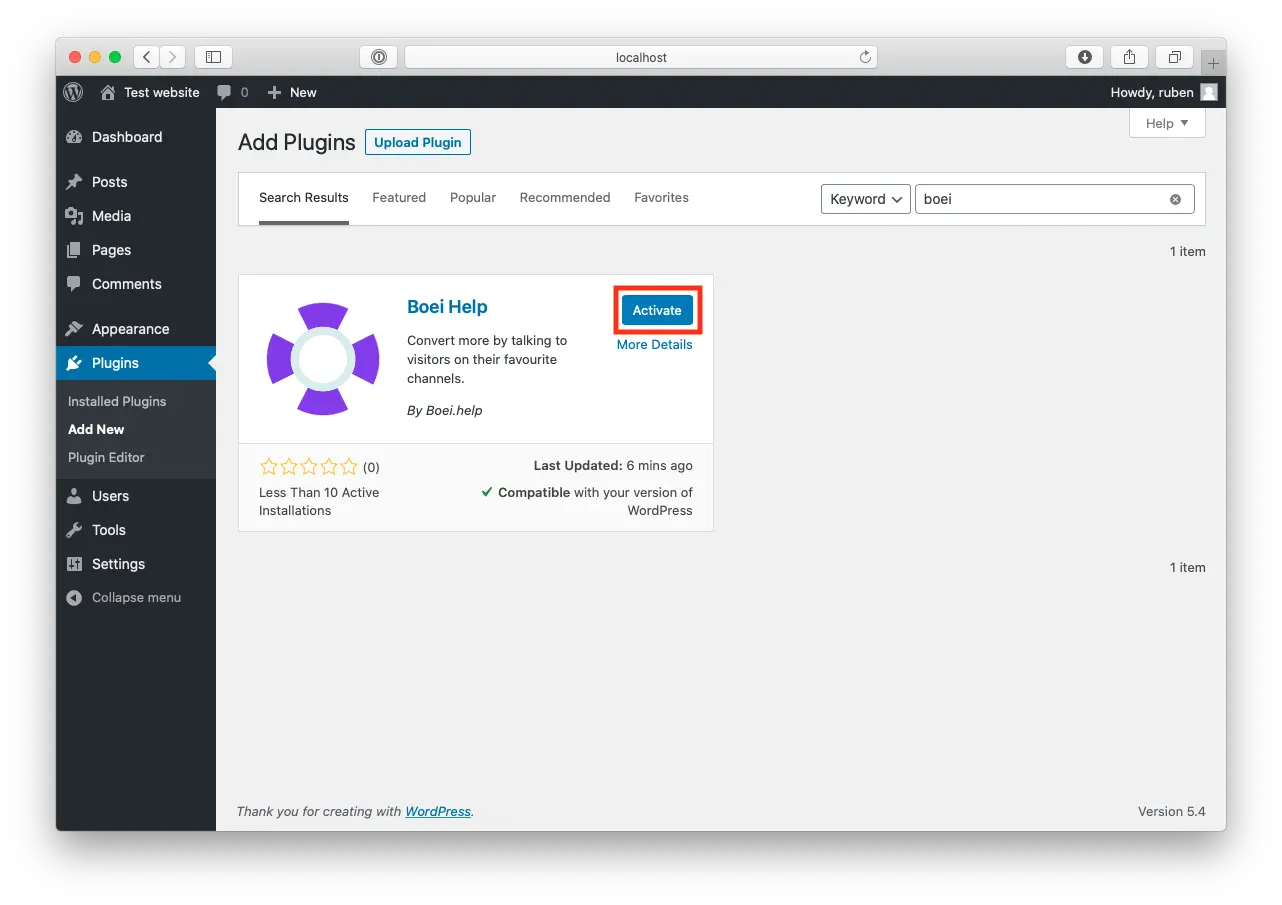
When the plugin is installed, press "Activate".
Go to the Boei plugin in WordPress (see Boei in the left menu).
Enter the key you copied in the Widget Key field and press "save".
If you don't see the field for the Widget Key, click on "Advanced / Without domain detection".
Congrats, you are done!
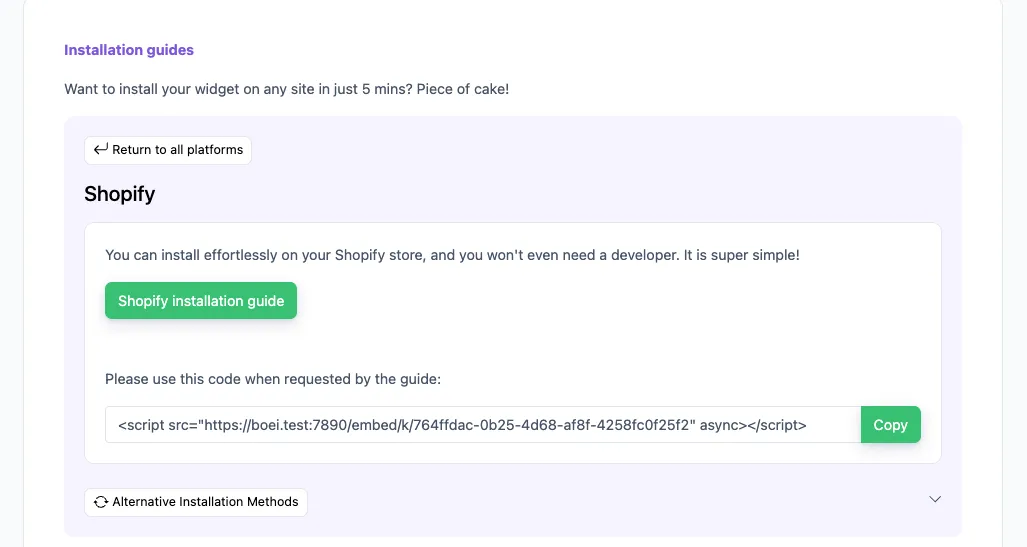
In your Boei dashboard, open your widget and click the Install tab. Select Shopify and copy the installation code.
Tip: The Install tab also offers a landing page link, QR code, and iframe embed.
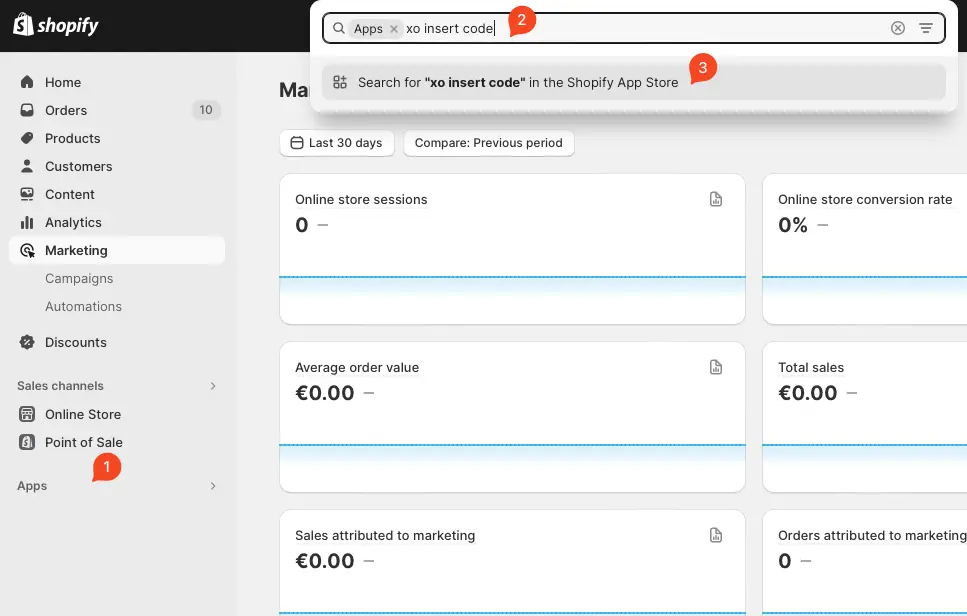
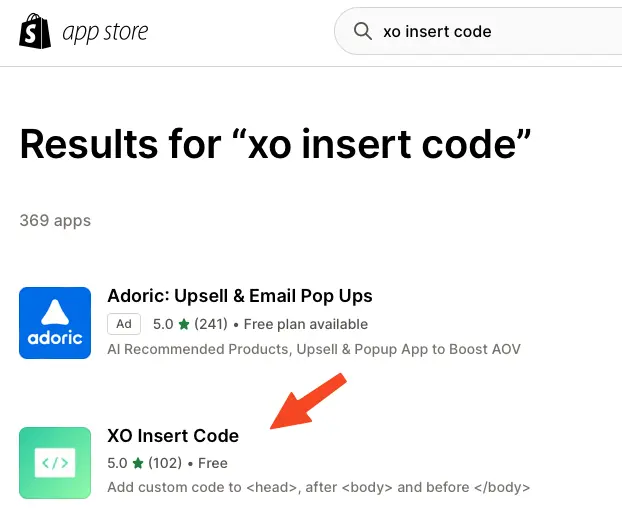
Open Shopify and click on "Apps" and search for "xo insert code".
We will use the plugin XO insert code to install Boei. It is a free and easy plugin.
Press install.
Confirm installation in Shopify.
Click add new code
Name the code "Boei" and enable it on the entire store.
Place the script from step two in place of the "code in footer" textbox.
Press save.
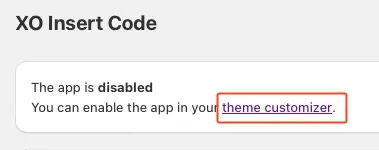
Now, we enable the plugin by clicking the theme customizer link.
Enable the checkbox and press save.
Congrats, you are done! You now have the Boei live chat Shopify installed.
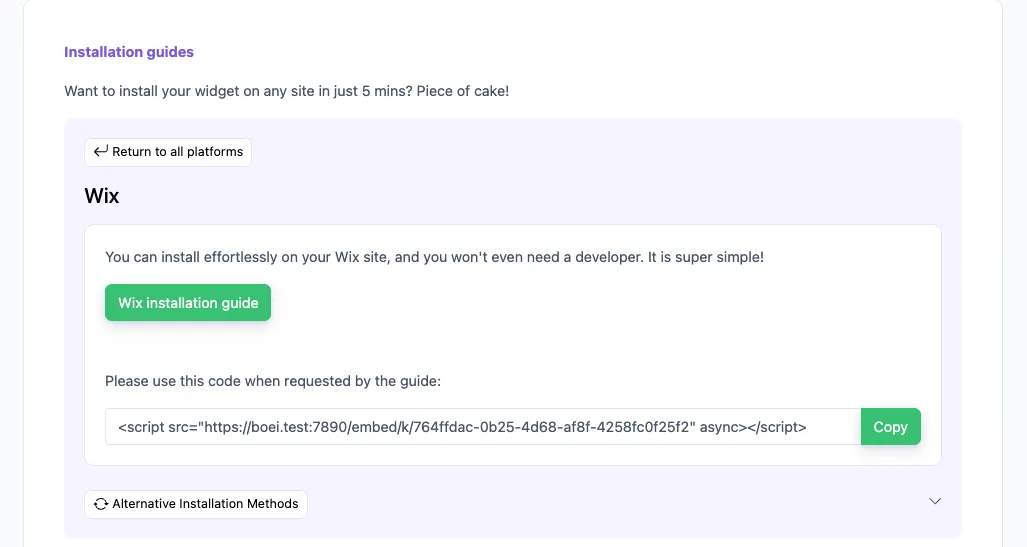
In your Boei dashboard, open your widget and click the Install tab. Select Wix and copy the installation code.
Tip: The Install tab also offers a landing page link, QR code, and iframe embed.
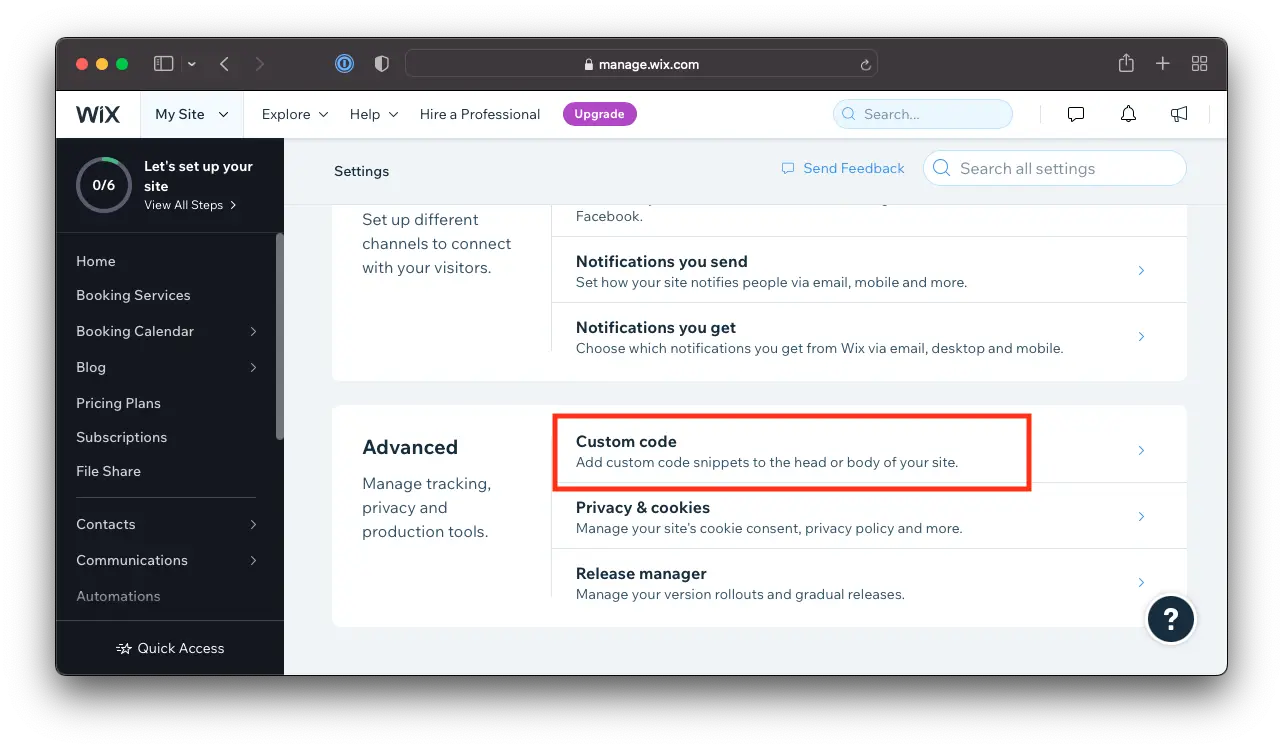
Open Wix and go to Settings -> Custom Code.
Note that Wix does not allow code scripts on all account types; you may need to upgrade.
Click Apply in Wix. Congrats, you are done!
In your Boei dashboard, open your widget and click the Install tab. Select Squarespace and copy the installation code.
Tip: The Install tab also offers a landing page link, QR code, and iframe embed.
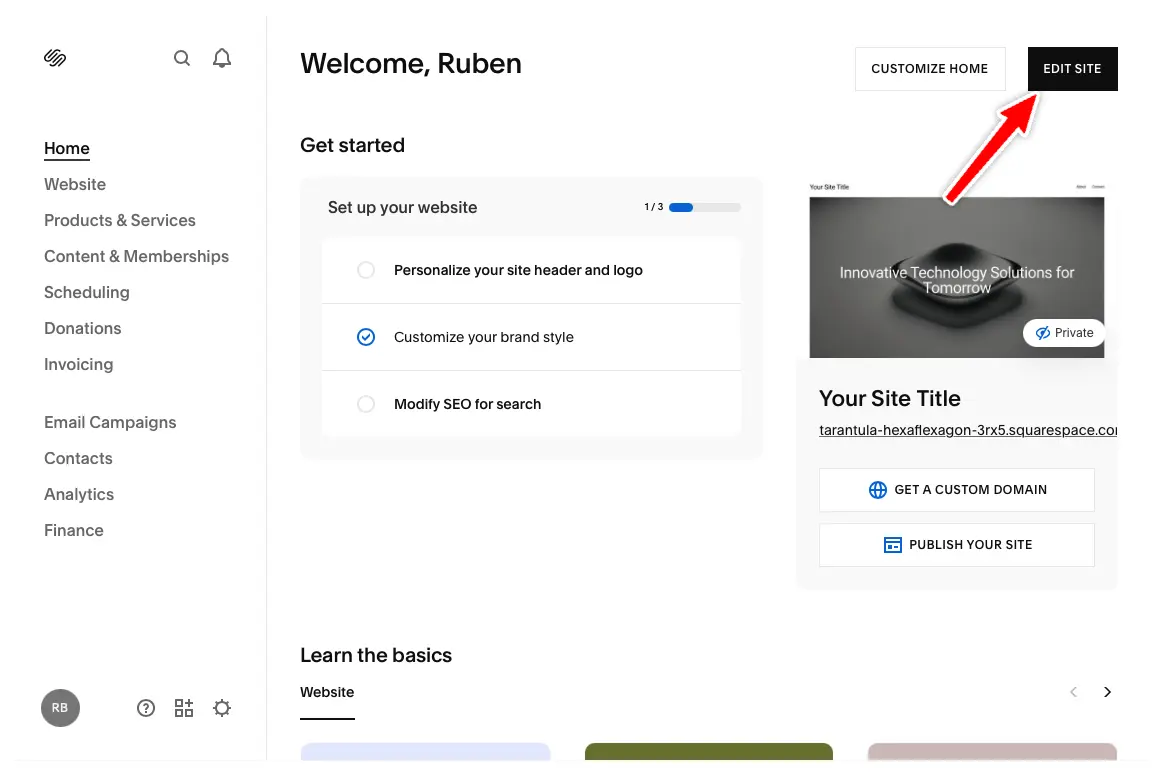
In your Squarespace dashboard, click "Edit Site" in the top right corner.
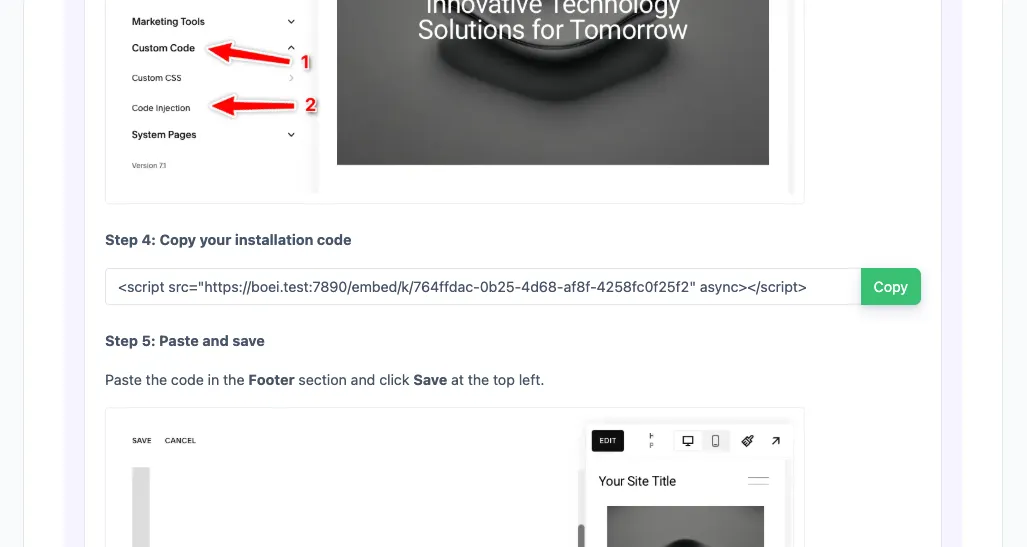
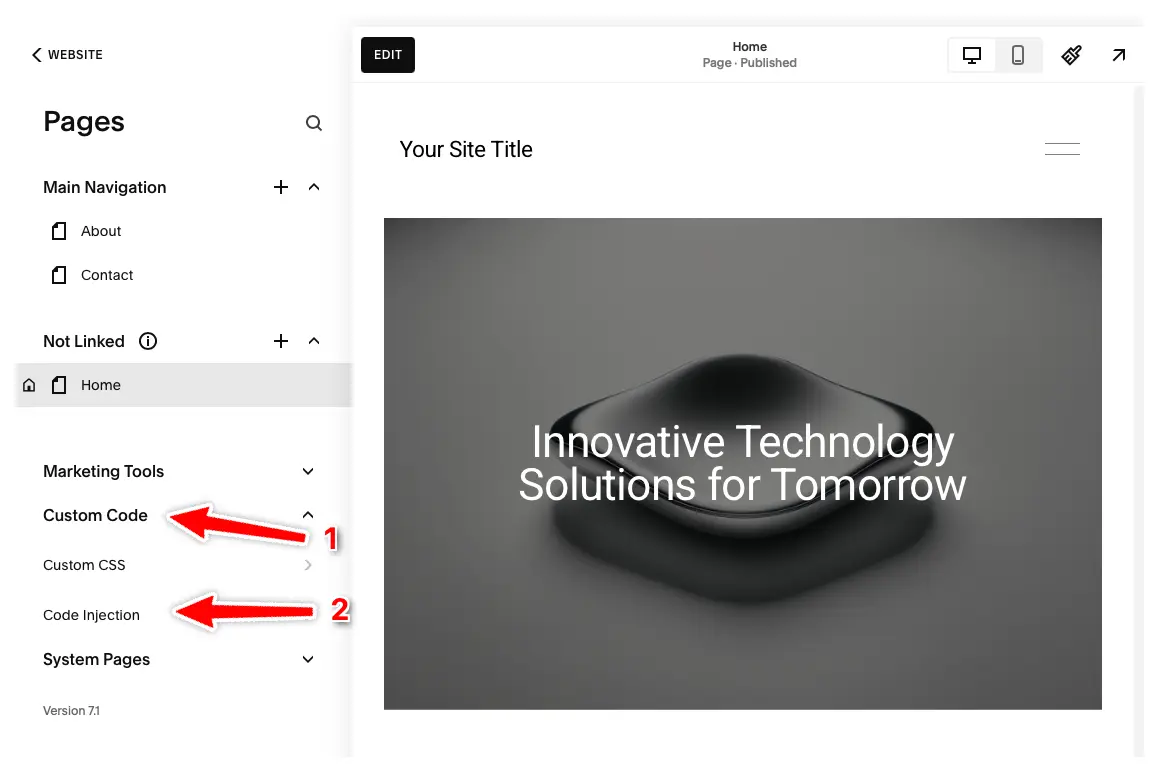
Click "Pages" in the left menu, then click "Custom Code" and select "Code Injection".
Note: Code Injection is available on Core, Plus, Advanced, Business, Commerce Basic, and Commerce Advanced plans. Personal plans don't have this feature.
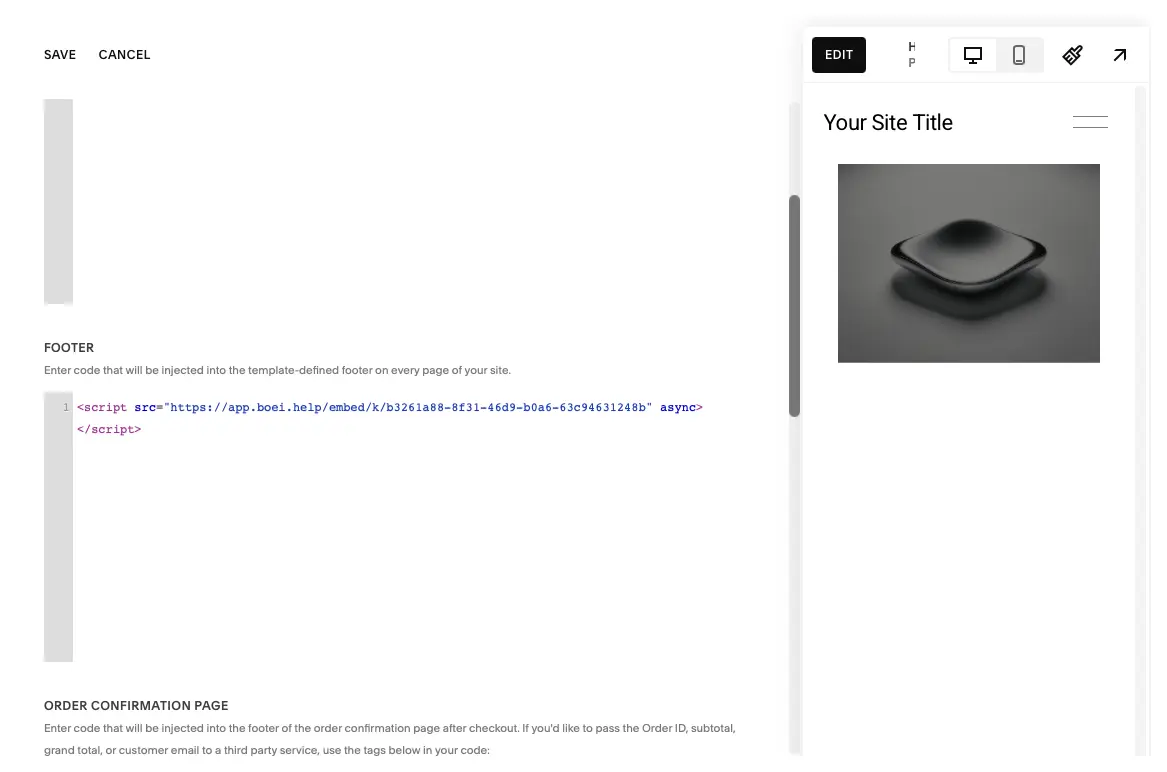
Enter your Boei code in the Footer section and press "Save" at the top left.
The Boei widget will now appear on all pages of your Squarespace site. Congrats, you are done!

Beyond basic invite links, Boei's Slack widget includes powerful features designed for businesses that take community building seriously.
David K.
CEO Small-Business (50 or fewer emp.)
Seif Ahmed
@seif588
Neu
@siddharthaneu
Irfan
@mak_web_media
Peter C
@peter_c1
Andrew Lee
@fromlife89
Grzegorz G.
Joshua G.
Ronald D.
Director Small-Business (50 or fewer emp.)
Fahd T.
Founder Small-Business (50 or fewer emp.)
David S.
CEO/Founder Small-Business (50 or fewer emp.)
Vance W.
Julien V.
Développeur d'e-commerce Small-Business (50 or fewer emp.)
Grant
Hansie
David K.
CEO Small-Business (50 or fewer emp.)
Seif Ahmed
@seif588
Neu
@siddharthaneu
Irfan
@mak_web_media
Peter C
@peter_c1
Chandra Kusuma
Pepe
Arjun E.
José Manuel D.
Cristian Trappolini
Daniel Gyger
Nitesh Manav
Renaat Sioncke
Fran Tully
Proinsias M.
Gavin S.
Sara Hall
Mike Foston
Lukáš H.
Bikram K. S.
Chandra Kusuma
Pepe
Arjun E.
José Manuel D.
Everything you need to grow your Slack community
Complete guides and resources for your Slack widget
Monitor and optimize your Slack widget performance
Combine Slack with other community platforms
Slack is a powerful community platform, but different visitors prefer different communication methods. Smart businesses offer multiple channels so every visitor finds their preferred way to connect:
Boei's multi-channel widget shows all your channels in one floating button. Use display rules to show Slack on your developer docs, WhatsApp on product pages, and a contact form on your pricing page. Visitors always see the most relevant communication options.
Join 10,000+ businesses using Boei to drive community signups — start with a 7-day free trial