Add Discord Invite Widget to Your Website

Let visitors join your Discord server with a single click. 200 million monthly active users already use Discord for community, voice chat, and collaboration. Give your audience the fastest way to become part of your community. Free to try, no coding required, GDPR-compliant.

200M+ monthly Discord users
GDPR-compliant, no cookies
5-minute no-code setup
Andrew Lee David S. Vance W. Grant Nitesh Manav
from 159 reviews

Discord Widget by the Numbers

200M+

Monthly active Discord users

19M+

Active servers worldwide

4B+

Messages sent daily

#1

Community platform for gaming

What is a Discord Widget?

A Discord widget is a floating button on your website that lets visitors join your Discord server in one click. When someone clicks the button, they are redirected to your server's invite link where Discord opens — either in the desktop app, the mobile app, or directly in the web browser — and prompts them to join your community instantly.

How Does a Discord Invite Widget Work?

The Discord widget uses Discord's invite link system. You create a permanent (never-expiring) invite link in your Discord server settings, and Boei wraps it into a customizable floating button on your website. The invite URL follows the format https://discord.gg/your-invite-code. When a visitor clicks, Discord handles the rest: existing users join immediately, while new users are guided to create a free Discord account first.

What Happens on Different Devices?

  • Desktop with Discord installed: The Discord desktop app opens directly and joins the visitor to your server. This is the smoothest experience for power users who already have Discord.
  • Desktop without Discord: The invite opens in the web browser at discord.com, where visitors can join your server without downloading anything. Discord's web app supports full functionality including text, voice, and video.
  • Mobile with Discord app: The Discord mobile app opens and adds the visitor to your server instantly. One tap and they are in.
  • Mobile without Discord app: The browser redirects to the app store (Google Play or Apple App Store) to download Discord, then deep-links them to your server after installation.

Unlike traditional live chat where you need to monitor a dashboard in real-time, Discord communities are always-on. Members interact with each other, answer questions, and build relationships even when your team is offline. This creates a self-sustaining ecosystem around your brand.

Why Add Discord to Your Website?

Discord has evolved far beyond its gaming origins. With 200 million monthly active users and 19 million active servers, it is now the go-to platform for communities of all kinds. Here is why adding Discord to your website makes strategic sense:

Build a Living Community, Not a Dead Inbox

Unlike email lists or contact forms where communication is one-directional, Discord creates a two-way community. Members talk to each other, share ideas, answer questions, and create content organically. Your community becomes an asset that grows in value over time. A thriving Discord server is worth more than any mailing list because members are actively engaged, not passively subscribed.

Real-Time Engagement Across Text, Voice, and Video

Discord is the only major platform that combines text channels, voice channels, video calls, screen sharing, and live streaming in one place. Host live Q&A sessions in voice channels, run product demos via screen share, or just let community members hang out in always-on voice rooms. No other community platform offers this level of real-time interaction for free.

Completely Free Platform with No Per-User Costs

Discord is free to use for both you and your community members. There are no per-seat charges, no message limits, and no file sharing restrictions (up to 25MB per file, 500MB with Nitro). Compare that to Slack, which charges per user on paid plans and limits message history on the free tier. For large communities, Discord's pricing model is unbeatable.

Organized Channels for Different Topics

Structure your server with dedicated channels: #general for casual conversation, #support for help requests, #announcements for news, #feedback for product suggestions, and #off-topic for community bonding. Category folders keep everything organized. Members find what they need without scrolling through irrelevant conversations.

Powerful Moderation and Role Management

Discord's role system lets you create tiers: free members, premium subscribers, beta testers, moderators, and admins. Each role can have different permissions and access to specific channels. AutoMod filters spam, slurs, and unwanted content automatically. Moderation bots add additional protection against raids and trolls.

Bot Ecosystem for Automation

Thousands of Discord bots handle everything from welcome messages and reaction roles to ticket systems, music playback, and custom commands. Popular bots like MEE6, Carl-bot, and Dyno automate community management so you spend less time on administration and more time on engagement. Developers can also build custom bots using Discord's API.

Cross-Platform: Desktop, Mobile, and Web Browser

Discord works everywhere. Native apps for Windows, macOS, Linux, iOS, and Android ensure members stay connected on any device. The web app requires zero downloads. This universal accessibility means no member is left out regardless of their device or operating system.


Discord Widget Use Cases by Industry

Real scenarios where Discord communities drive engagement and growth

Gaming Communities

Discord was built for gaming, and it shows. Game studios, indie developers, and esports organizations use Discord to coordinate teams, run tournaments, announce updates, and build player communities. Voice channels let players communicate during gameplay. Bots track game stats, manage matchmaking, and post leaderboards automatically. If you make games, your players expect a Discord server.

Developer Tools & Open Source

Open-source projects, APIs, and developer tools thrive on Discord. Projects like Next.js, Tailwind CSS, and thousands of npm packages use Discord for community support, bug reports, and contributor coordination. Developers prefer Discord over forums because answers come in real-time. Add a Discord widget to your docs site and watch support tickets decrease as community members help each other.

Educational Platforms

Online course creators, coding bootcamps, and tutoring platforms use Discord for student communities. Separate channels per course module, voice rooms for live study sessions, and stage channels for lectures create a virtual campus experience. Students help each other, reducing support burden on instructors. The sense of community increases course completion rates and reduces refund requests.

Content Creators & YouTubers

YouTubers, Twitch streamers, and podcasters use Discord to build direct relationships with their audience. Exclusive channels for Patreon supporters, behind-the-scenes content, early access to videos, and live watch parties deepen fan engagement. Discord replaces the comments section with real conversation. Creators with active Discord communities see higher view counts and stronger loyalty.

NFT & Web3 / DAOs

Discord is the default communication layer for Web3. NFT projects announce mints, DAOs coordinate governance votes, and DeFi protocols provide support through Discord. Verification bots confirm wallet ownership for token-gated channels. If your project involves blockchain, crypto, or NFTs, a Discord server is not optional — it is the primary way your community expects to interact with you.

SaaS Products

SaaS companies use Discord for user communities, beta testing groups, and customer feedback loops. Feature request channels let users vote on priorities. Bug report channels with templates streamline issue tracking. The result is faster product iteration, higher retention, and a community of advocates who promote your product organically. Combine with a contact form for formal support tickets.

Music & Art Communities

Musicians, visual artists, and creative collectives use Discord to share work, collaborate on projects, and build audiences. Music producers share stems and get feedback in dedicated critique channels. Artists run commission threads. Stage channels host live performances and portfolio reviews. Discord's media-rich environment makes it ideal for creative communities that need to share files and stream content.

Sports & Esports

Sports teams, fantasy leagues, and esports organizations use Discord for team coordination, match scheduling, and fan engagement. Voice channels for live game commentary, bot-powered stat tracking, and tournament bracket management make Discord the hub for competitive communities. Fans discuss matches in real-time without relying on social media algorithms to show their posts.

Discord Invite Widget Features

Boei's Discord widget goes beyond a simple invite link. Give visitors a polished, branded experience that converts website traffic into engaged Discord community members.

  • Never-expiring invite links that stay active permanently
  • QR code generation so desktop visitors can scan and join on mobile
  • Full branding customization: colors, icon, position, tooltip text
  • Smart display rules: show only on specific pages, devices, or countries
Discord Community
Join our Discord server!
I'd like to join the community

Discord Widget Comparison: Boei vs Alternatives

There are several ways to add Discord to your website. Here is how they compare:

FeatureBoeiDiscord Native WidgetOther Widget ToolsDIY (Custom Code)
Setup time5 minutes10-15 minutes20-30 minutes1-4 hours
Coding requiredNoBasic HTMLSometimesYes (HTML/CSS/JS)
Monthly costFrom €8Free (limited features)€15-40/monthFree (maintenance cost)
GDPR compliantYes (EU servers)US servers onlyVariesYour responsibility
Custom brandingFull customizationLimited (Discord styling)PartialFull (manual work)
Multi-channel (50+ channels)YesDiscord onlyLimitedNo
Display rules (page/device/country)YesNoSomeManual
Analytics & trackingGA, Pixel, GTMServer Insights onlyVariesManual
QR code supportYesNoRarelyNo
Free trial7 days (no card)N/AVariesN/A

When to Use Discord's Native Widget Instead

Discord offers a built-in embeddable widget that shows online members and channels directly on your website. However, this native widget has significant limitations: it uses an iframe that cannot be styled to match your branding, it loads Discord's JavaScript which may affect page performance and GDPR compliance, and it only shows Discord — you cannot combine it with other channels. If you only need a basic member count display and do not care about branding, analytics, or multi-channel support, the native widget is a free option. For everything else, Boei provides a superior experience.

Boei vs Custom Code

You can always write a custom Discord invite button with raw HTML and CSS. But you lose smart display rules, analytics integration, QR codes, multi-channel support, and the ability to update your widget without touching code. Custom solutions also require maintenance when Discord changes their invite system. Boei handles all of this automatically.

Discord Server Best Practices for Website Communities

Adding a Discord widget is the first step. Building a server that visitors actually want to join and stay in requires strategy. Here are proven best practices from successful Discord communities:

1. Set Up Your Server Structure Before Promoting

Before adding the Discord widget to your website, ensure your server is ready for new members. Create clear categories (Welcome, General, Support, Off-Topic) with descriptive channel names. Write channel descriptions explaining what each one is for. An empty, disorganized server makes a terrible first impression. Have at least a few conversations happening before you start driving traffic.

2. Create Never-Expiring Invite Links

When generating your Discord invite link, always set it to never expire and unlimited uses. Temporary invite links break after hours or days, sending your website visitors to a dead page. In Discord, go to Server Settings > Invites, or right-click any channel and select Create Invite. Set both the expiration and max uses to their maximum values.

3. Organize Channels by Topic and Purpose

Do not create too many channels at launch — it dilutes conversation. Start with 5-8 channels across 2-3 categories. Typical structure: a Welcome category (#rules, #introductions), a Community category (#general, #off-topic, #share-your-work), and a Support category (#help, #bug-reports, #feature-requests). Add channels only when conversation volume justifies it.

4. Set Up Moderation from Day One

Enable Discord's built-in AutoMod to filter spam, profanity, and suspicious links. Add a moderation bot like MEE6 or Carl-bot for automatic warnings, timeouts, and ban management. Create a #rules channel with your community guidelines. Require members to agree to rules before accessing the rest of the server using Discord's membership screening feature or a verification bot.

5. Write a Compelling Welcome Message

New members should immediately understand what your server is about and how to get started. Use a welcome channel with a pinned message that explains: what the community is for, how to introduce themselves, which channels to visit first, and how to get help. A welcome bot that sends a DM to new members with a quick-start guide increases engagement significantly.

6. Use Roles to Create Structure and Incentives

Roles are not just for permissions — they create identity and incentive. Create roles for different user types (Customer, Beta Tester, Contributor, VIP). Let members self-assign interest-based roles through reaction roles. Active contributors earn special roles that unlock exclusive channels. This gamification keeps members engaged and gives them reasons to participate.

7. Combine Discord with Other Website Channels

Discord is ideal for community building, but not every visitor wants to join a server. Offer a contact form for quick inquiries, email for formal communication, and phone for urgent matters. Use Boei's multi-channel widget to show all options from a single button — visitors choose what works for them.

How to Add Discord to Your Website

Three steps to start growing your community

1

Create a Never-Expiring Invite Link

Open your Discord server, right-click any channel, and select Create Invite. Set expiration to Never and max uses to Unlimited. Copy the invite link (format: discord.gg/your-code). Sign up for Boei and paste it in.

2

Customize Your Discord Widget

Use the Boei dashboard to customize colors, position, tooltip text, and display rules. Match your brand. Set the widget to show on specific pages like your homepage, docs, or community page. Optionally enable QR codes.

3

Install and Start Growing Your Community

Copy one line of HTML code to your website, or install the Boei plugin for WordPress, Shopify, Wix, or Squarespace. Your Discord invite button goes live immediately and visitors can join your server with a single click.

Platform Guide

Install Discord Widget on WordPress

1

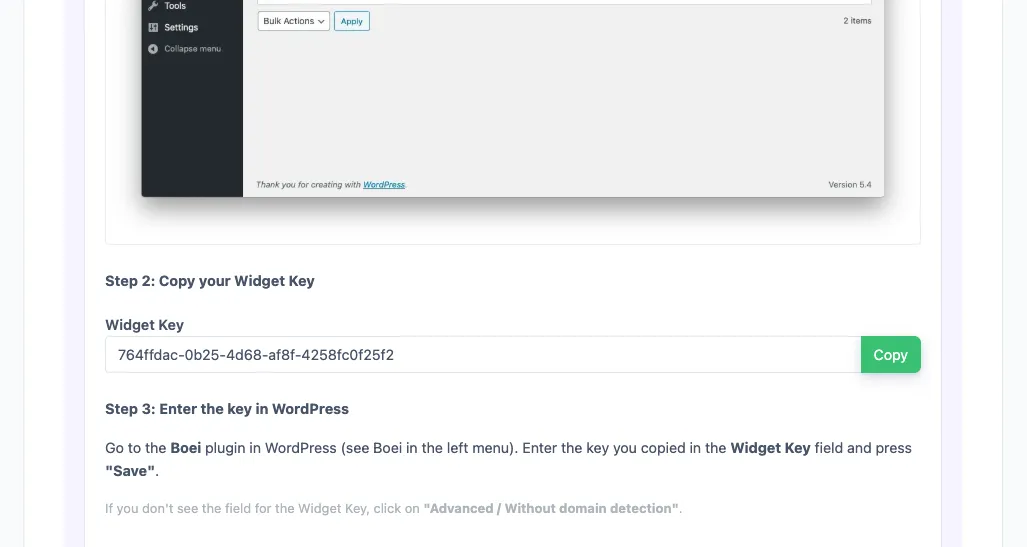
Copy WordPress key

In your Boei dashboard, open your widget and click the Install tab. Select WordPress and copy the WordPress plugin key.

Tip: The Install tab also offers a landing page link, QR code, and iframe embed.

Copy WordPress key
2

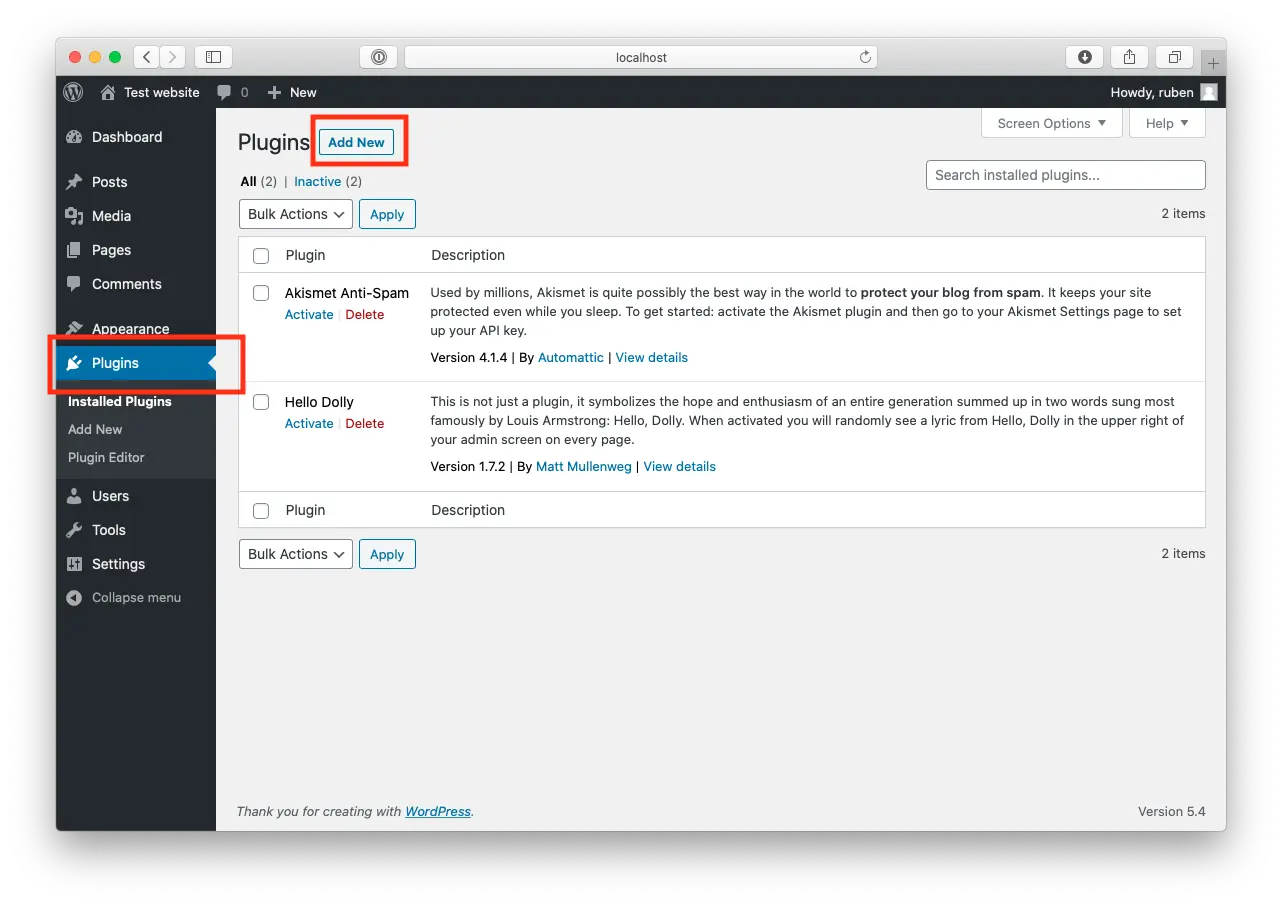
Log in to WordPress

Open WordPress and click on "Plugins".
Now, click "Add New" at the top of the page.

Log in to WordPress
3

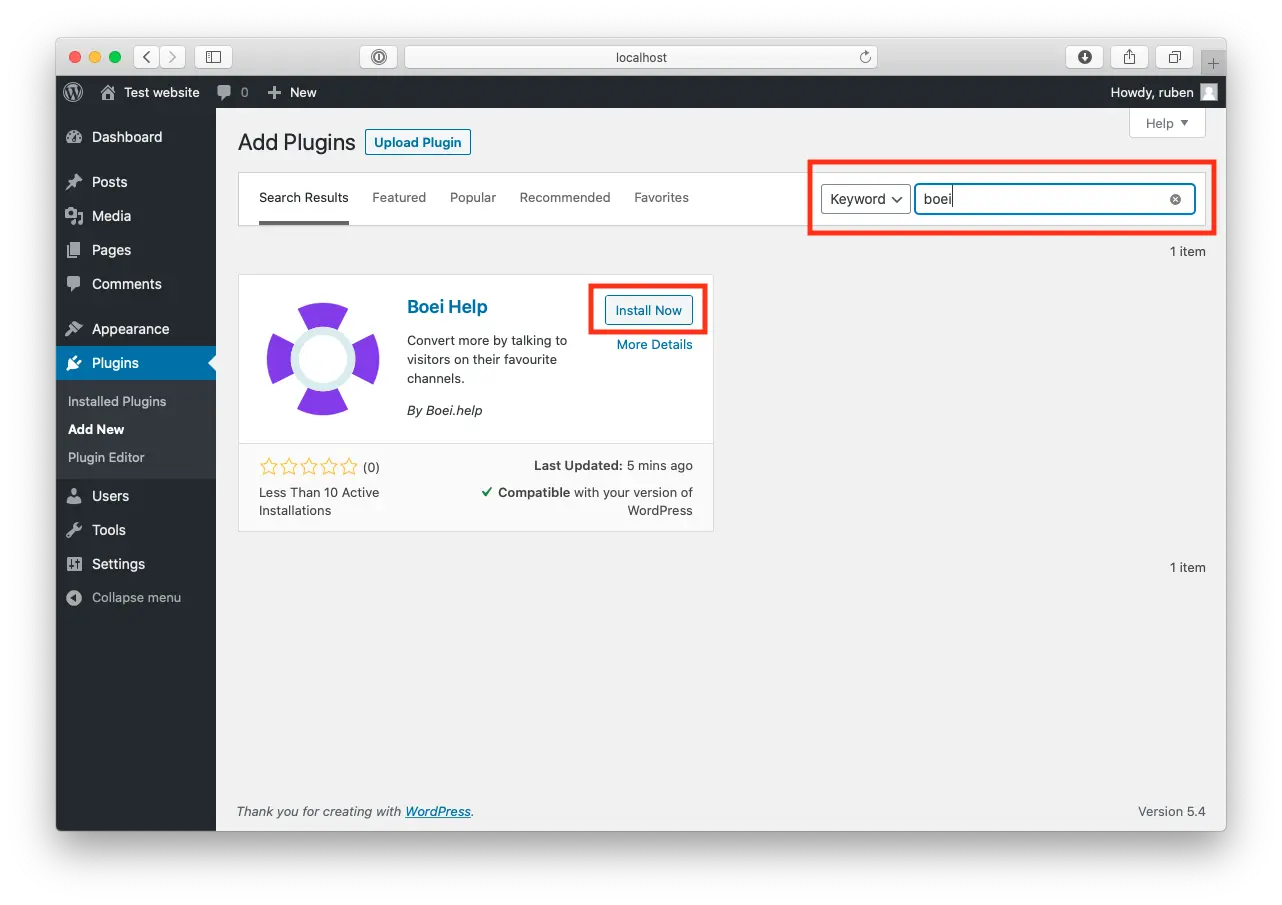
Install Boei Plugin

Search for "Boei" and find our plugin.

Click "Install Now".

Install Boei Plugin
4

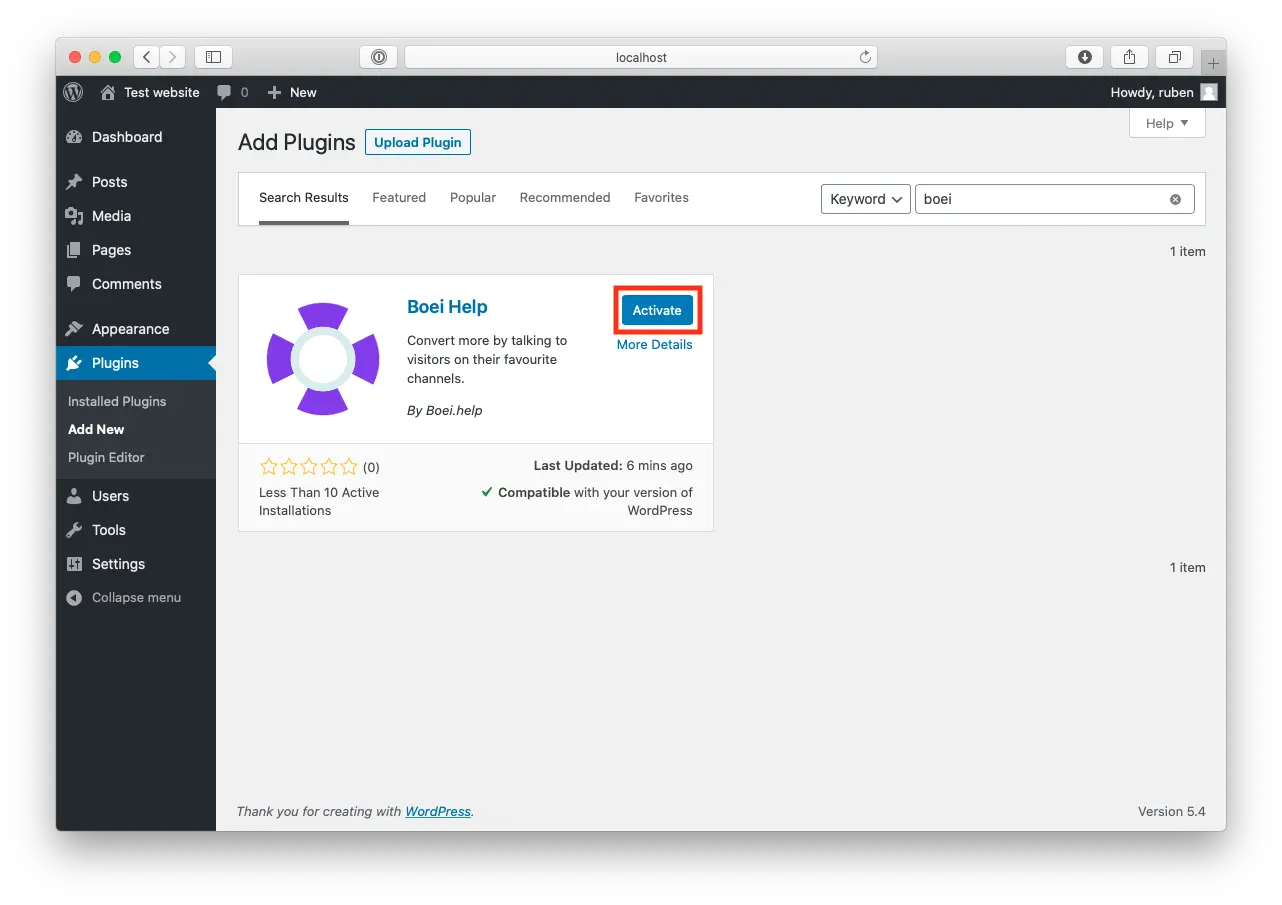
Activate

When the plugin is installed, press "Activate".

Activate
5

Paste key in Boei's WordPress Plugin

Go to the Boei plugin in WordPress (see Boei in the left menu).

Enter the key you copied in the Widget Key field and press "save".

If you don't see the field for the Widget Key, click on "Advanced / Without domain detection".

6

Finished coffee

Congrats, you are done!

Platform Guide

Install Discord Widget on Shopify

1

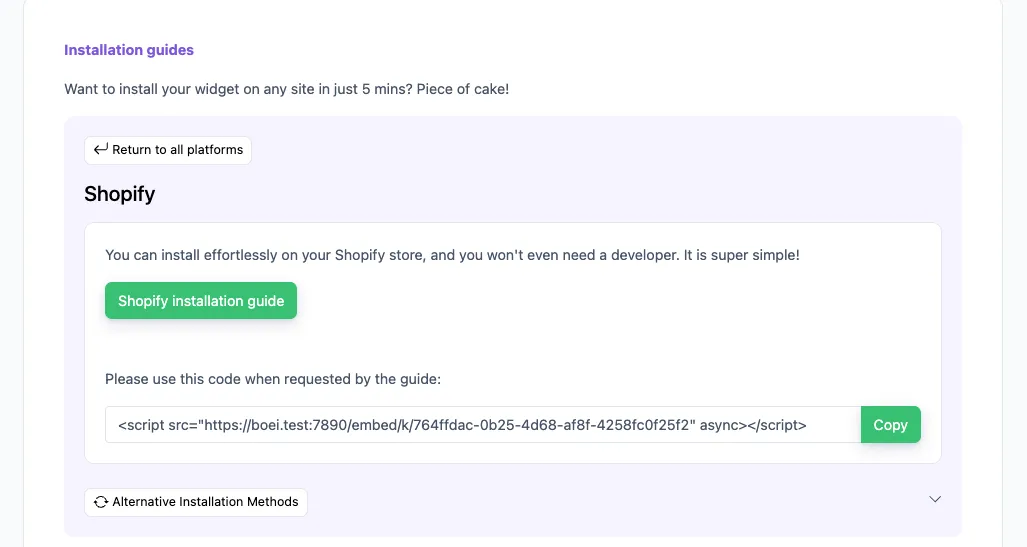
Copy installation code

In your Boei dashboard, open your widget and click the Install tab. Select Shopify and copy the installation code.

Tip: The Install tab also offers a landing page link, QR code, and iframe embed.

Copy installation code
2

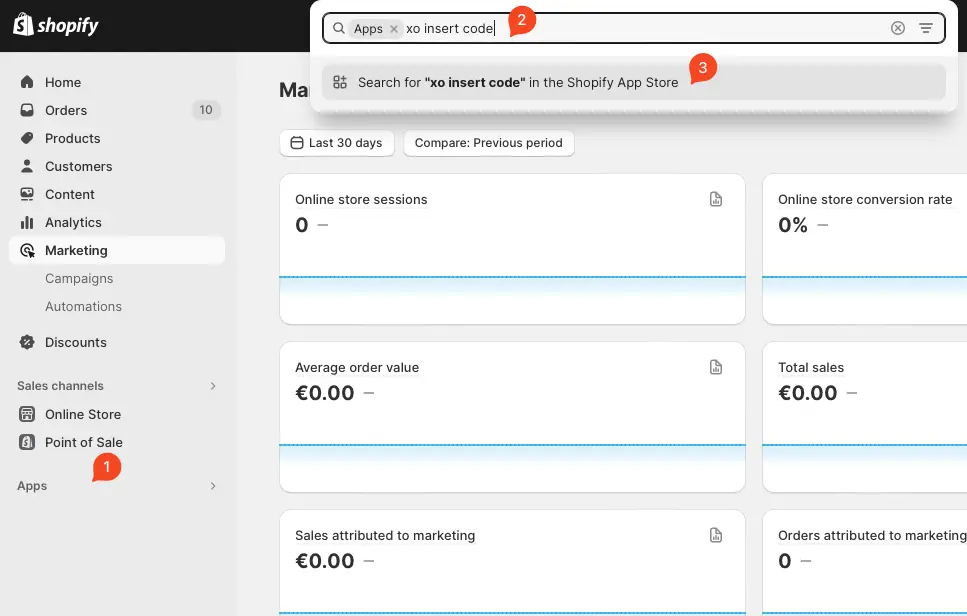
Log in to Shopify

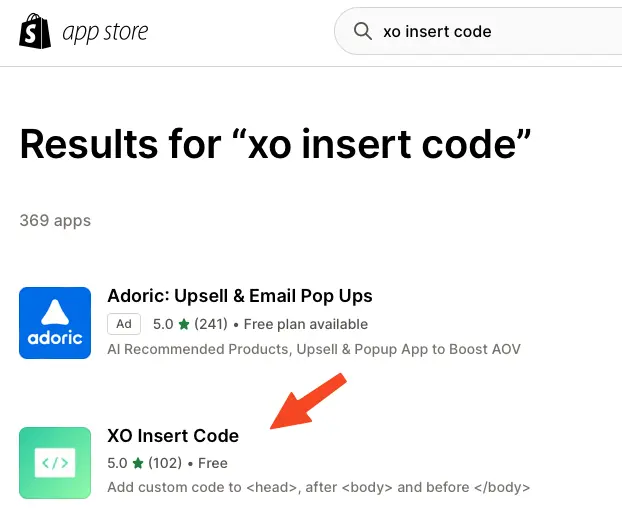
Open Shopify and click on "Apps" and search for "xo insert code".

We will use the plugin XO insert code to install Boei. It is a free and easy plugin.

Log in to Shopify
3

Install the plugin

Press install.

Confirm installation in Shopify.

Install the plugin
4

Install the Boei code

Click add new code

Name the code "Boei" and enable it on the entire store.

Place the script from step two in place of the "code in footer" textbox.

Press save.

Install the Boei code
5

Enable the plugin

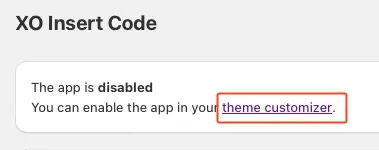
Now, we enable the plugin by clicking the theme customizer link.

Enable the checkbox and press save.

Congrats, you are done! You now have the Boei live chat Shopify installed.

Enable the plugin

Platform Guide

Install Discord Widget on Wix

1

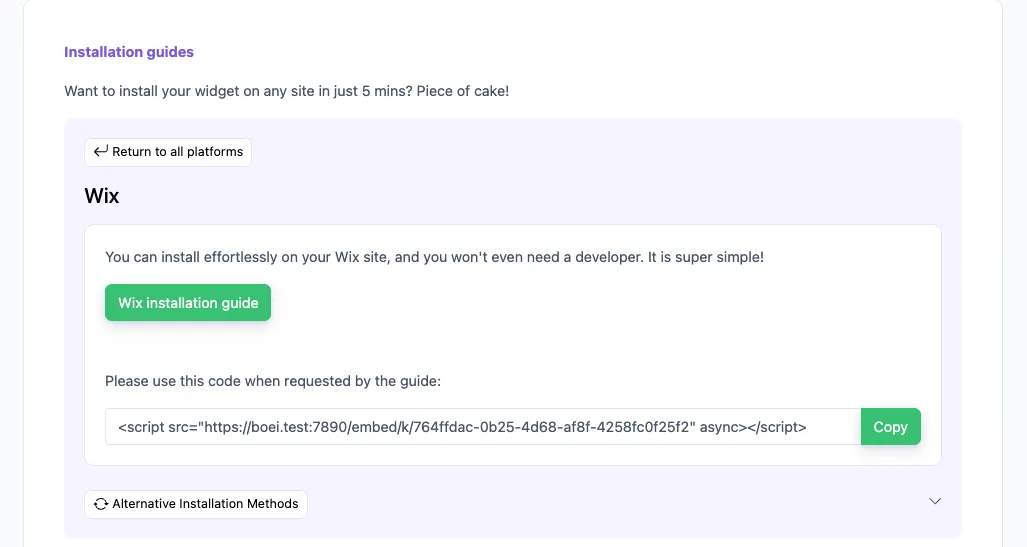
Copy installation code

In your Boei dashboard, open your widget and click the Install tab. Select Wix and copy the installation code.

Tip: The Install tab also offers a landing page link, QR code, and iframe embed.

Copy installation code
2

Log in to Wix

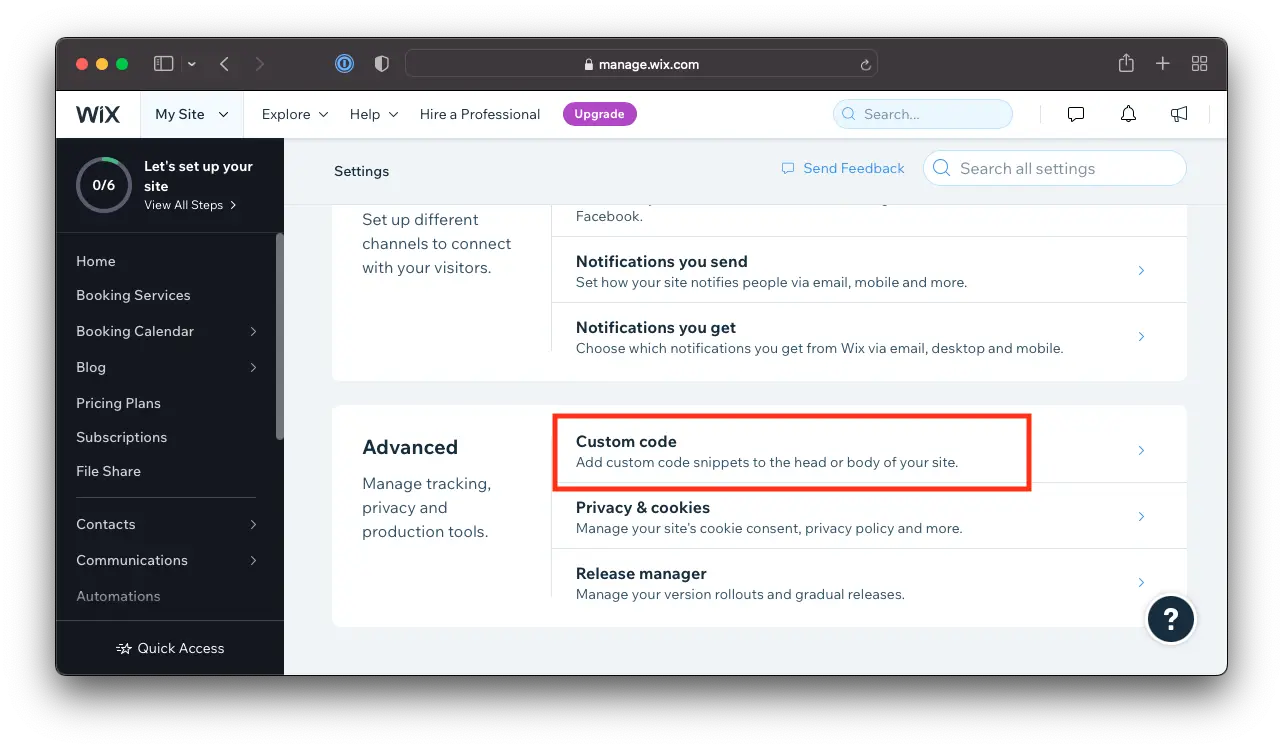
Open Wix and go to Settings -> Custom Code.

  1. Go to Settings in your site's dashboard.
  2. Click the Custom Code tab in the Advanced section.
Log in to Wix
3

Go to settings and install the Boei code snippet

  1. Click + Add Custom Code at the top right.
  2. Paste the code snippet in the text box. See step 2 above for the Boei code.
  3. Enter a name for your code.
  4. Select an option under Add Code to Pages: All pages
  5. Choose where to place your code under Place Code in:. Body - end

Note that Wix does not allow code scripts on all account types; you may need to upgrade.

4

Save

Click Apply in Wix. Congrats, you are done!

Platform Guide

Install Discord Widget on Squarespace

1

Copy installation code

In your Boei dashboard, open your widget and click the Install tab. Select Squarespace and copy the installation code.

Tip: The Install tab also offers a landing page link, QR code, and iframe embed.

Copy installation code
2

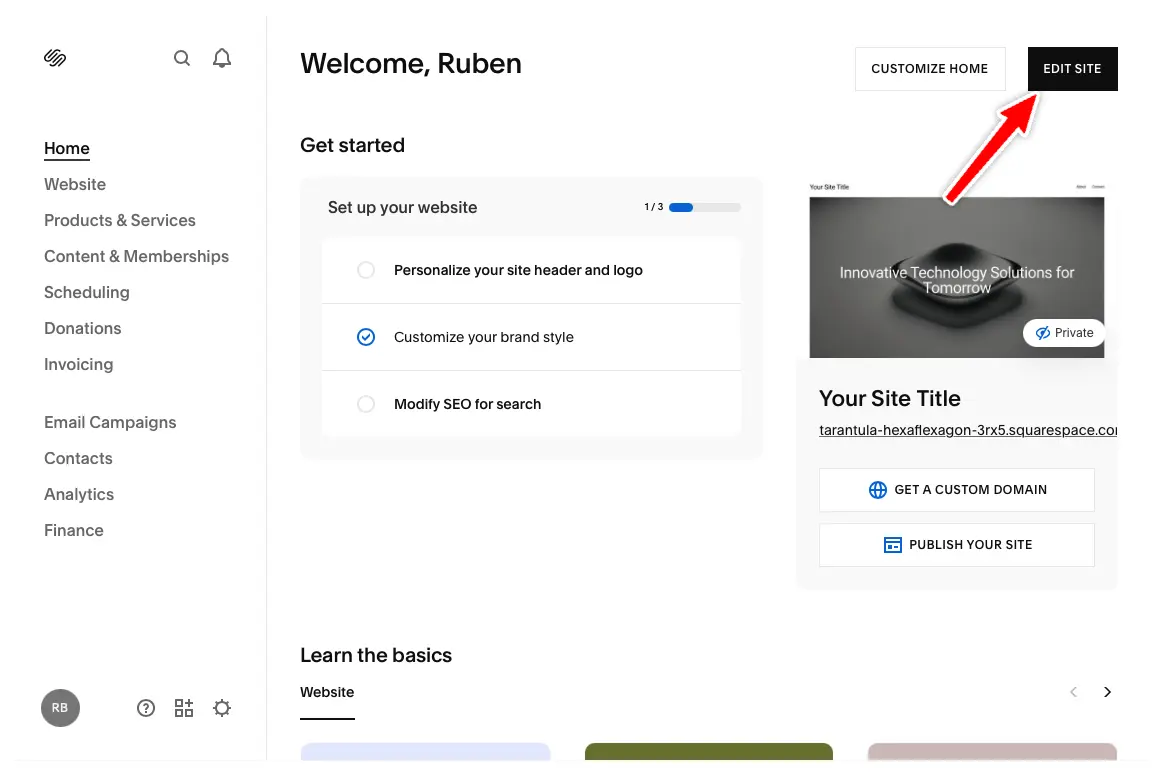
Click Edit Site

In your Squarespace dashboard, click "Edit Site" in the top right corner.

Click Edit Site
3

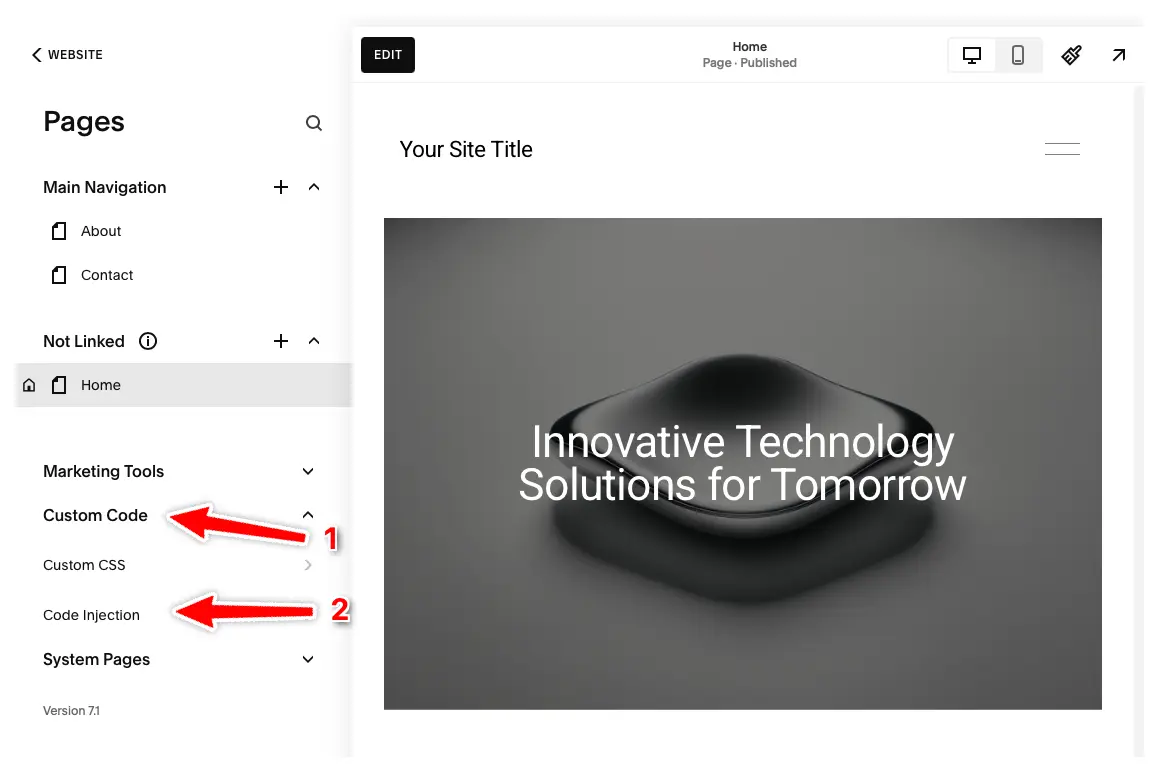
Open Code Injection

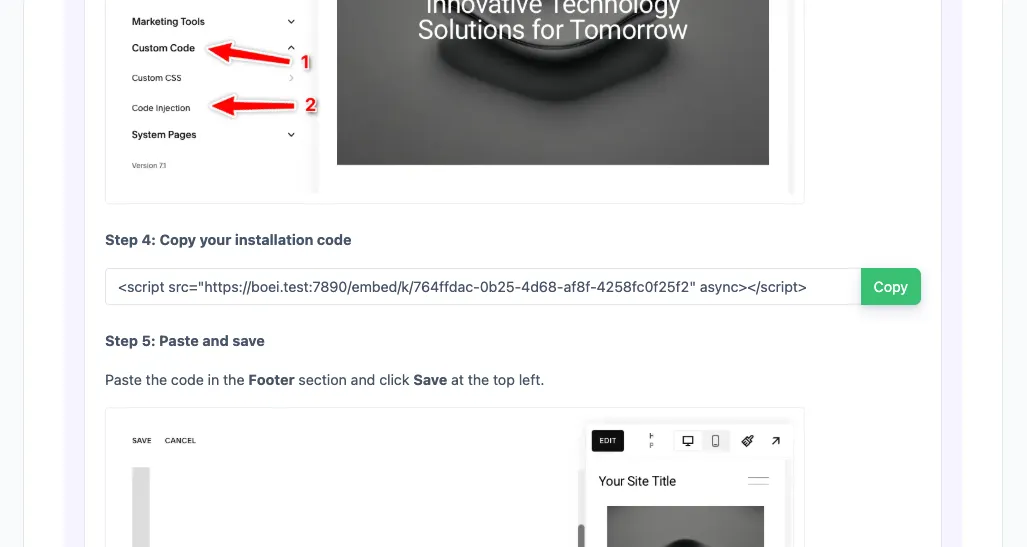
Click "Pages" in the left menu, then click "Custom Code" and select "Code Injection".

Note: Code Injection is available on Core, Plus, Advanced, Business, Commerce Basic, and Commerce Advanced plans. Personal plans don't have this feature.

Open Code Injection
4

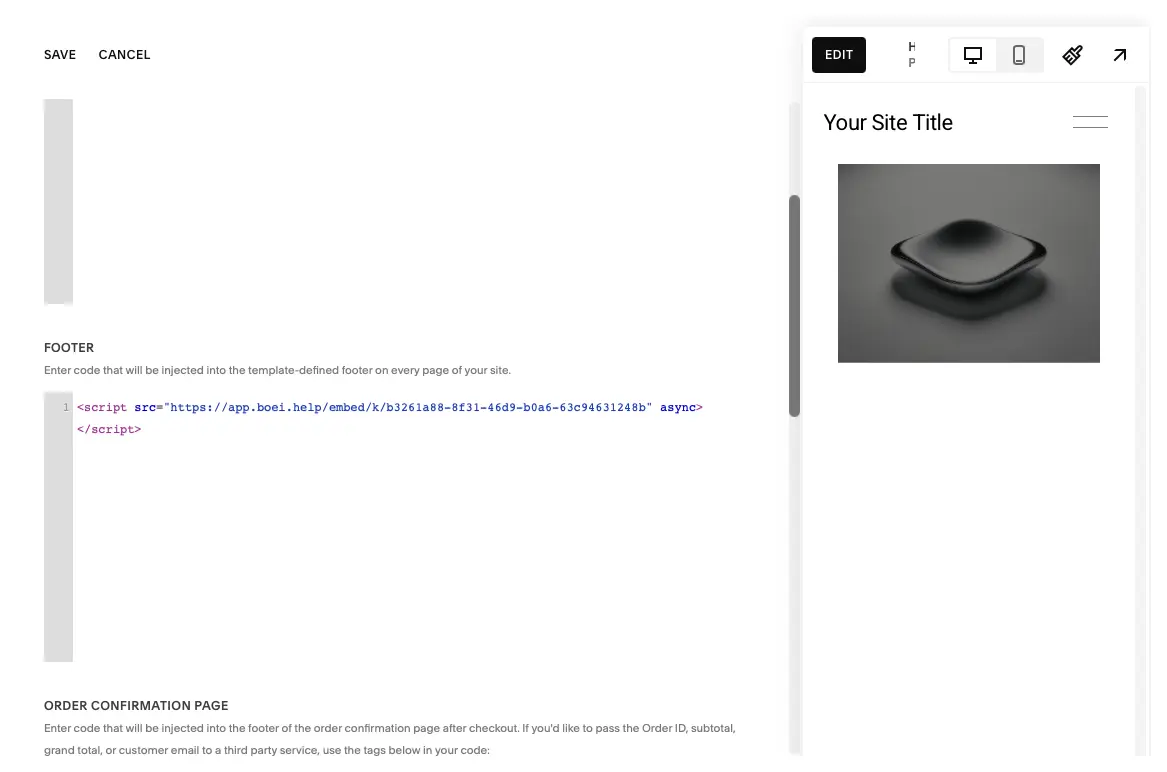
Paste Code & Save

Enter your Boei code in the Footer section and press "Save" at the top left.

The Boei widget will now appear on all pages of your Squarespace site. Congrats, you are done!

Paste Code & Save
Customize Your Bot
Brand Colors
Smart Responses
Personality

Advanced Discord Widget Features

Beyond a basic invite button, Boei's Discord widget includes powerful features designed for serious community builders who want full control over their website-to-Discord funnel.

  • Smart display rules: target by page URL, device type, visitor country, or referral source
  • 50+ channel integration: combine Discord with WhatsApp, Slack, Telegram, phone, email, and more in one widget
  • Conversion tracking: monitor Discord invite clicks in Google Analytics, Facebook Pixel, and Google Tag Manager
  • Business hours scheduling: show Discord during active hours, switch to a contact form after hours
  • QR code generation for offline marketing: print materials, conference slides, product packaging
  • Lead capture fields: optionally collect email or name before redirecting to Discord
  • Central dashboard for all channels: manage Discord alongside every other contact method
  • A/B testing: experiment with button text, colors, and placement to maximize join rates

10,000+ Businesses Trust Boei for Community Building

Discord Widget FAQ

How do I add Discord to my website?

Sign up for Boei's free trial, paste your Discord server invite link (discord.gg/your-code), customize the button design in the dashboard, and copy one line of HTML code to your website. The entire process takes about 5 minutes. No coding skills required. Works on any website including WordPress, Shopify, Wix, Squarespace, and custom HTML sites.

Do I need a Discord server to use the widget?

Yes, you need an existing Discord server with a valid invite link. Creating a Discord server is free and takes about 2 minutes: open Discord, click the + button on the left sidebar, choose Create My Own, and follow the prompts. Once your server is ready, create a never-expiring invite link and add it to Boei. Discord itself is completely free to use with no per-member costs.

Discord vs Slack: which is better for community building?

For open communities, Discord wins decisively. Discord is free for unlimited members with full message history, while Slack limits message history on the free tier and charges per-user on paid plans. Discord also offers built-in voice and video channels, a rich bot ecosystem, and a user base familiar with community participation. Slack is better suited for internal team communication and professional workspaces where members are employees rather than community members. Many businesses use both: Discord for community, Slack for internal teams.

Is the Discord widget GDPR compliant?

Yes, Boei is fully GDPR-compliant. Our servers are located in Amsterdam, Netherlands (EU). The widget itself uses zero cookies and collects no personal data before a visitor chooses to click the Discord invite button. We provide a Data Processing Agreement (DPA) for businesses that require one. Note that Discord itself is a US-based service, so conversations within Discord are subject to Discord's own privacy policy. Boei's role is limited to displaying the invite button on your website.

Can I track Discord invite clicks and conversions?

Yes. Boei tracks every click on your Discord widget and sends events to Google Analytics 4, Facebook Pixel, Google Tag Manager, and any custom webhook. You can see which pages generate the most Discord joins, which devices your community members use, and how invite clicks trend over time. Use this data to optimize widget placement and drive more community growth.

Can I use Discord for business and customer support?

Absolutely. Discord is increasingly used by businesses for customer support communities, beta testing groups, and user feedback channels. Companies like Midjourney, Figma, and many SaaS products run their entire support operation through Discord. Create dedicated #support and #bug-reports channels, use ticket bots for structured issue tracking, and let community members help each other. For formal business inquiries, combine Discord with a contact form or email widget.

How much does the Discord widget cost?

Boei offers a 7-day free trial with full access to all features, no credit card required. After the trial, plans start from €8/month. Discord itself is completely free to use. There are no per-member charges, no message limits, and no hidden fees. The total cost of running a Discord community through your website is just the Boei subscription.

What is the difference between Boei's Discord widget and Discord's native embed widget?

Discord offers a built-in embeddable widget (an iframe) that shows online members and channels on your page. However, this native widget cannot be customized to match your branding, loads Discord's JavaScript which raises GDPR concerns, only displays Discord with no multi-channel support, and lacks analytics tracking. Boei's widget is a lightweight, customizable button that matches your brand, integrates with analytics tools, supports 50+ channels alongside Discord, and is fully GDPR-compliant with EU servers.

Can I show the Discord widget only on certain pages?

Yes. Boei's display rules let you control exactly where and when the Discord widget appears. Show it only on your community page and documentation, hide it on checkout pages, display it only for desktop visitors, or target visitors from specific countries. You can combine multiple rules for precise targeting. For example: show Discord on /docs and /community pages, but show a contact form on /pricing.

Does the Discord widget work if visitors do not have Discord installed?

Yes. On desktop, clicking the widget opens Discord in the web browser at discord.com — no download required. The Discord web app supports full functionality including text, voice, and video. On mobile, if the Discord app is not installed, the visitor is redirected to the app store to download it. After installation, the invite link deep-links them directly to your server.

Can I combine Discord with other contact channels on my website?

Yes, and this is one of Boei's core strengths. Add Discord for community building alongside WhatsApp for direct messaging, phone for urgent calls, contact form for structured inquiries, Telegram for privacy-focused users, and Slack for professional workspaces. All channels appear in one floating widget. Visitors choose their preferred method.

How do I create a never-expiring Discord invite link?

In your Discord server, right-click any text channel and select Create Invite. In the invite settings popup, set 'Expire After' to Never and 'Max Number of Uses' to No Limit. Click Generate a New Link, then copy the URL. This permanent link can be safely used in your Boei widget without worrying about it breaking. If you accidentally create a temporary link, you can always generate a new permanent one and update it in the Boei dashboard.

Discord Widget Resources

Guides, platform docs, and related tools

Combine Discord with Other Contact Channels

Discord is perfect for community building, but not every website visitor wants to join a server. Smart businesses offer multiple channels so every visitor finds their preferred way to engage:

  • Slack widget — For professional workspaces, internal teams, and B2B customer communities where Slack is already the standard
  • Telegram widget — For privacy-conscious users and markets where Telegram dominates (Eastern Europe, Central Asia, crypto communities)
  • WhatsApp widget — For direct one-on-one messaging with customers, especially in Europe, Latin America, and Asia
  • Phone widget — For urgent matters and customers who prefer speaking to someone immediately
  • Contact form — For structured inquiries, quote requests, and lead capture with specific fields
  • AI chatbot — For instant 24/7 answers to common questions, even when your team and community are offline

Boei's multi-channel widget shows all your channels in one floating button. Use display rules to show Discord on community and docs pages, a contact form on pricing pages, and WhatsApp on product pages. Every visitor finds the right channel for their needs.

See All 50+ Channels

Ready to Build Your Discord Community?

Join 10,000+ businesses using Boei to connect their website visitors with Discord

7-day free trial • No credit card required • 5-minute setup • GDPR compliant (EU servers) • Dutch company, Amsterdam servers