WhatsApp Channel
Add WhatsApp to your widget so visitors can message you directly. WhatsApp is one of the most popular channels for customer communication.
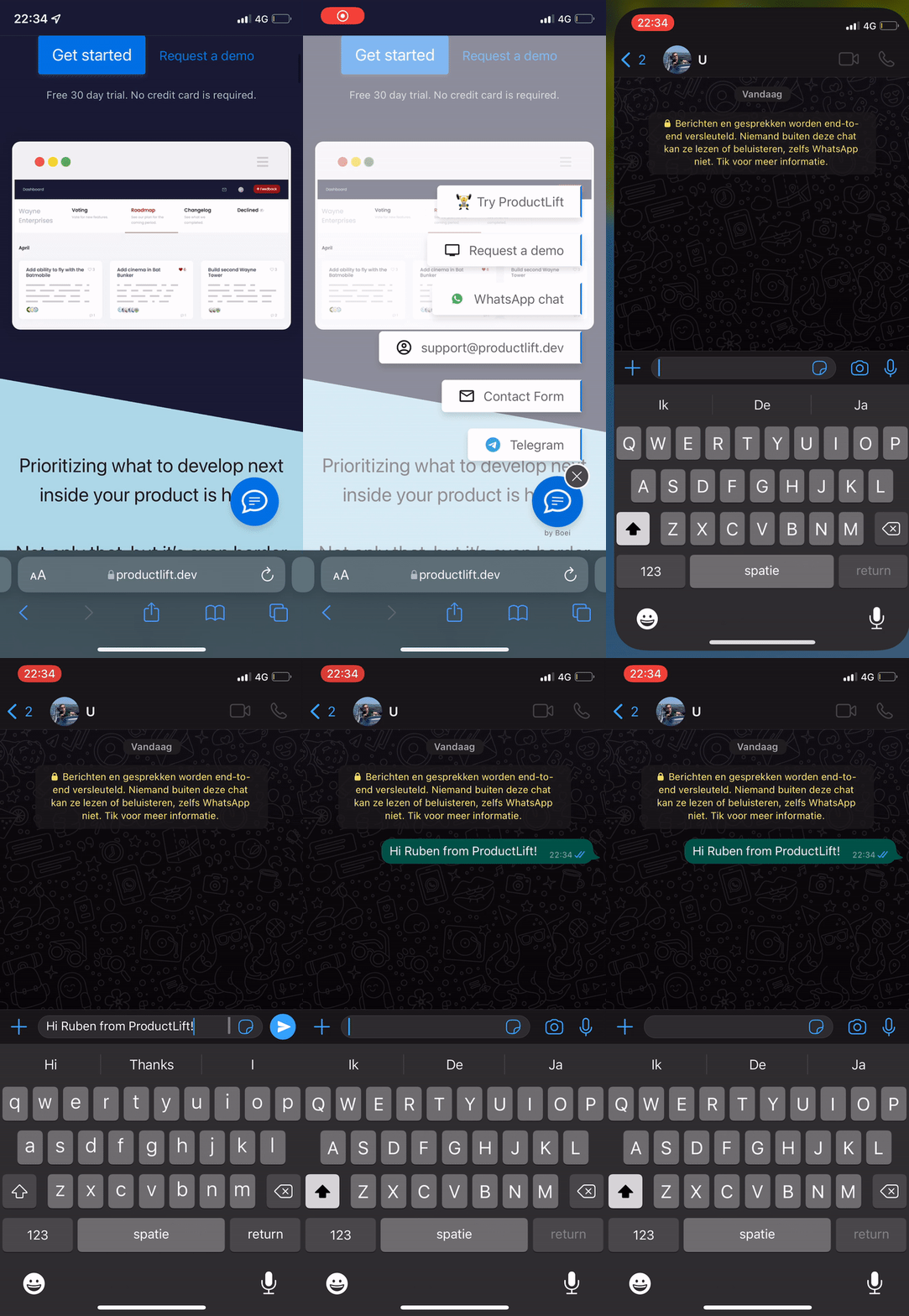
How to get there: Go to Setup → Website widget in the top menu → click your widget → click Add Channel and select WhatsApp.
Setup
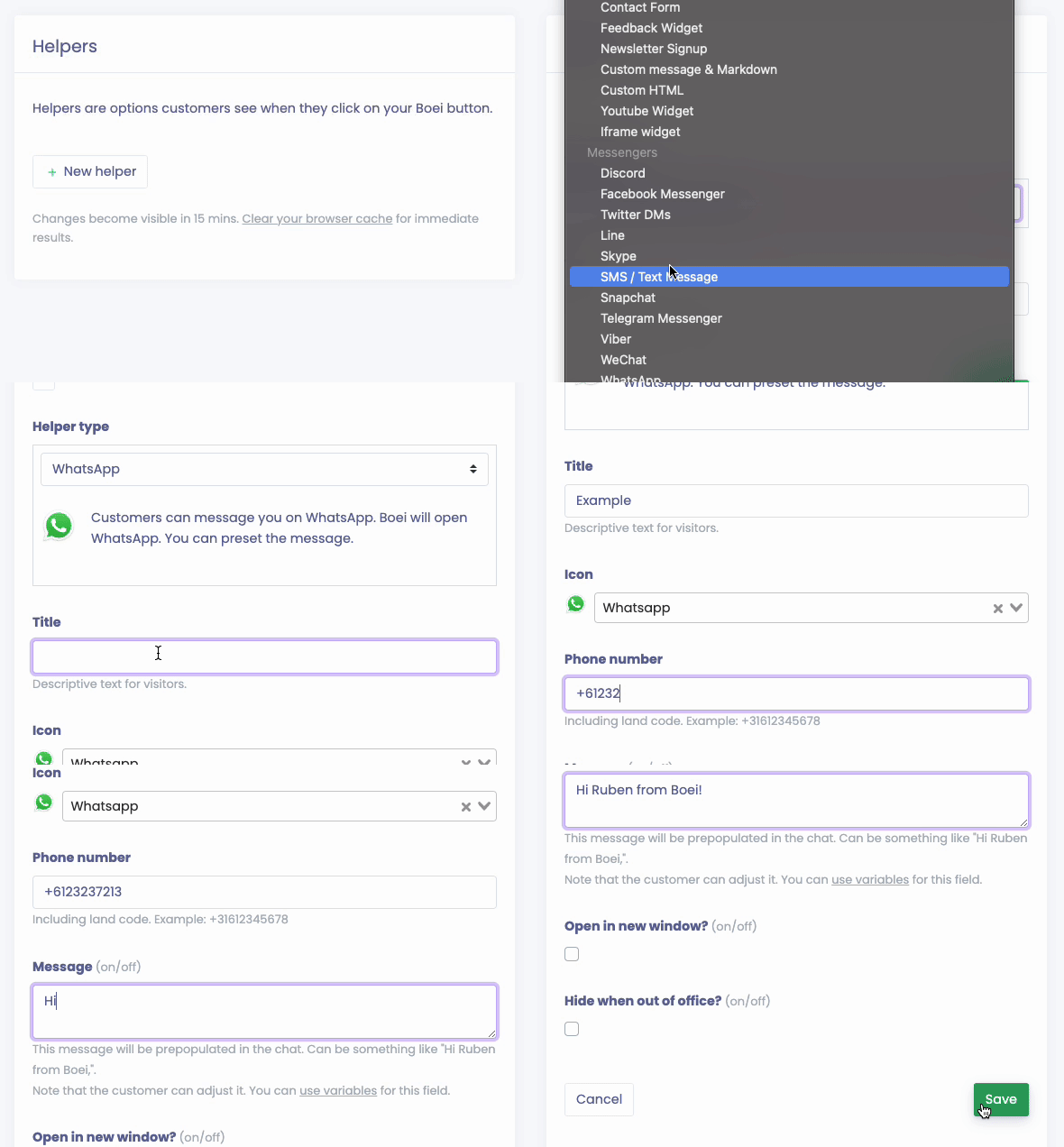
- Open your widget editor
- Click Add Channel
- Select WhatsApp
- Enter your WhatsApp phone number (with country code, e.g., +31612345678)
- Save
Display Modes
Choose how WhatsApp opens when clicked:
Direct Link
Opens WhatsApp directly with your number. Simple and fast.
Chat Widget
Shows a branded chat widget before opening WhatsApp:
- Business name - Your company name displayed in the header
- Avatar - Your logo or agent photo
- Online status text - Shows availability (e.g., "Online")
- Intro message - Welcome message from your team
- Message input - Optional field for customers to type before opening WhatsApp
- Phone number field - Optional field to collect phone numbers (useful for identifying people in your inbox)
- Quick reply buttons - Pre-set options customers can click
QR Code
Displays a scannable QR code - perfect for desktop visitors who want to chat from their phone.
- Text above QR - Instructions for scanning
Pre-filled Message
Set a default message that appears when WhatsApp opens:
"Hi! I'm interested in your services..."
Customers can edit this before sending. You can use variables like {{page_url}} or {{name}}.
Widget Customization
When using the Chat Widget display mode:
Phone Number Collection
Enable the phone number field to collect customer contact information:
- Enable Message input field in widget settings
- Toggle Ask for phone number
- Customize the field label (default: "Phone")
Benefits:
- Identify people in your inbox without cross-checking WhatsApp
- Build your contact list automatically
- Required field ensures you always get contact info
The phone number field validates international formats (8-15 digits) and appears above the message text area.
Quick Reply Buttons
Add up to 4 clickable options:
- "I have a question"
- "I want to place an order"
- "I need support"
- "Other"
Colors
By default, WhatsApp channel colors follow your widget's theme. You'll see a message: "Colors follow your widget design".
- Customize — Click to override with custom colors. Choose from quick themes or use the color palette button on the preview to edit individual colors.
- Reset to Widget — After customizing, click this to go back to following the widget design.
When customizing, you can set:
- Header background & text color
- Chat area background
- Message bubble color
- Input area styling
- Submit button color
Header Options
- Business name
- Agent/support name
- Online status text
- Custom avatar image
Advanced Options
Business Hours
- Hide when out of office - Only show during business hours
- Show only when out of office - Alternative to live chat
Display Settings
- Display as QR code - Show QR instead of link
- Open in new window - Opens WhatsApp in new tab
- Show on mobile/desktop - Control device visibility
Tracking
- Custom conversion event - Track clicks in your analytics
- Redirect after contact - Send to thank you page
Custom Trigger
Open WhatsApp from any button on your site:
<a class="boei-embed-open" data-channel="your-channel-key">Chat on WhatsApp</a>WhatsApp Multi-Agent
For teams with multiple WhatsApp numbers, use WhatsApp Multi-User:
- Add multiple agents with their numbers
- Customers choose who to contact
- Each agent can have their own avatar and name
WhatsApp Inbox Integration
Beyond the widget channel, you can connect your WhatsApp Business number directly to your Boei inbox. This lets you receive and reply to WhatsApp messages from within Boei, assign conversations to agents, and optionally let your AI chatbot auto-reply.
Boei supports two WhatsApp providers:
- Twilio — The most popular option. Uses Twilio's WhatsApp Business API. Best for businesses that want full control and already use Twilio. See the Twilio WhatsApp setup guide for step-by-step instructions.
- Tidio — Connect your existing Tidio WhatsApp integration to Boei. Ideal if you already use Tidio for customer support. See the Tidio WhatsApp setup guide for step-by-step instructions.
How It Works
- Connect a provider account — Go to Settings (top menu) → select your website → Inbox Channels tab → click Connect Provider Account and enter your credentials.
- Add a WhatsApp channel — Click Add WhatsApp Channel, enter the phone number, select the provider account, and optionally assign an AI chatbot.
- Configure the webhook — Copy the webhook URL shown for your channel and paste it into your provider's settings (Twilio Console or Tidio webhook config).
- Start receiving messages — Incoming WhatsApp messages now appear in your Boei inbox. Reply directly, assign to agents, or let your AI chatbot handle them.
Features
- AI auto-reply — Assign a chatbot to the channel and incoming messages get an automatic AI response.
- Agent assignment — Route WhatsApp conversations to specific team members.
- Unified inbox — WhatsApp messages appear alongside your other channels (live chat, email) in one place.
Note: WhatsApp leads won't sync to your CRM automatically, as WhatsApp doesn't expose contact information beyond the phone number.
Tips
- Use a business WhatsApp number, not personal
- Set up WhatsApp Business for professional features
- Add a pre-filled message to give context
- Use QR codes for desktop users
- Hide during off-hours if you can't respond quickly
- For inbox integration, start with the Twilio Sandbox to test before going to production
Related
- Twilio WhatsApp Setup - Connect via Twilio
- Tidio WhatsApp Setup - Connect via Tidio
- Business Hours - Configure availability
- QR Codes - Display options
- Mobile/Desktop - Device settings