WhatsApp via Twilio
Connect your WhatsApp Business number to your Boei inbox using Twilio. This lets you receive and reply to WhatsApp messages directly from Boei, with optional AI auto-reply.
How to get there: Go to Setup → Business in the top menu → click your website → Inbox tab → Channels → WhatsApp card.
Prerequisites
- A Twilio account (free trial available)
- A Meta (Facebook) Business account
- A phone number to register for WhatsApp (purchased through Twilio)
Step 1: Buy a Phone Number in Twilio
- Log into the Twilio Console
- Go to Phone Numbers → Manage → Buy a number
- Buy a phone number in any country
Good to know: Unlike SMS, WhatsApp works globally with any number. Customers see your business name in WhatsApp, not the phone number. So pick the cheapest option (US numbers start at $1.15/month).
Tip: You can use the same Twilio number for both WhatsApp and SMS. They use separate webhook URLs and appear as separate channels in Boei.
Step 2: Register as a WhatsApp Sender
- In the Twilio Console, click Explore Products in the left sidebar
- Find and pin Messaging
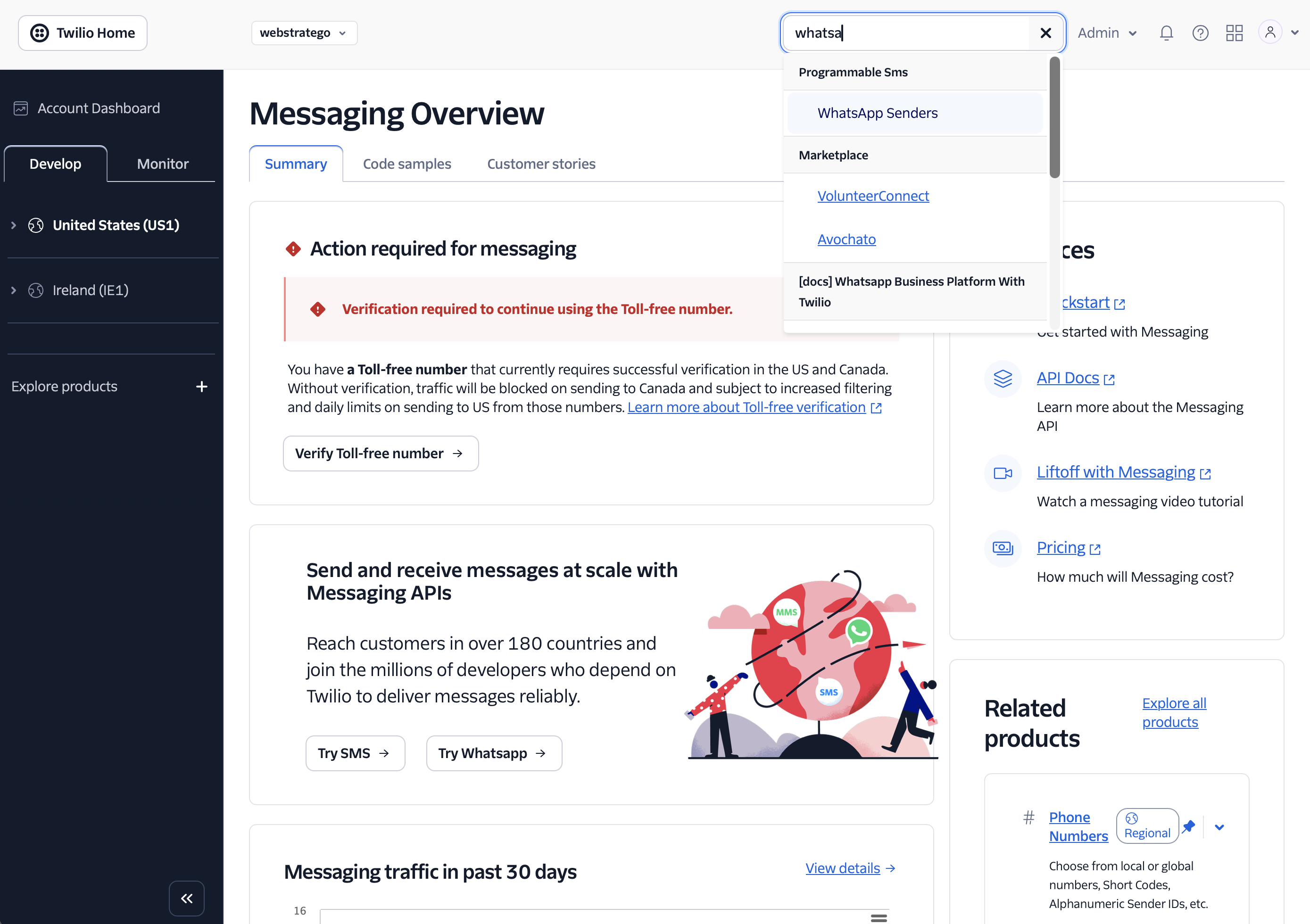
- Go to Messaging → search for "WhatsApp" → click WhatsApp Senders
- Click Create new sender
- Select the phone number you bought in Step 1
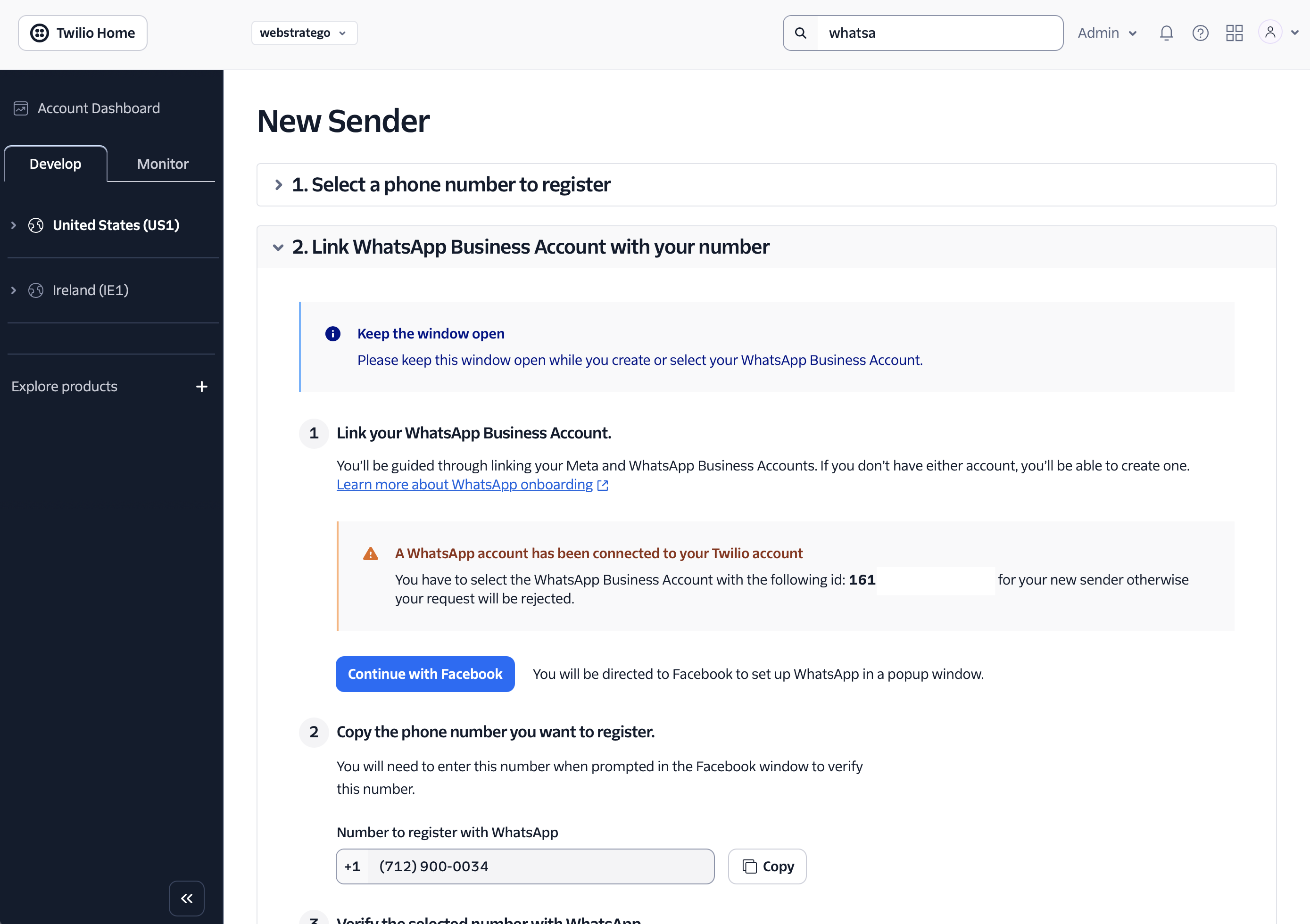
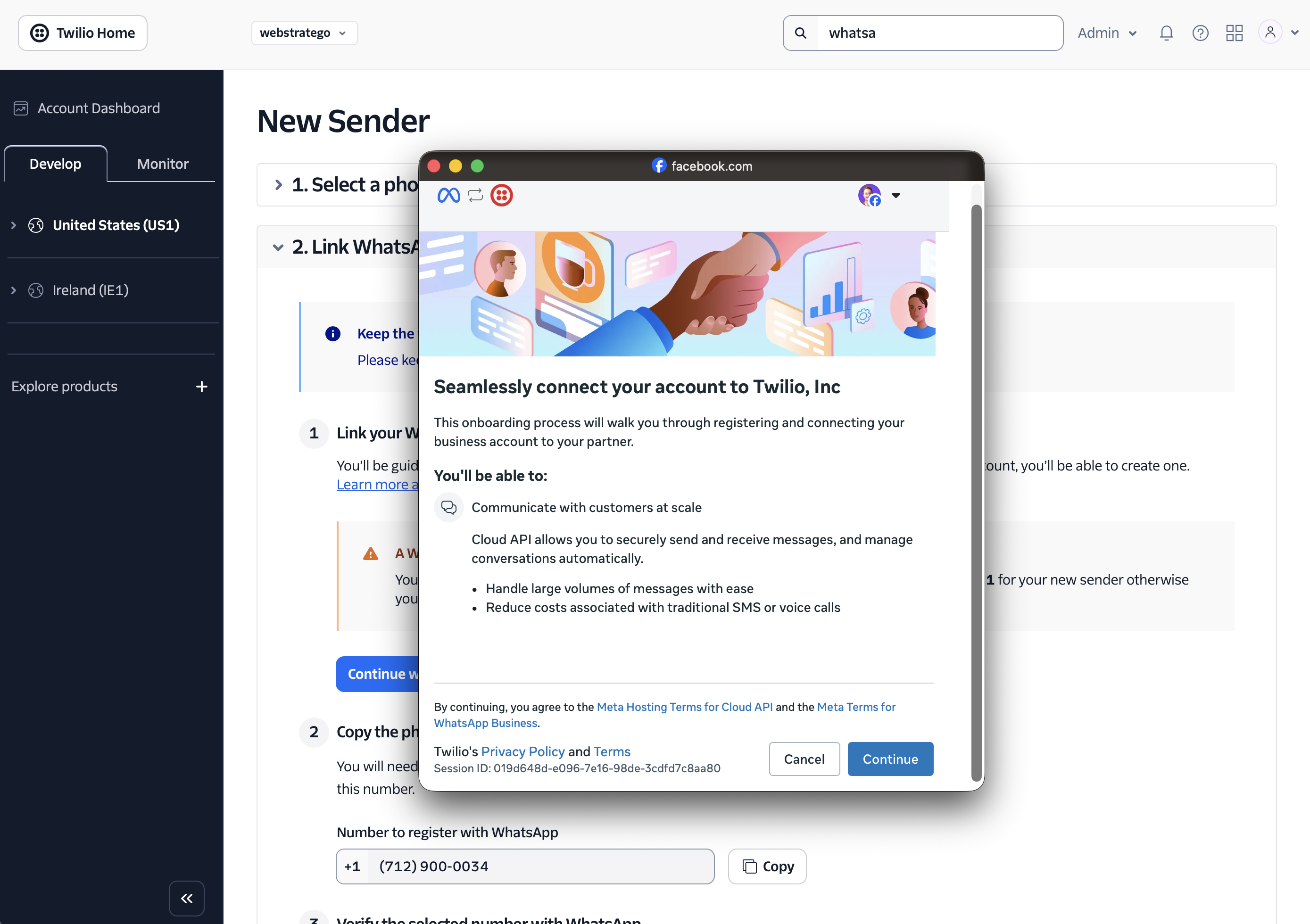
- Click Continue with Facebook to link your Meta Business Account
- Select your Business portfolio and WhatsApp Business account (or create new ones)
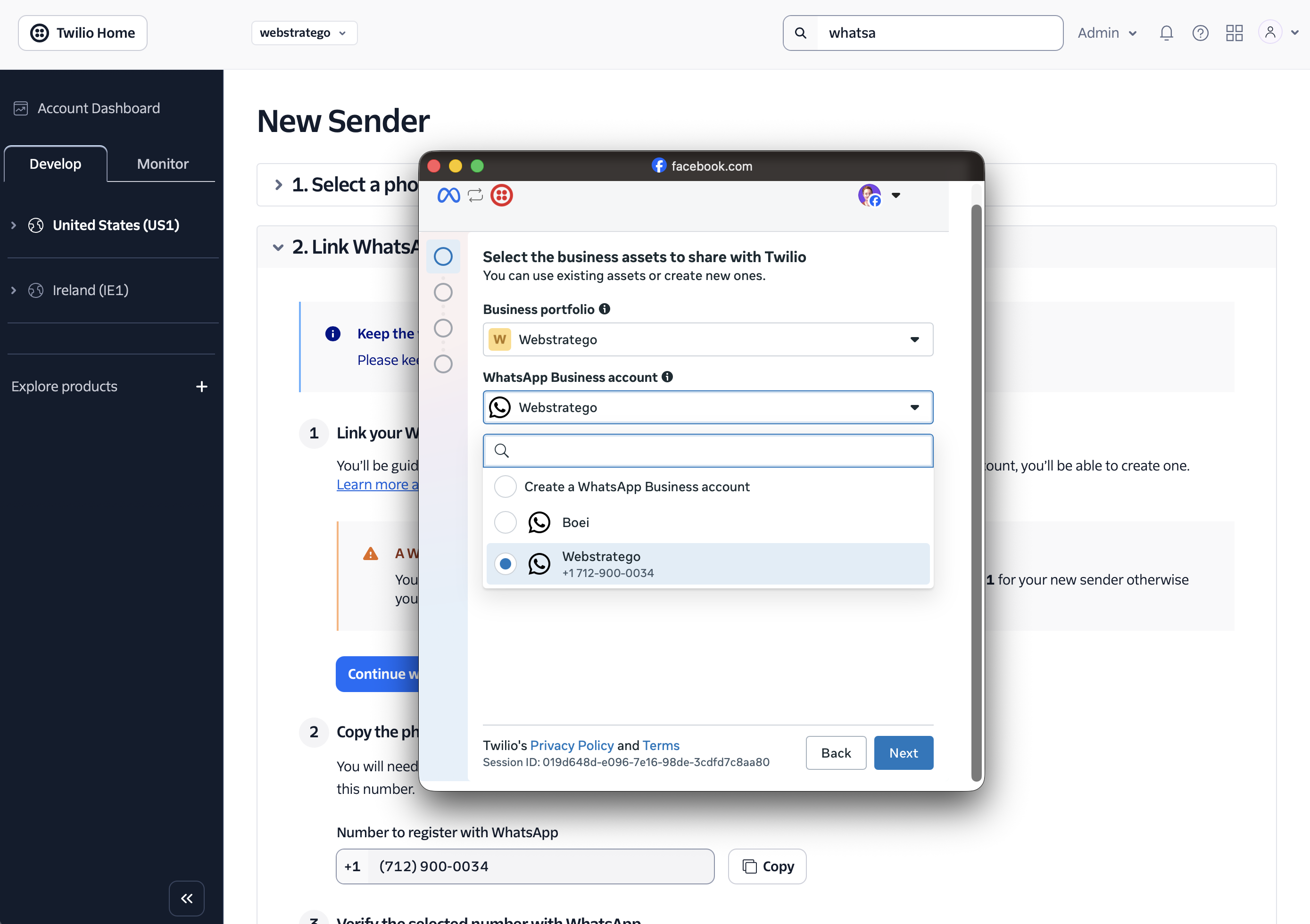
Important: If you already have a WhatsApp Business Account connected to Twilio, you must select the same one. Twilio requires all WhatsApp Senders to be in the same WABA.
- Verify your phone number with the code sent via SMS
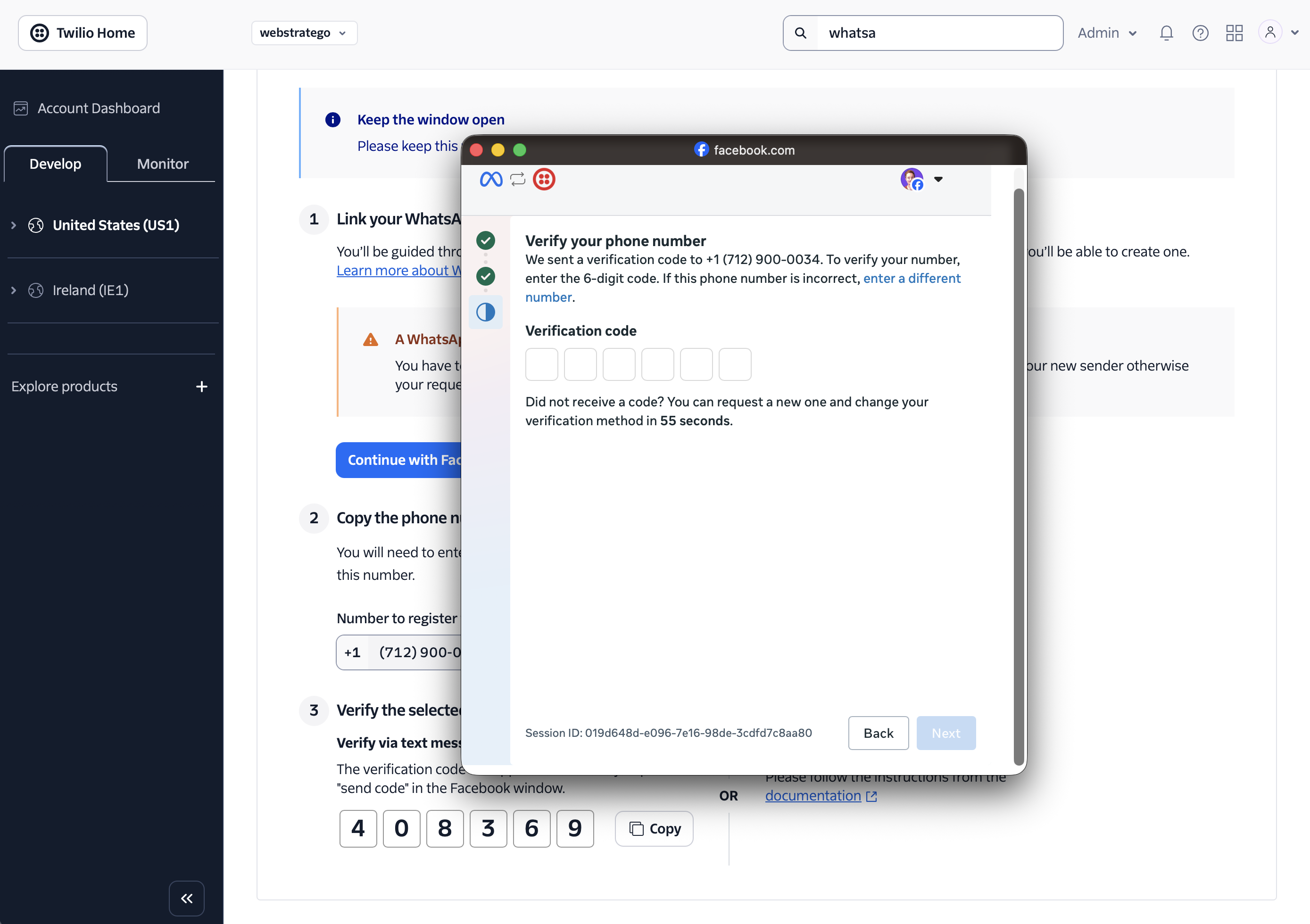
- Review the permissions and click Confirm
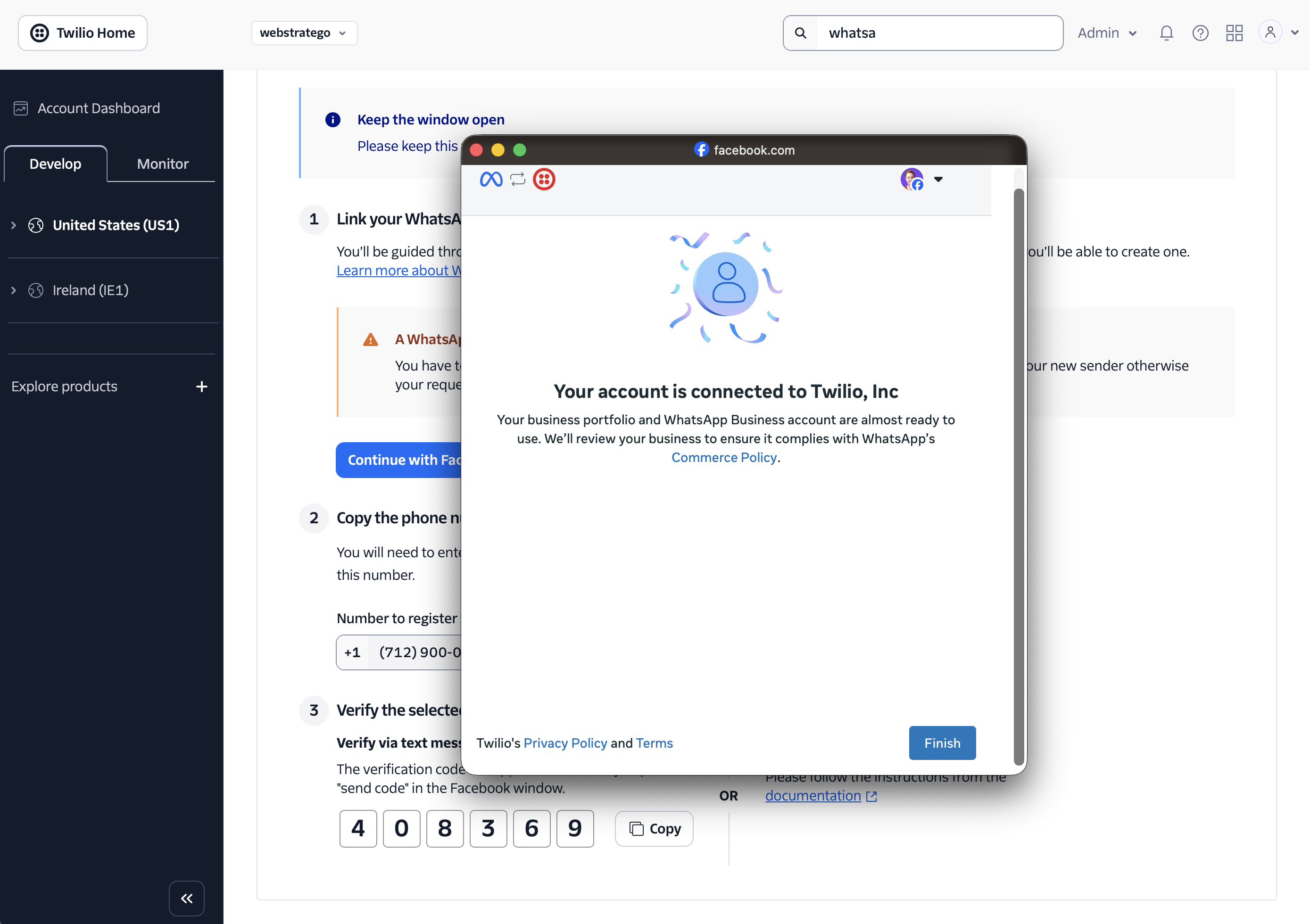
- You'll see a confirmation that your account is connected
Common Issues
"This phone number is already registered to a WhatsApp account"
This means the number is already used for WhatsApp by someone else (or a previous account). You cannot reclaim it. Buy a different number instead.
"We'll review your business to ensure it complies with WhatsApp"
Meta needs to approve your business account first. This review can take up to 24 hours. You cannot connect the number until approved. Wait for the approval email from Meta.
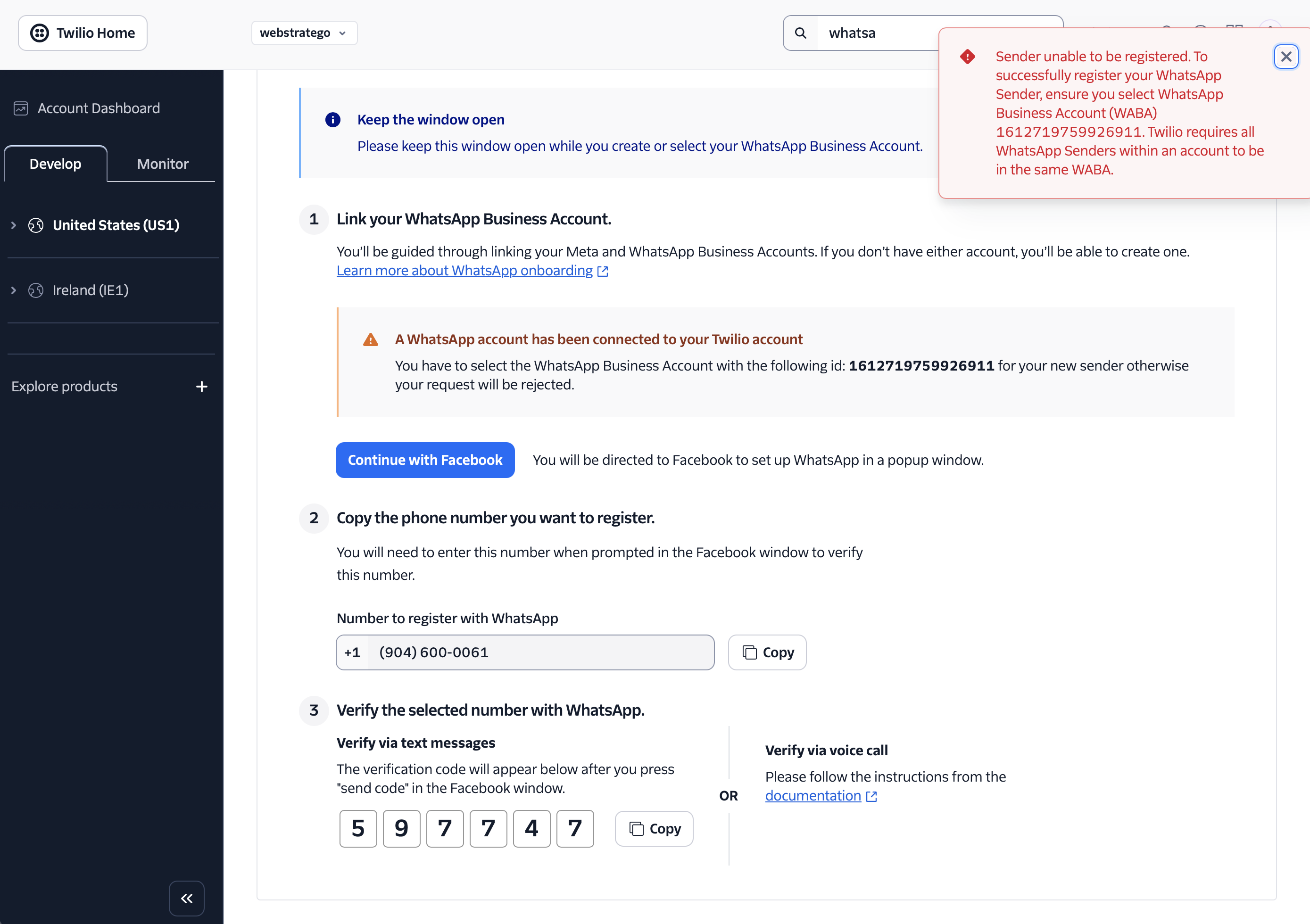
"Sender unable to be registered"
Make sure you select the WhatsApp Business Account ID shown in the warning. All senders must be in the same WABA.
Step 3: Connect Twilio to Boei
If you've already connected a Twilio provider account (e.g., for SMS), you can skip this step and use the same account.
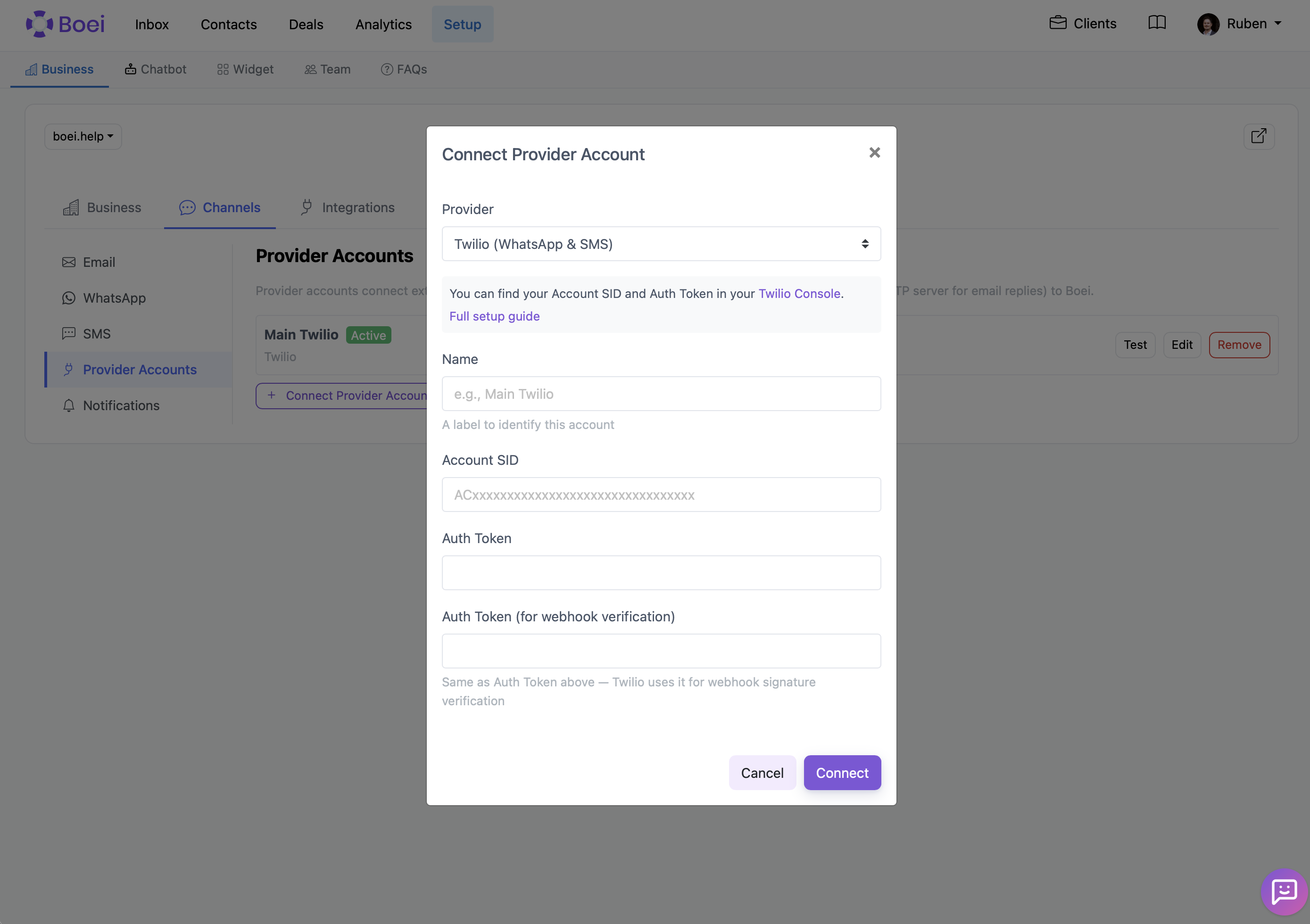
- In Boei, go to Setup → Business → click your website → Inbox tab → Channels → Provider Accounts card
- Click Connect Provider Account
- Select Twilio (WhatsApp & SMS) as the provider
- Enter a name (e.g., "Main Twilio")
- Find your Account SID and Auth Token in the Twilio Console dashboard under "Account Info"
- Paste your Account SID in the Account SID field
- Paste your Auth Token in both the "Auth Token" field and the "Auth Token (for webhook verification)" field
- Click Connect
Step 4: Add a WhatsApp Channel in Boei
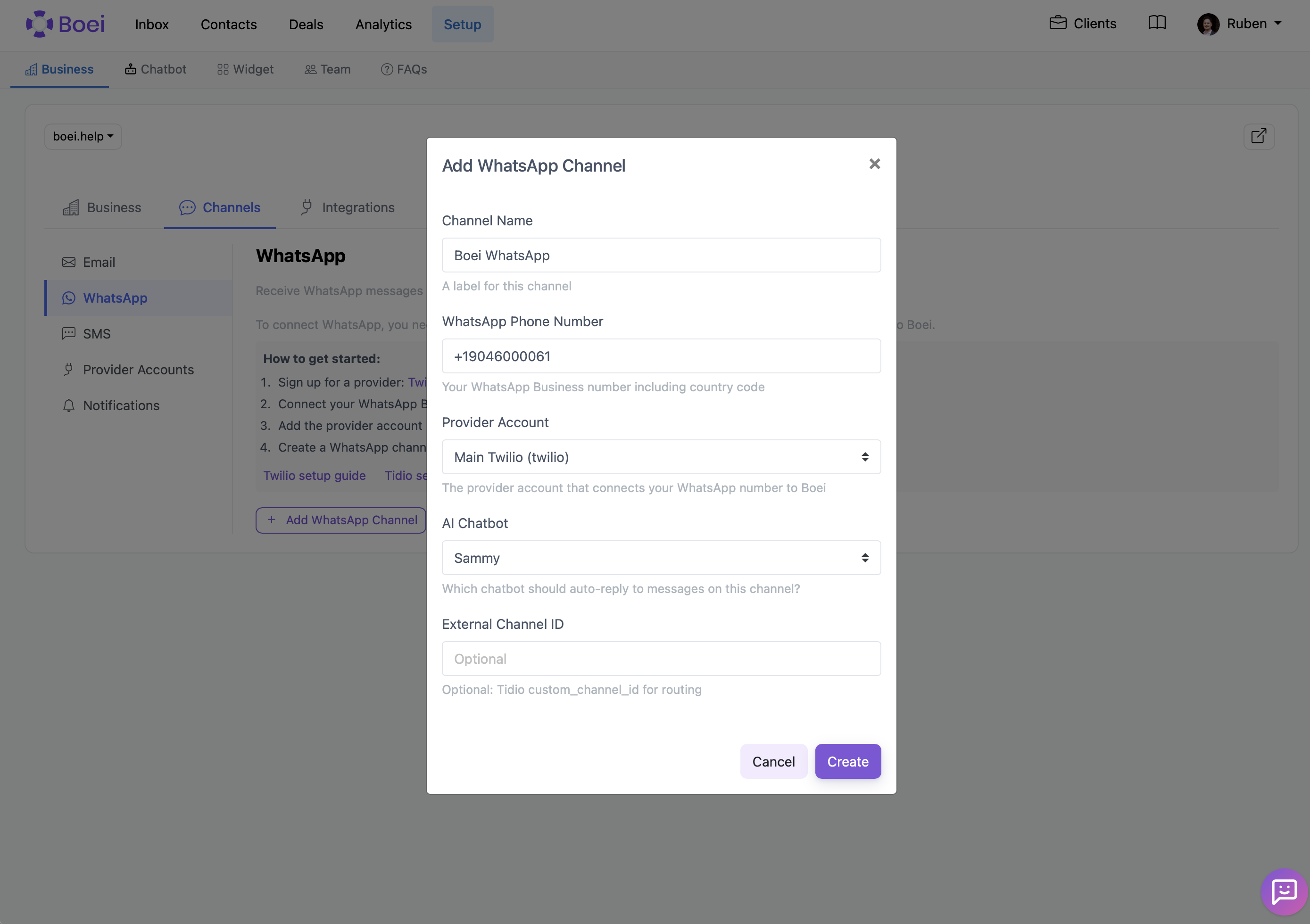
- Still in the Channels tab, click WhatsApp
- Click Add WhatsApp Channel
- Enter a Channel Name (e.g., "Support WhatsApp")
- Enter the WhatsApp phone number you registered in Step 2 (with country code, e.g., +19046000061)
- Select the Provider Account you connected in Step 3
- Optionally select an AI Chatbot to auto-reply to incoming messages
- Click Create
After creating the channel, Boei shows the webhook URL. You'll need this in the next step.
Step 5: Configure the Webhook in Twilio
This tells Twilio to forward incoming WhatsApp messages to your Boei inbox.
- Copy the webhook URL from Boei (click the copy icon next to it)
- In Twilio Console, go to Messaging → WhatsApp Senders
- Click on your WhatsApp number
- Paste the webhook URL in the webhook configuration field
- Make sure the HTTP method is set to POST
- Save
You're All Set
Incoming WhatsApp messages will now appear in your Boei inbox. You can:
- Reply directly from the inbox
- Assign conversations to team members
- Let your AI chatbot handle first responses automatically
- View all conversations alongside your other channels (email, SMS, website chat)
Business display name: Customers see your WhatsApp Business display name, not the phone number. You can change this in your Meta Business Manager under WhatsApp accounts.
Troubleshooting
| Problem | Solution |
|---|---|
| Messages not arriving in Boei | Double-check the webhook URL in Twilio WhatsApp Sender settings. Make sure it matches exactly. |
| "Authentication failed" error | Verify your Account SID and Auth Token are correct. Re-copy from the Twilio Console. |
| Number already registered | Buy a new number. You cannot use a number that's already registered to another WhatsApp account. |
| Meta business review pending | Wait for Meta to approve your business. This usually takes up to 24 hours. |
| Webhook verification failing | Ensure the "Auth Token (for webhook verification)" field in Boei matches your Auth Token. |
Frequently Asked Questions
Can I use my existing phone number?
Yes. Twilio accepts customer-owned phone numbers as long as the number can receive an SMS or voice call for verification. If your number is already registered in the WhatsApp Business app, it must first be migrated to Twilio before you can use it here.
Can I keep using the WhatsApp Business app on my phone after connecting?
Not with the standard setup. Once the number is registered through Twilio's WhatsApp API, it can no longer be used in the WhatsApp Business mobile app at the same time. Meta offers a feature called WhatsApp Coexistence that may support both in the future, but Twilio's current setup does not include it.
How much does WhatsApp messaging cost?
Twilio charges a per-message fee for WhatsApp. Check Twilio's current WhatsApp pricing for up-to-date rates. Boei AI credits are charged separately on top of Twilio's messaging fees. Meta generally does not charge for replies sent within 24 hours after the customer starts the conversation.
Can the chatbot proactively send a document through WhatsApp?
Not currently. Meta restricts proactive WhatsApp messages and generally requires pre-approved message templates. Boei supports replying after a customer starts a WhatsApp conversation, but cannot initiate outbound messages or send unsolicited documents.
Related
- SMS via Twilio - Add SMS support with the same Twilio account
- WhatsApp Channel - Overview of all WhatsApp options in Boei
- Tidio WhatsApp Setup - Alternative provider
- Inbox Overview - Managing conversations in your inbox