SMS via Twilio
Connect an SMS phone number to your Boei inbox using Twilio. Customers can text your number and your AI chatbot will auto-reply, or your team can respond manually from the inbox.
How to get there: Go to Setup → Business in the top menu → click your website → Inbox tab → Channels → SMS card.
Prerequisites
- A Twilio account (free trial available)
- A phone number with SMS capability (purchased through Twilio)
Step 1: Buy a Phone Number in Twilio
- Log into the Twilio Console
- Go to Phone Numbers → Manage → Buy a number
- Select your country and make sure SMS is checked under Capabilities
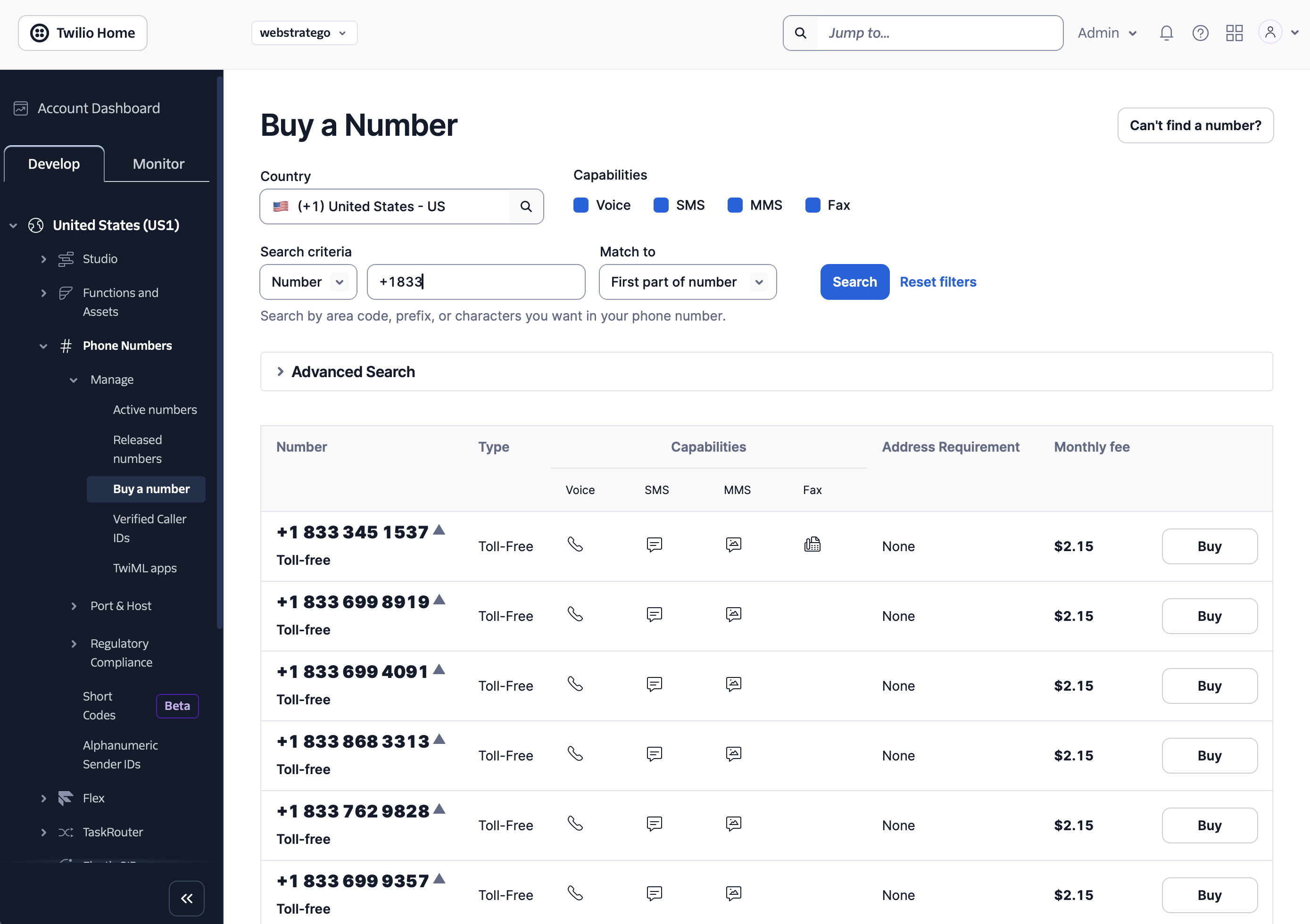
Which number type should I pick?
For US and Canada, we recommend a toll-free number (starts with 800, 833, 844, 855, 866, 877, or 888). Toll-free numbers cost about $2.15/month and work right away for SMS without needing 10DLC registration.
To find toll-free numbers, search with prefix +1833 or similar in the search field.
If you buy a local US number instead, Twilio requires A2P 10DLC registration before you can send SMS. This is a separate registration process that takes several days.
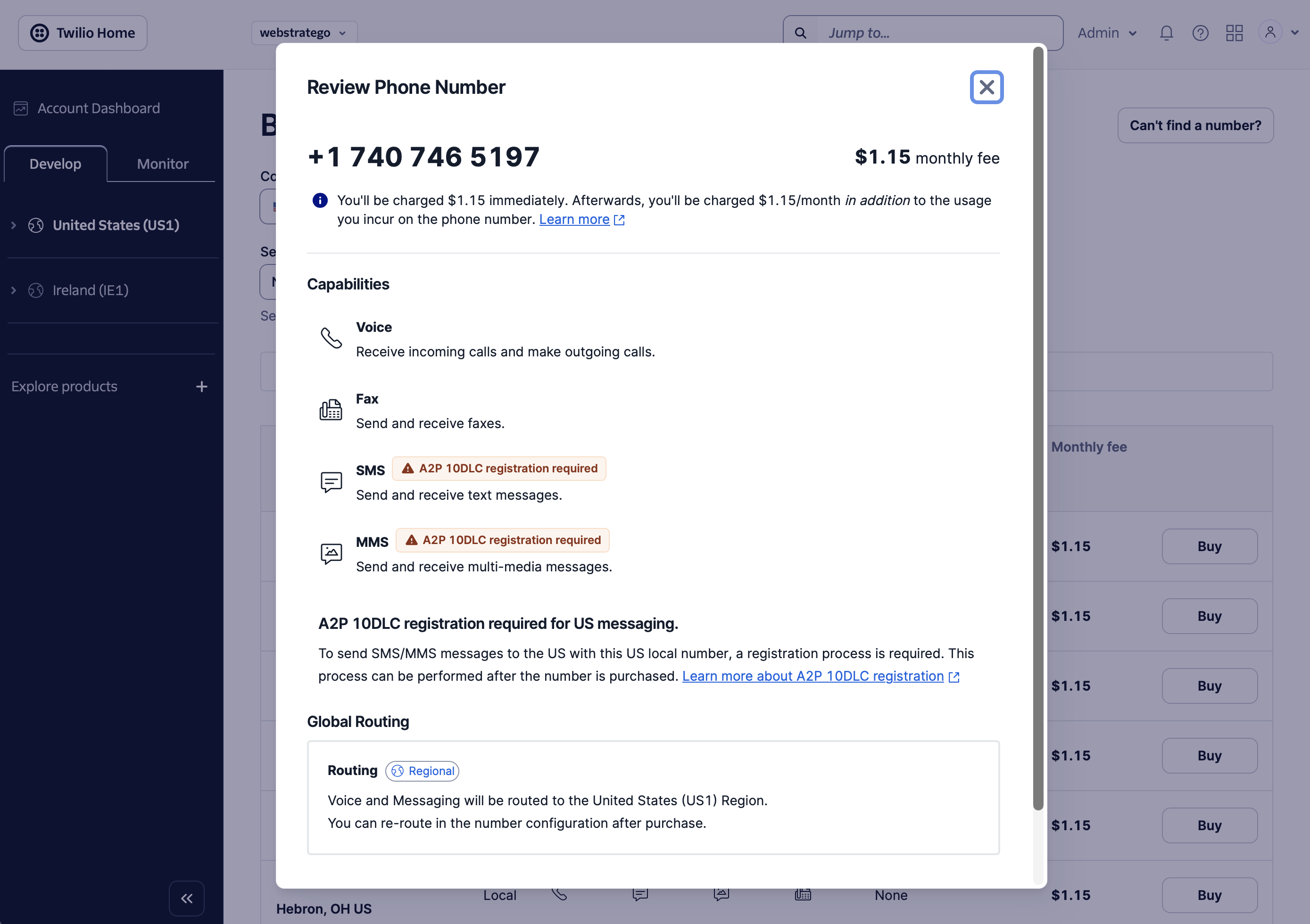
For other countries, buy a local number in your country. SMS works best when both sides (your number and your customer) are in the same country.
Good to know: SMS numbers are country-specific. A US number works well for US customers, but may not reliably reach customers in other countries. If you need worldwide coverage, consider using WhatsApp via Twilio instead, which works globally with a single number.
Emergency address: Twilio may ask you to add an emergency address. This is only required if you have a physical location in the US. International users can skip this.
Toll-Free Verification (US/Canada only)
After buying a US or Canadian toll-free number, Twilio requires a toll-free verification before you can send messages. You'll see a prompt on the number's page.
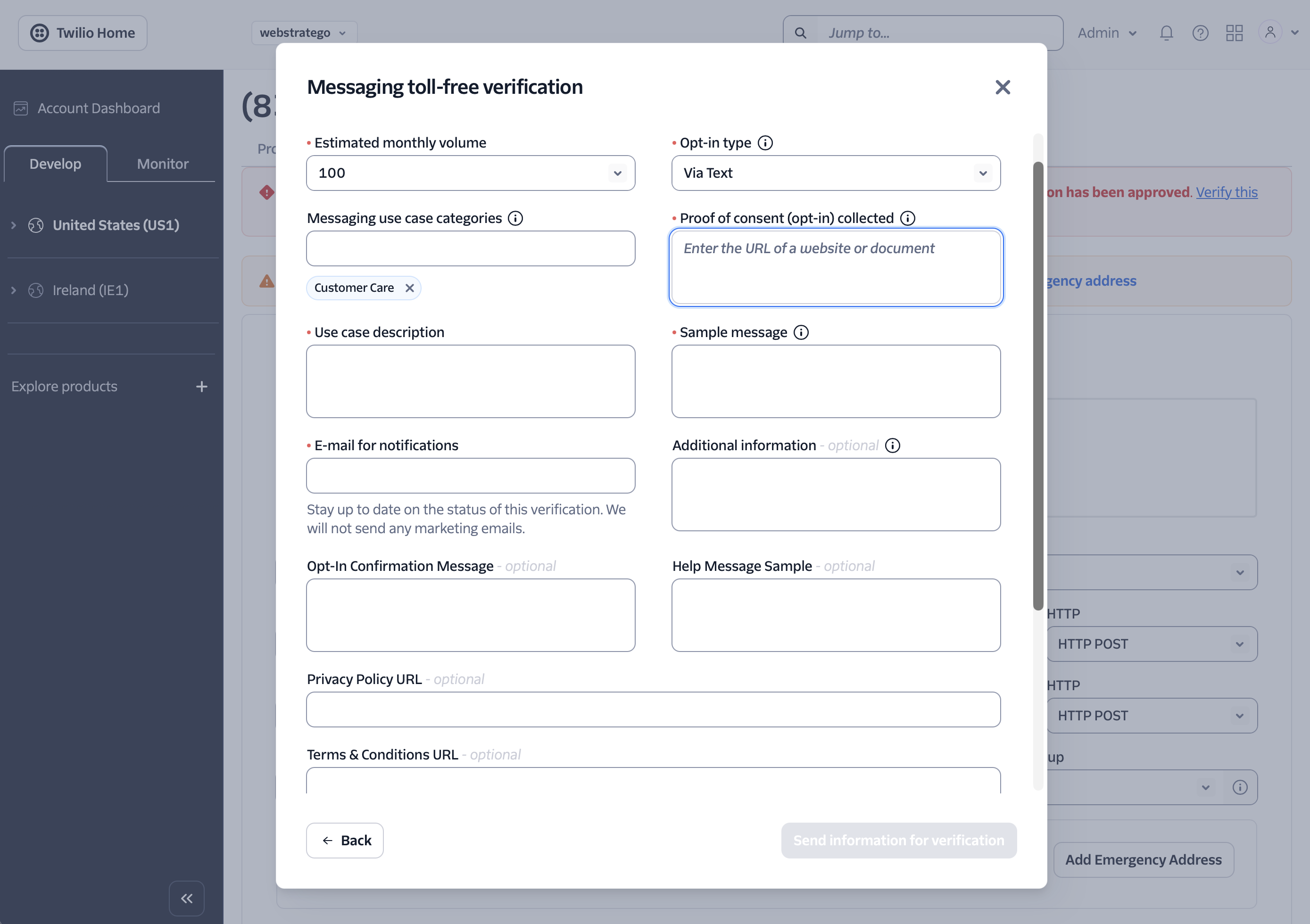
Fill in the form:
- Estimated monthly volume: Choose based on your expected usage (100 is fine to start)
- Opt-in type: Select "Via Text" (customers text you first)
- Messaging use case categories: Select "Customer Care"
- Use case description: Describe how customers will use SMS, e.g., "Customers text our support number to ask questions. An AI chatbot replies automatically with answers about our product."
- Sample message: An example reply, e.g., "Thanks for reaching out! I can help you with setting up your account. What would you like to know?"
- Proof of consent: Your website URL where SMS support is mentioned
- E-mail for notifications: Your email address
- Privacy Policy URL and Terms & Conditions URL: Your policy pages
Verification is usually approved within a few business days.
Step 2: Connect Twilio to Boei
If you've already connected a Twilio provider account (e.g., for WhatsApp), you can skip this step and use the same account.
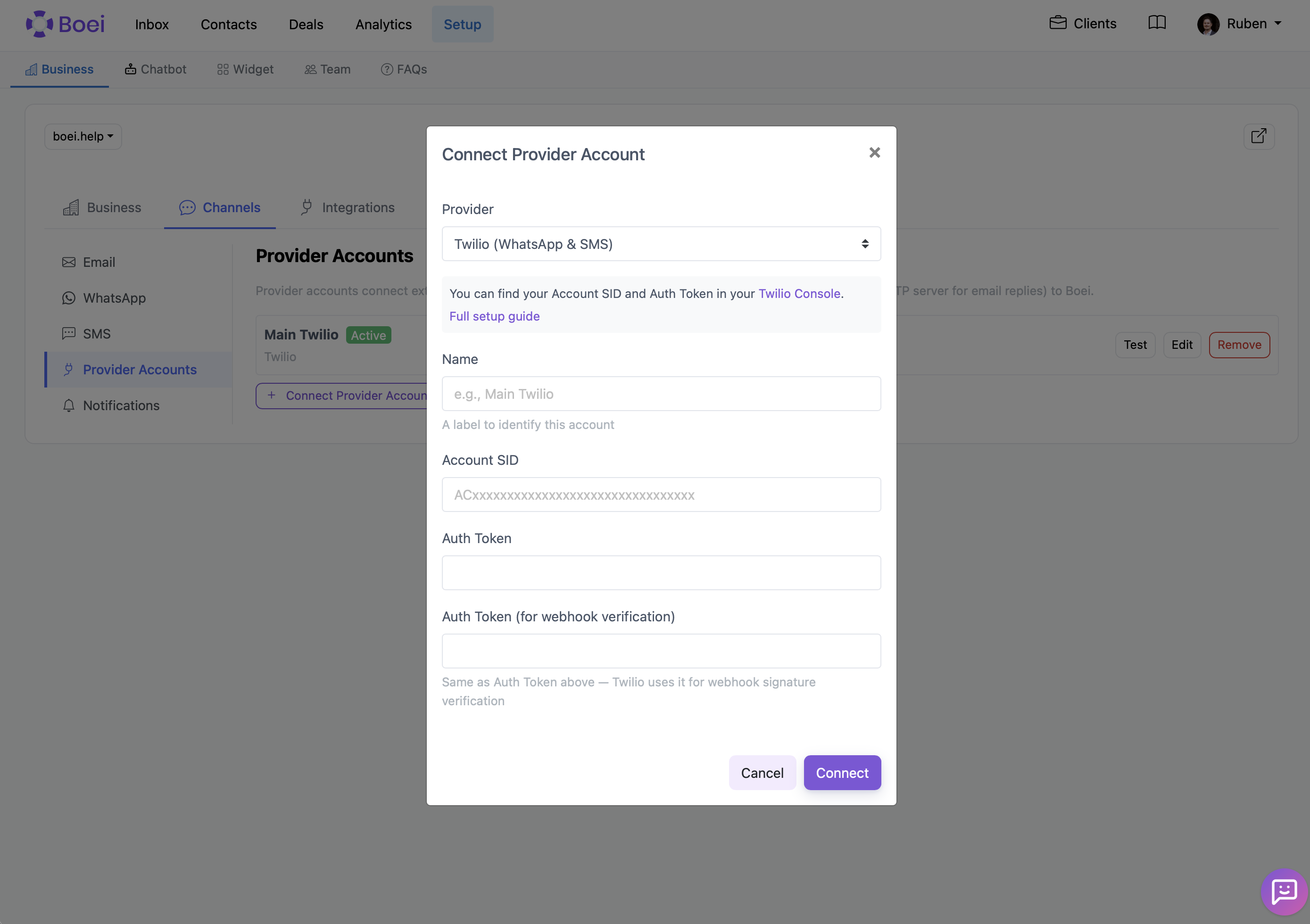
- In Boei, go to Setup → Business → click your website → Inbox tab → Channels → Provider Accounts card
- Click Connect Provider Account
- Select Twilio (WhatsApp & SMS) as the provider
- Enter a name (e.g., "Main Twilio")
- Find your Account SID and Auth Token in the Twilio Console dashboard under "Account Info"
- Paste your Account SID in the Account SID field
- Paste your Auth Token in both the "Auth Token" field and the "Auth Token (for webhook verification)" field
- Click Connect
Step 3: Create an SMS Channel in Boei
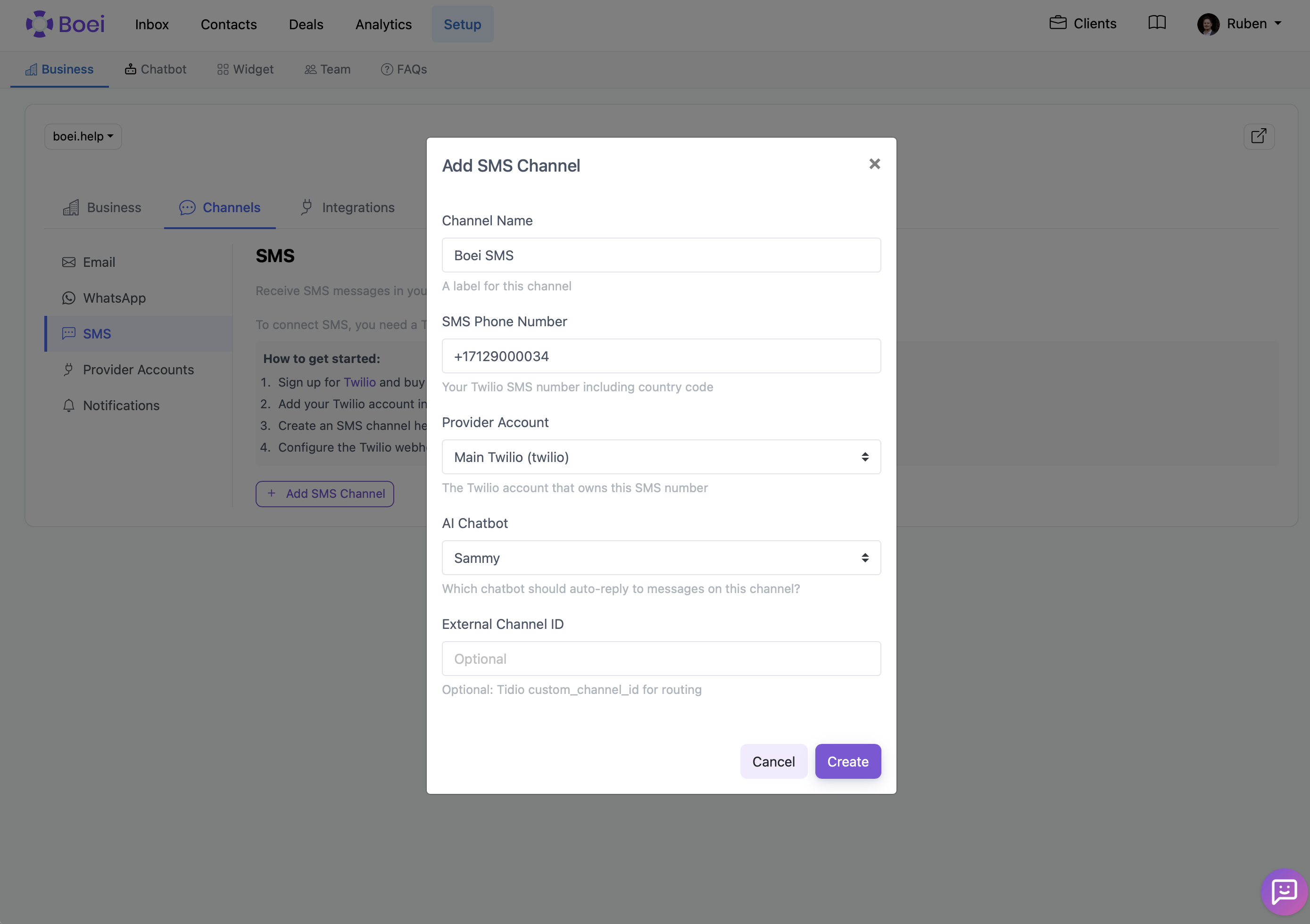
- Still in the Channels tab, click SMS
- Click Add SMS Channel
- Enter a Channel Name (e.g., "Support SMS")
- Enter the SMS Phone Number you bought in Twilio (with country code, e.g., +18334561234)
- Select the Provider Account you connected in Step 2
- Optionally select an AI Chatbot to auto-reply to incoming messages
- Click Create
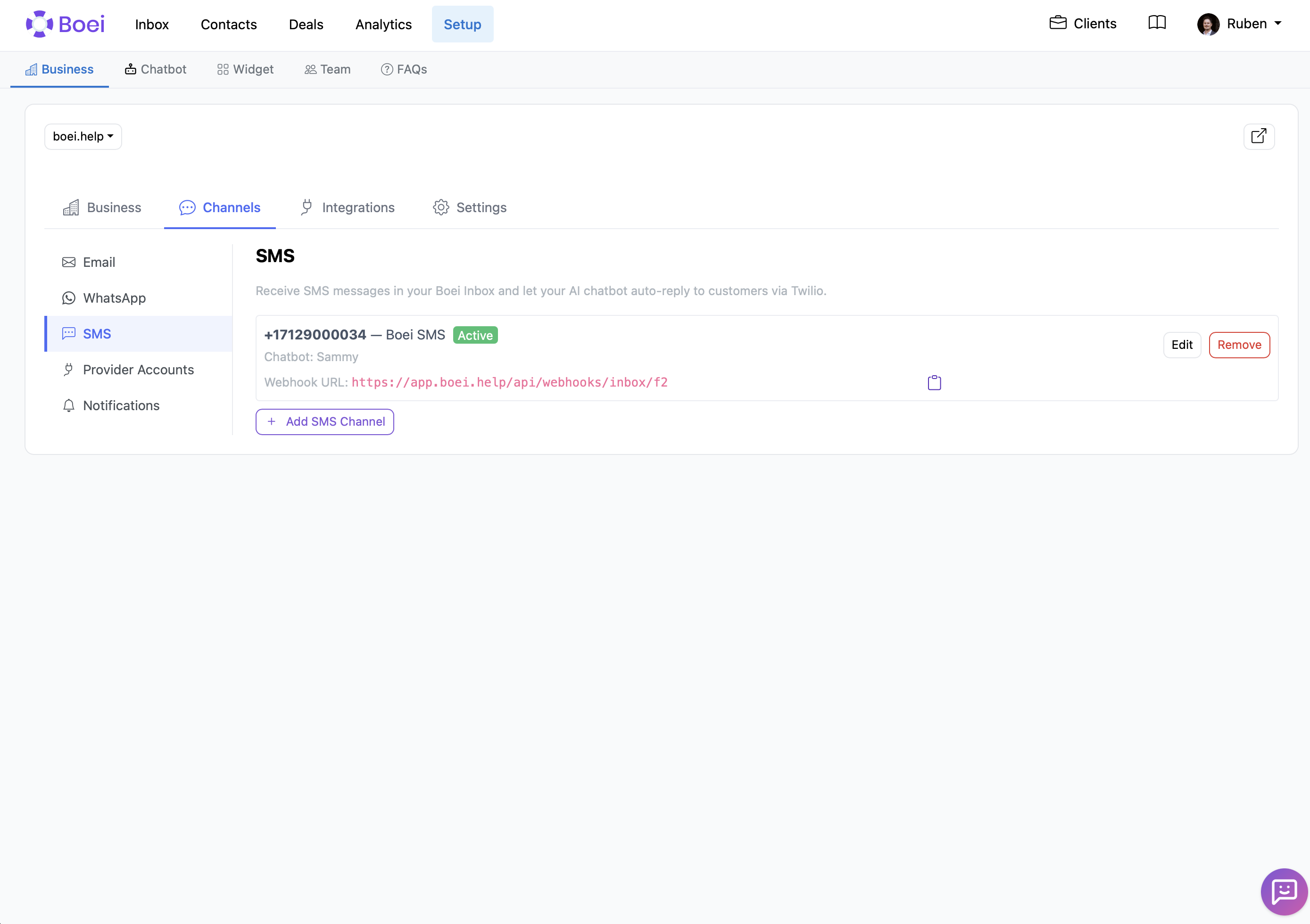
After creating the channel, Boei shows the webhook URL. You'll need this in the next step.
Step 4: Configure the Webhook in Twilio
This tells Twilio to forward incoming SMS messages to your Boei inbox.
- Copy the webhook URL from Boei (click the copy icon next to it)
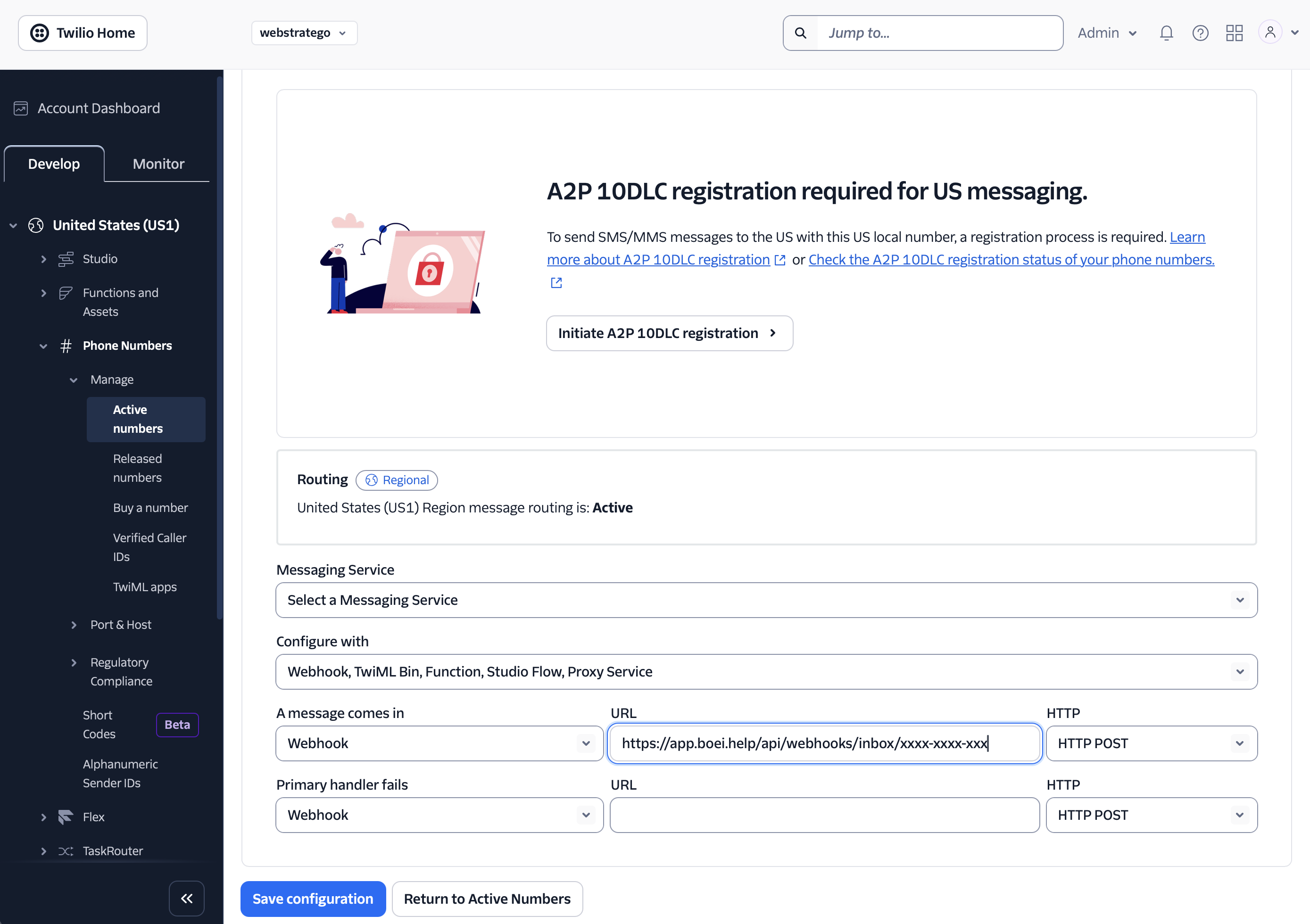
- In the Twilio Console, go to Phone Numbers → Manage → Active Numbers
- Click on your SMS phone number
- Scroll down to Messaging Configuration
- Under "A message comes in", set it to:
- Type: Webhook
- URL: paste your Boei webhook URL
- HTTP: HTTP POST
- Click Save configuration
You're All Set
Incoming SMS messages will now appear in your Boei inbox. You can:
- Reply directly from the inbox
- Assign conversations to team members
- Let your AI chatbot handle first responses automatically
- View all conversations alongside your other channels (email, WhatsApp, website chat)
Tip: Use a separate phone number for your SMS inbox channel and any other SMS notifications you send (like live chat agent alerts). If you use the same number, customer replies to notifications would accidentally create chatbot conversations.
Troubleshooting
| Problem | Solution |
|---|---|
| Messages not arriving in Boei | Double-check the webhook URL in Twilio. Make sure it matches exactly and is set to HTTP POST. |
| "Authentication failed" error | Verify your Account SID and Auth Token are correct. Re-copy from the Twilio Console. |
| Can't send SMS from US toll-free number | Complete the toll-free verification in Twilio first. |
| Local US number blocked | You need to complete A2P 10DLC registration for local US numbers. Consider a toll-free number instead. |
| SMS not delivered internationally | SMS numbers work best within their own country. Use WhatsApp for international messaging. |
Related
- WhatsApp via Twilio - Connect WhatsApp with the same Twilio account
- SMS Channel - Add an SMS button to your website widget
- Inbox Overview - Managing conversations in your inbox