Deals & Pipeline
Track sales opportunities from first contact to closed deal. The Deals feature helps you manage your sales pipeline and follow up with potential customers.
How to get there: Go to Deals in the top menu.
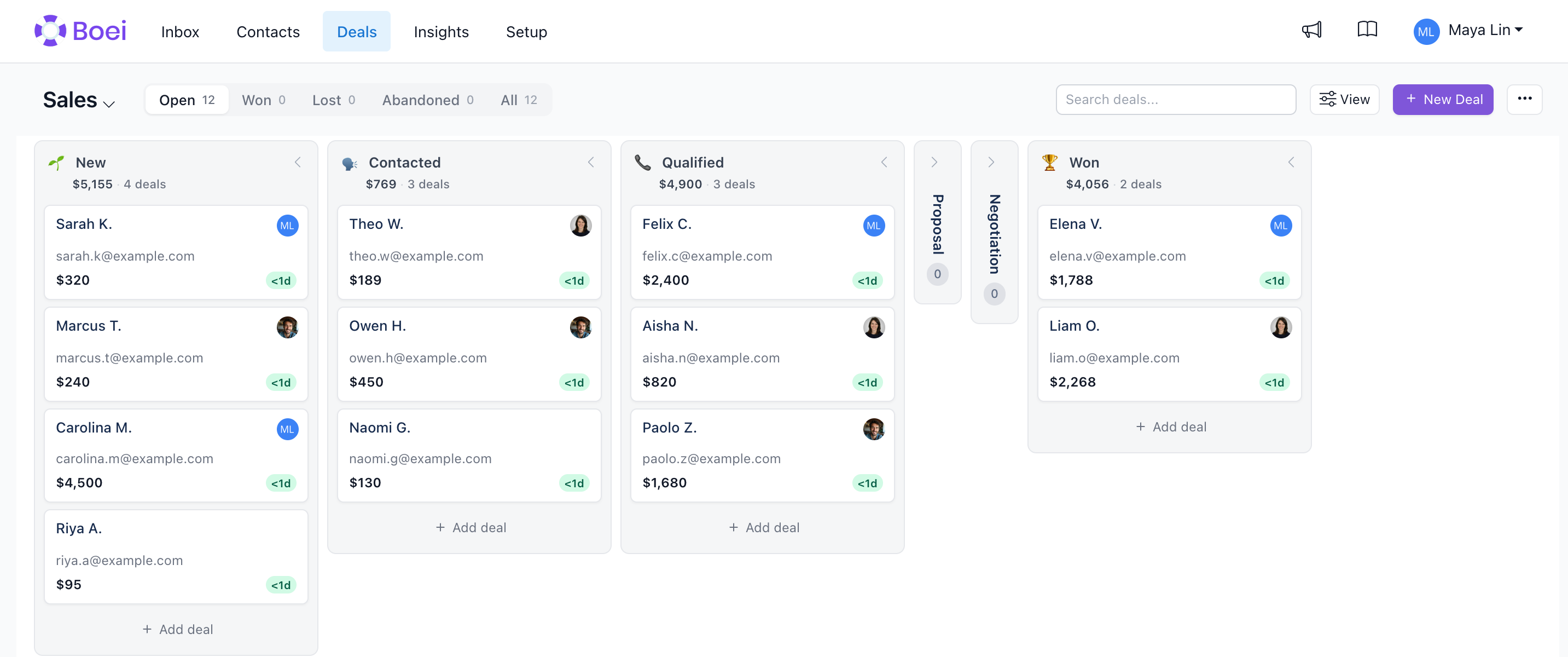
Multiple Pipelines
Use the pipeline switcher beside the page title to separate workflows such as Sales and Aftercare. Accounts with one pipeline keep the same uncluttered experience. When creating a deal from Deals, Inbox, or a contact, choose its pipeline only when more than one exists.
From a deal's ··· menu you can move the deal to another pipeline or copy it there. Copying keeps the original deal unchanged, links the new deal back to it, and lets you choose which fields to carry over.
Pipeline settings also contain Automations. Rules use a trigger, optional conditions, and one or more actions. The first supported recipe copies a deal to another pipeline when its outcome becomes Won. Every execution is recorded in the automation run log, including skipped and failed runs.
Reusing and Exporting Activities
Open a deal and use its activity menu to save the current open activities as a reusable template. A template keeps the activity type, title, description, owner, duration, and relative timing. When you apply it later, future due dates keep the same delay from the application date. Activities that were already overdue when saved become due today, so a template never creates work that is immediately overdue.
If a saved owner is no longer part of the account, the activity is assigned to the person applying the template. Templates are available throughout the account and can be deleted from the same menu.
Choose Export activities as JSON to download the deal's activity history. The export is useful as a backup or for transferring activities with Import activities from JSON.
Understanding Deals
A deal represents a potential sale or business opportunity. Each deal:
- Has a value (expected revenue)
- Moves through stages (your sales process)
- Is linked to a contact
- Can have follow-up reminders
Viewing Deals
Go to Deals in the top menu to see your pipeline.
Kanban Board View
Deals are displayed in a kanban board:
- Each column represents a stage (New, Contacted, Won, etc.)
- Drag deals between columns to update progress
- See deal counts and total values per stage
- Deal cards show name, value, contact, and follow-up date
Simple vs Swimlane View
- Simple view - All deals in one board (when no rows are set up)
- Swimlane view - Deals organized in rows for different projects/teams
See Rows & Swimlanes to organize deals in rows.
Creating Deals
From a Contact
- Open a contact profile
- Click Create Deal
- Fill in deal details
- Save
From the Deals Page
- Go to Deals
- Click New Deal
- Select or create a contact
- Enter deal information
- Save
Deal Information
Each deal includes:
- Title - Name for the opportunity
- Value - Expected revenue
- Stage - Current position in pipeline
- Contact - Who the deal is with
- Expected close date - Target timeline
- Notes - Additional context
Pipeline Stages
Default stages guide deals through your process:
- New - Just identified
- Contacted - Initial outreach made
- Qualified - Confirmed as opportunity
- Proposal - Offer sent
- Won - Deal closed successfully
- Lost - Deal didn't close
Customizing Stages
Adapt the pipeline to match your sales process:
- Go to Deals, then click Settings (gear icon)
- Add, remove, or rename stages
- Set stage order
- Save changes
Managing Deals
Moving Deals
Update deal progress:
- Drag and drop in pipeline view
- Edit and change stage field
- Quick-action buttons for common moves
Setting Follow-ups
Never miss a follow-up:
- Open the deal
- Click Set Reminder
- Choose date and time
- Add a note
- You'll be notified when it's due
Closing Deals
When a deal concludes:
- Move to Won or Lost
- Add closing notes
- The deal is archived but visible in reports
Deal Analytics
Track your sales performance:
- Total pipeline value
- Deals by stage
- Win/loss ratio
- Average deal size
Best Practices
- Update regularly - Keep stages current
- Add context - Use notes to track discussions
- Set reminders - Follow up consistently
- Review weekly - Clean up stale deals
Related
- Managing Deals - Create, edit, move deals
- Customizing Stages - Configure your pipeline stages
- Rows & Swimlanes - Organize deals in rows
- Contacts - Manage customer profiles
- Inbox - View conversations