Team Members
Share access to your widgets with team members who will manage them together with you.
How to get there: Go to Setup → Team in the top menu.
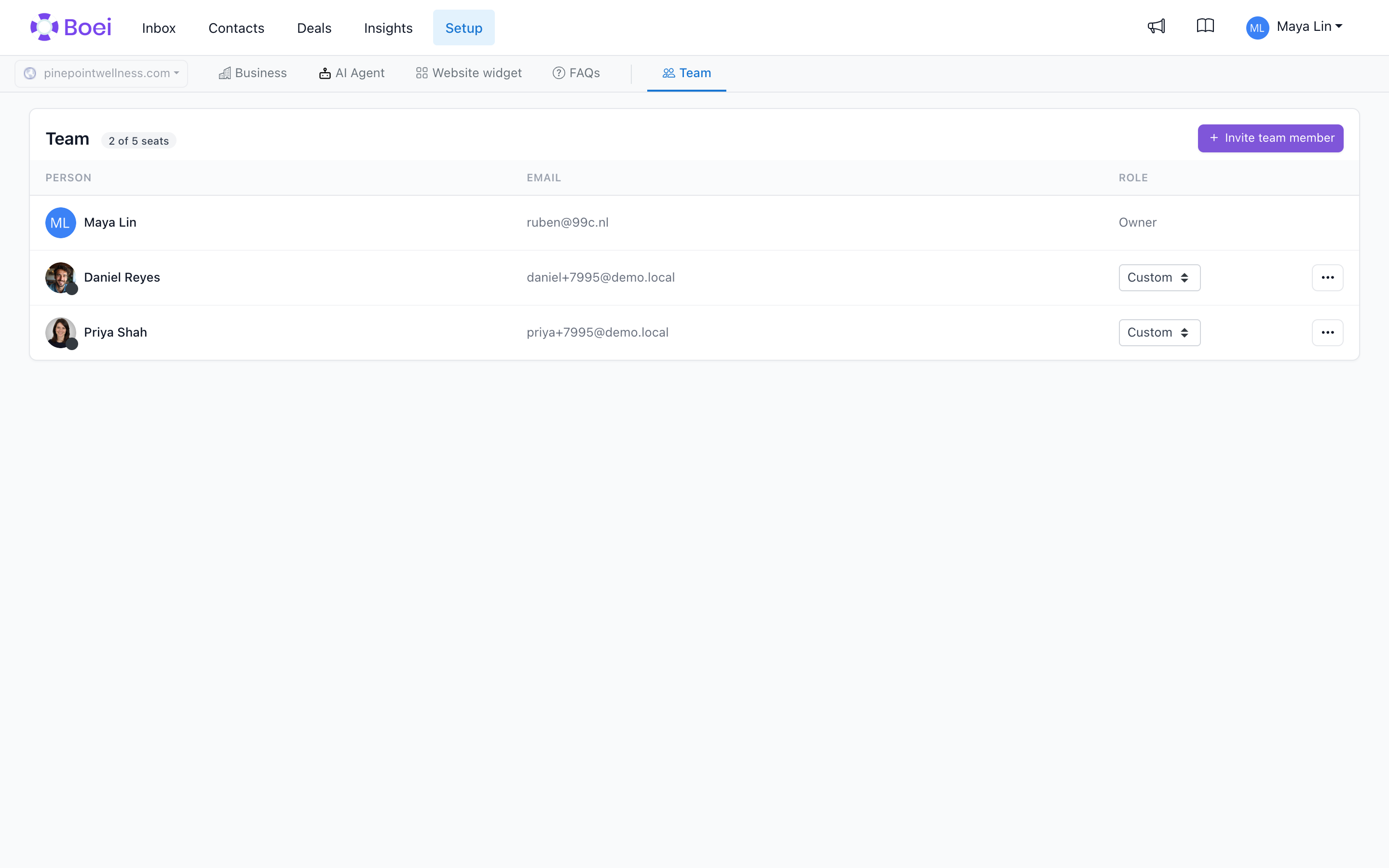
Overview
The Team Members feature is great when multiple people work together on the same widgets and channels.
When you invite a team member you pick a role (Admin, Agent, Viewer, or Custom). The role sets sensible defaults for the eight underlying permissions, which you can still fine-tune afterwards. See Permissions and Roles for what each role includes.
If you need to create separate workspaces (for example, one per client), see Managing Client Workspaces instead.
Adding Team Members
- Click Setup in the top menu
- Click on Team in the Setup submenu
- Click the Add button
- Enter the person's email address and (optionally) their name
- Pick a role: Admin, Agent, Viewer, or Custom
Boei will either use the person's existing account or create a new one. They'll receive an email invitation automatically. To get in, they go to the sign-in page and enter their email address. If they have a Boei password they use it, otherwise Boei emails them a sign-in link, no password needed. Until they have signed in or verified their email, they show up with a Pending badge on the Team page.
What Team Members Can Access
What a team member can do is determined by their role:
- Admin gets all eight permissions on.
- Agent gets the inbox, contacts/deals, and live-chat-agent permissions.
- Viewer gets the inbox and analytics as read-only.
- Custom lets you pick each of the eight permissions individually.
You can change a team member's role at any time from their row on the Team page, or switch them to Custom to fine-tune without a preset. See Permissions and Roles for what each toggle unlocks.
Agency accounts
If you run an agency with subaccounts, any permissions you grant a team member on the agency account automatically extend to every subaccount underneath. You don't need to invite them into each client separately.
Revoking Access
- Go to Team members
- Find the person you want to remove
- Click the delete button and confirm
The person will no longer have access to your widgets. Their account remains active for their own widgets.
Best Practices
- Add team members who need full collaboration access
- Use subaccounts for clients or separate teams
- Review team members regularly and remove inactive users
Related
- Managing Client Workspaces - Create separate workspaces
- Live Chat Agents Overview - Configure agent availability
Account Ownership
The owner can transfer account ownership to an existing team member with a verified email.