Managing clients
Open Partners in the top menu. This link appears when you are an affiliate, an approved agency, or have an existing agency agreement.
Clients and referrals
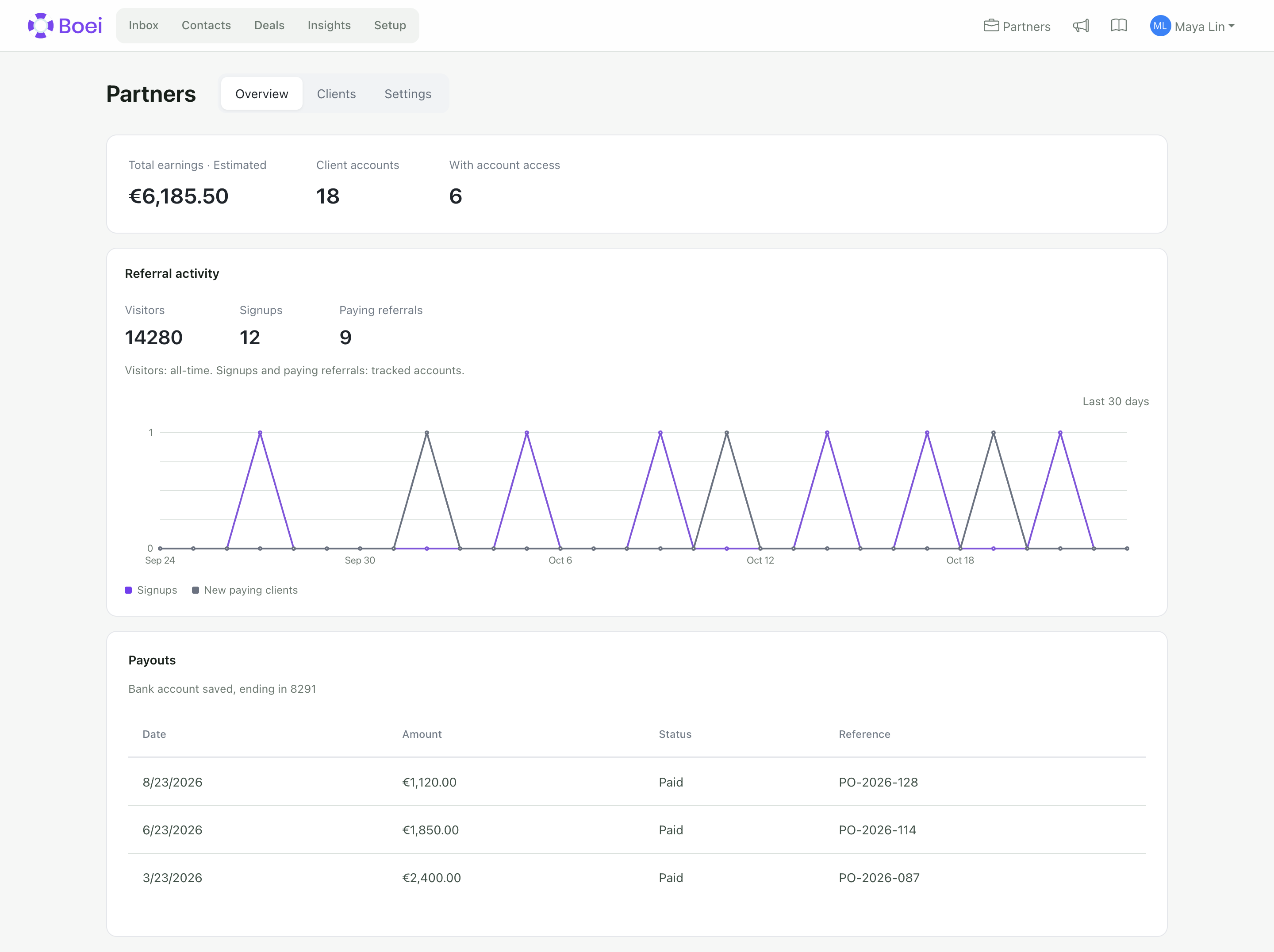
Overview shows earnings, referral activity and recorded payouts. Clients is one list of signups, paying referrals, reseller clients and accounts you manage. Paying changes an account's status without moving it to another list. A referral does not give you access to the account. Settings contains the client access link, affiliate links and key, bank details and agency branding.
Use the search above the client table to find a name, email address or reference. Filter by referrals, reseller clients, or accounts with or without login access. A referral can also have login access and appears only once.
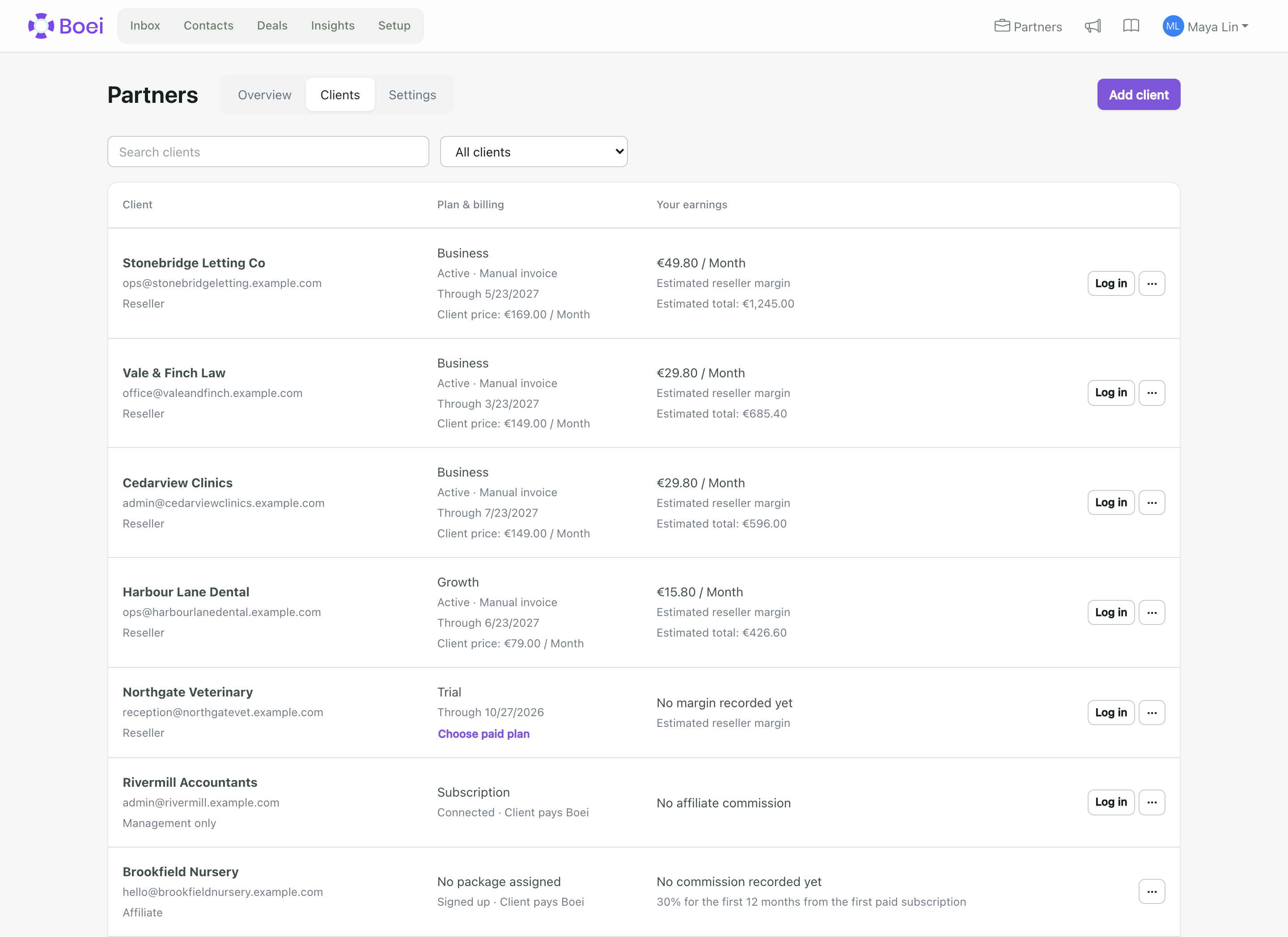
A customer's name and email stay private until they agree to share them or Boei approves sharing. Anonymous referrals use a unique reference, so you can follow their progress without seeing personal details.
Create a client trial
Accounts with existing client-management rights keep access without applying again, including older agency and lifetime plans. New agencies need Boei’s approval first.
Approved agencies can select Add client, enter the client's name and email, and choose a trial duration. The trial has its own account, one chatbot and 250 trial credits. Creating a trial does not charge anyone.
Each client keeps a separate plan and capacity. There is no shared pool for new reseller plans. Existing agency agreements keep their existing capacity until Boei assigns a separate client package.
Connect an existing client
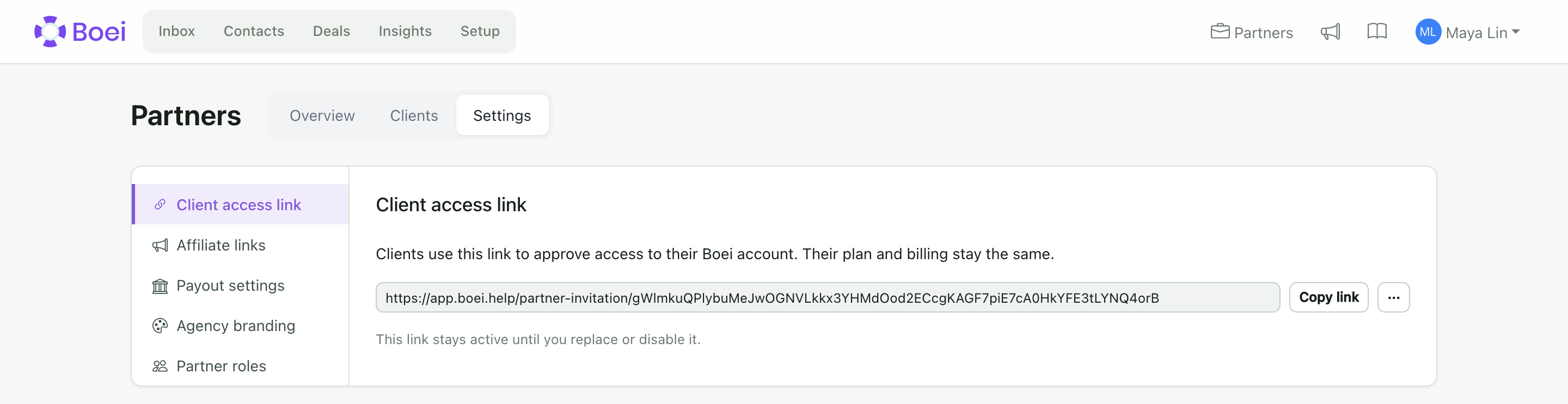
Open Settings → Client access link. Create the access link once, copy it and share it with your clients. Each client signs in and approves access to their own Boei account. Their plan and billing stay the same. The account owner receives an email when new agency access is granted. The email names the agency and links to the account settings, where access can be revoked. Accepting the same active connection again does not send another email.
The client then appears in Clients with their name, email and Log in button. Agency team members can log in when their agency account permissions allow it.
The link stays active until you replace or disable it in the link's ··· menu. You can return to Settings to copy the same link later. Replacing or disabling a link does not remove access that clients have already approved. Disconnect those clients separately if needed.
Open a client account
Select Log in next to the client. The name menu shows that you are in a client session. Use Exit client session to return to your own agency.
A customer can revoke access under Account & Billing → Partner collaboration. Your existing client session then stops loading customer data and shows a button to return to your own account.
Change a client plan
For a trial, select Choose paid plan under its package or in the client's ··· menu. For a paid account, select Change plan in that menu. The regular plans and subscription add-ons link opens the website pricing page. Approved resellers get 20% off regular plans and subscription add-ons, and decide what to charge their own clients. Choose the package and add-ons and add a note. Boei handles the request after billing has been arranged. Submitting a request does not create a charge.
Clients with an agency-managed package should ask their agency for a change. They cannot start a second subscription from that package's billing screen.
Earnings per client
The Your earnings column shows recorded commission or estimated reseller margin for each account. Refunds reduce commission and currencies stay separate. Management only means the account grants login access but is not an affiliate referral, so no affiliate commission applies. Referral rows show whether their 12-month commission period has started, ended, is paused, or needs its original payment dates checked. Historical totals that cannot be linked to a client remain in Overview.
Selling price and estimated earnings
Approved resellers can enter a selling price from the client's ··· → Record client price menu. This helps estimate the difference between what the client pays and your Boei cost. If you leave it empty, the estimate uses the normal plan price and the 20% reseller discount.
Total earnings · Estimated shows total earned commission and recorded estimated reseller margin. It is not your unpaid balance. Recorded payouts appear separately under Overview. Changing a selling price does not rewrite periods that Boei has already recorded.
Disconnect and password reset
The client row menu offers Disconnect client for accounts you can manage. Check the impact before confirming. Existing billing agreements are not cancelled automatically. For a connected existing account, disconnecting removes your management access.
For reseller client accounts, the menu also offers Send password reset. The client receives a link and chooses their own password.
Agency branding
Open Partners → Settings → Agency branding to manage the branding available to your agency. Custom Whitelabel is a separate paid option. See Agency branding.
If a client connects within 14 days of signing up and has no previous referrer, an agency with an active affiliate role can earn commission. The client may already have paid. The 12-month period starts with their first paid subscription. Eligible payments within the first 14 days also count if they were made before connecting. Older accounts can still grant management access.
Existing shared agency plans
Some older agency and lifetime-deal agreements include one shared bundle. These clients show Shared agency plan. The agency and all clients in that bundle share its total website, chatbot and AI-credit capacity. The capacity is not repeated for each client. Unused purchased capacity stays available under the existing agreement.
Boei can change an individual client to its own package. That client's usage then counts against its own capacity, rather than the shared agency bundle. This does not automatically change existing invoices or payments. New client trials and new individual packages have their own capacity.
Clients see their own usage in their account. Boei checks the shared bundle when deciding whether more capacity is available. Existing shared trials keep their agreed end date and the existing 30-day grace period. New individual trials end on the date shown in their own package.
If the shared bundle is full, adding more chatbots or shared capacity is blocked, even when one client's own usage is low. Contact your agency to arrange more capacity. New client trials are created through Partners → Add client after Boei approves the agency.