Live Chat Agents Overview
Connect your team to handle customer conversations in real-time. When your AI chatbot can't answer a question or a customer requests human help, the conversation escalates to your live agents.
How to get there: Go to Setup → AI agent in the top menu → click your chatbot → Behavior → Live Chat in the sidebar.
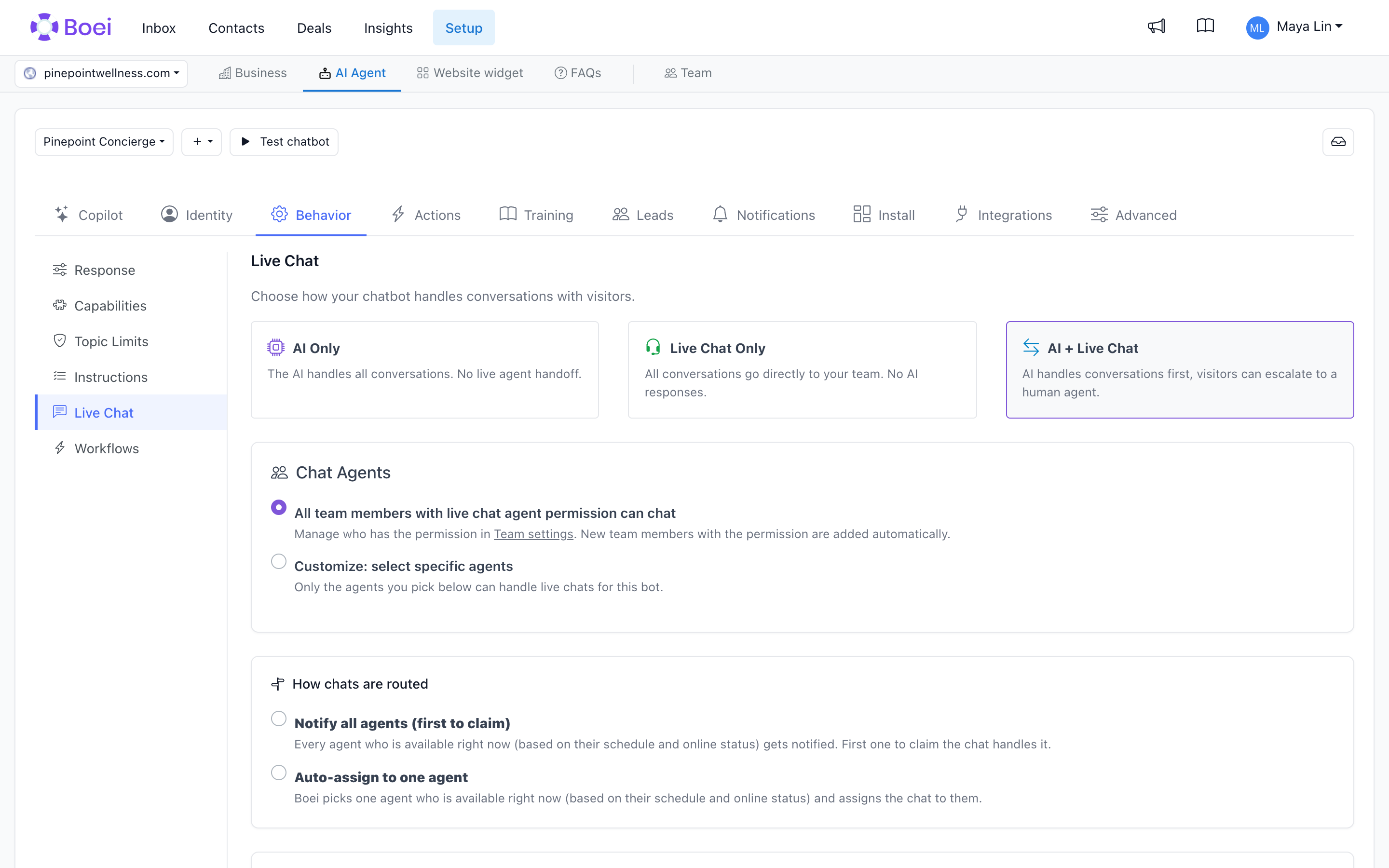
Setting Up Live Chat
Step 1: Enable Live Chat
- Go to Setup → AI agent in the top menu and click on your chatbot
- Open Behavior → Live Chat in the sidebar
- Toggle Enable Live Chat on
- Configure when to offer human handoff
Step 2: Add Agents
Add team members who will handle live conversations:
- Go to Setup → Team in the top menu
- Click Add Team Member
- Enter their email address
- They'll receive an invitation to join
Step 3: Configure Agent Settings
Each agent can set their own:
- Display name - What customers see
- Avatar - Profile picture shown in chat
- Availability mode - Only when online, scheduled hours only, scheduled hours or online, or always available
- Weekly schedule and timezone - Used by both scheduled availability modes
Agent Availability
Availability Modes
- Only when online - The Inbox Online toggle controls availability
- Scheduled hours only - The weekly schedule is the only availability signal
- Scheduled hours or online - Either the weekly schedule or the Inbox Online toggle can make the agent available
- Always available - The agent can receive chats at any time
Business Hours
Set when your team is available:
- Go to Setup → Team and edit the live-chat agent
- Choose a scheduled availability mode
- Select the timezone and configure the weekly schedule
Notifications
Email Notifications
Agents receive email notifications for new chats by default.
SMS Notifications
Agents can opt in to receive SMS text messages when a customer is waiting:
- Go to Profile (click your avatar, top right) → Settings
- Enter your phone number with country code (e.g., +31 for Netherlands, +1 for US)
- Toggle Receive SMS notifications for new chats on
- Click Save
SMS notifications require your account to have SMS credits. See SMS Credits for details on purchasing credits.
In-App Notifications
When you have the Inbox open, you'll see real-time updates for new and escalated conversations.
Handling Conversations
Receiving Chats
When a customer requests human help:
- Available agents receive an in-app notification; offline agents can receive email or SMS according to their notification settings
- The chat appears in their Inbox
- Agent can accept and respond
During the Conversation
Agents can:
- Type responses directly
- Use saved replies for quick answers
- Share files and images
- See customer information (if collected)
- View the AI conversation history
Ending Conversations
- Click Mark Closed when the conversation is complete
- The customer receives a closing message
- Conversation is saved for future reference
Escalation Settings
Configure how customers can reach human agents:
Automatic Escalation
The AI can automatically escalate when:
- It can't answer a question
- Customer frustration is detected
- Certain keywords are used
Manual Request
Add a conversation starter button:
"Talk to a human"
Customers can click this anytime to request live help.
Best Practices
- Set realistic availability - Only show online when agents are ready
- Use saved replies - Speed up responses for common questions
- Monitor queue times - Don't leave customers waiting too long
- Review conversations - Learn from interactions to improve your AI
Related
- Saved Replies - Create quick response templates
- Live Chat Settings - Configure escalation triggers
- Inbox - Manage all conversations