Frequently Asked Questions
Common questions about Boei and how it works.
Languages
What languages does Boei support?
Boei supports any language. You can adjust every customer-facing text to your preferred language. The AI chatbot can also respond in multiple languages with automatic translation enabled.
Channels
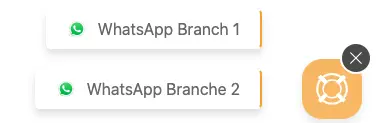
Can I set up the same channel twice?
Yes, you can add any channel multiple times. For example, you can have two WhatsApp numbers - one for sales and one for support.
Can you add a new contact method to Boei?
We're always adding new channels. Submit your request at feedback.boei.help.
Integrations
Can you build an integration with [service]?
Most integrations are possible. Submit your request at feedback.boei.help or contact us via the Boei widget.
Is it easy for non-coders to connect Boei with other apps?
Boei is designed for everyone, not just developers. Setting up integrations is straightforward. Contact us if you need any help.
Performance
Does Boei slow down my site?
No. Boei's script is extremely lightweight - 300 times smaller than comparable chat widgets. Your site will load fast and visitors stay focused.
Widgets
Can I have multiple widgets on one website?
Yes. Use conditions to control which widget displays on specific pages. This is useful for showing different contact options on different sections of your site.
Installation
Where do I find my widget installation code?
Go to Setup → Website widget in the top menu → click your widget. You'll see your unique code snippet there. Copy the full script tag and paste it into your website's HTML, just before the closing </body> tag.
For platform-specific instructions, see our installation guides.
Do I need to update the code on my website if I change settings?
No. The installation code stays the same. Any changes you make in your Boei dashboard — adding channels, updating chatbot settings, changing appearance — are applied automatically without touching the code on your website. Your developer only needs to install the code once.
AI Chatbot
What does "Not Trained" mean on my crawled pages?
When Boei crawls your website, it discovers pages and lists them with a status. "Not Trained" means the page has been found but hasn't been processed by the AI yet. Click the Train button next to a page to have the AI learn from its content. Once trained, the status changes to show it's active. Training counts toward your plan's page limits.
What does "Ready to use" mean on my chatbot?
It means your chatbot has been configured and has trained pages — it's ready to be installed on your website and start answering visitor questions. Your next step is to get the installation code from the Install tab and have it added to your site.
I updated my website. How do I get the AI to pick up the changes?
Without auto-sync, the AI doesn't automatically detect website changes. To refresh a page:
- Go to Setup → AI agent → click your chatbot → Training → Website tab
- Find the page that was updated
- Click Retry to re-fetch and re-train that page
For updating many pages at once, see Manage Training Content.
The AI gives wrong answers even though my website has the correct information. What can I do?
First, make sure the page with the correct information is trained (check the Training → Website tab). If it's trained but still giving wrong answers, try re-training the page using the Retry button. If the issue persists, contact us at [email protected].
Can I add content directly or do I have to use a website?
You can train the AI from multiple sources — not just websites. Boei supports website crawling, sitemap import, specific URLs, and file uploads (PDFs, Word documents, and other files). Go to the Training section in your chatbot sidebar to see all options.
Channels
Can I add WhatsApp or other channels later without changing my website code?
Yes. You can add, remove, or rearrange channels anytime from your Boei dashboard. Changes appear on your website automatically — no code update needed. Your developer only installs the code once.
Related
- Webhooks - Connect to other services
- Installation - Install guides
- AI Chatbot - Set up your chatbot