Assigning Messages
Assign inbox messages to team members to organize workload and ensure every conversation gets handled.
How to get there: Go to Inbox in the top menu → open a conversation → click the Assign dropdown.
Assigning a Message
- Open a message in your Inbox
- Click the Assign dropdown
- Select a team member
- The message is now assigned to them
Assignment Options
- Assign to me - Take ownership of the message
- Assign to team member - Select from your team
- Unassign - Remove assignment (message becomes unassigned)
Filtering by Assignment
Use the assignee filter to view specific messages:
Filter Options
- All - Show all messages regardless of assignment
- Me - Only messages assigned to you
- Unassigned - Messages without an assignee
- Specific team member - Messages assigned to that person
How to Filter
For one specific person:
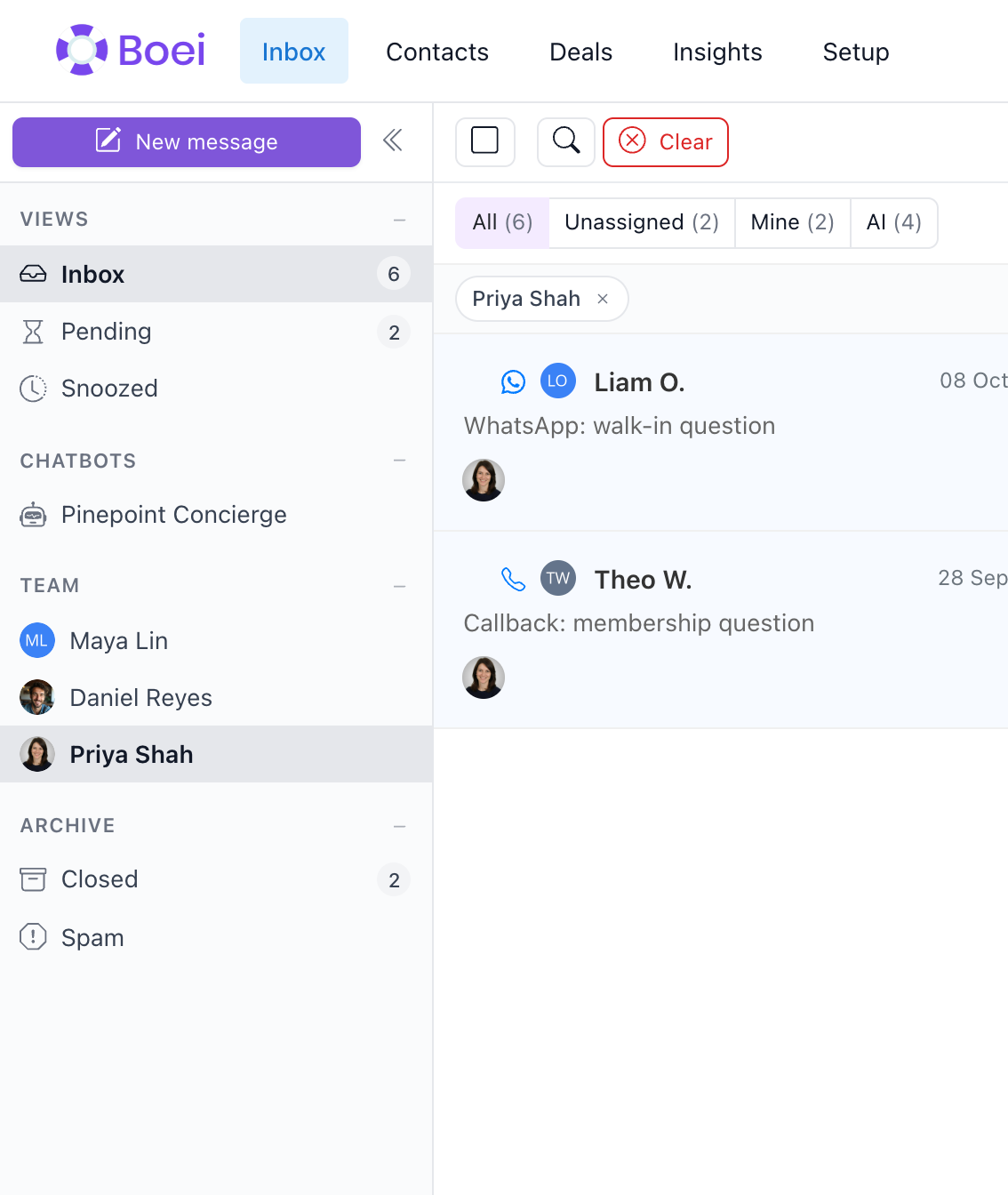
- Find Team in the left sidebar
- Click their name
- The inbox shows only their conversations
Their name appears as a chip above the list. Click Clear to see everything
again.
For the quick options, use the buttons above the list: All, Unassigned
or Mine.
Claiming Conversations
When a live chat comes in unassigned:
- You'll see it in the inbox with "Waiting" status
- Click Claim to assign it to yourself
- You can now respond to the customer
Team Workflow Tips
- Assign on first response - Take ownership when you start helping
- Reassign when needed - Hand off to specialists
- Use unassigned filter - Find messages that need attention
- Check your assignments - Filter to "Me" to see your workload
Notifications
When assigned a message:
- You'll receive a notification
- The message appears in your "Me" filter
- Unread indicator shows on assigned messages
Related
- Inbox Overview - Basic inbox features
- Live Chat in Inbox - Handle live conversations
- Team Members - Add team members