Widget Duplication
Quickly create copies of your existing widgets to test variations, set up A/B tests, or create similar widgets for different pages.
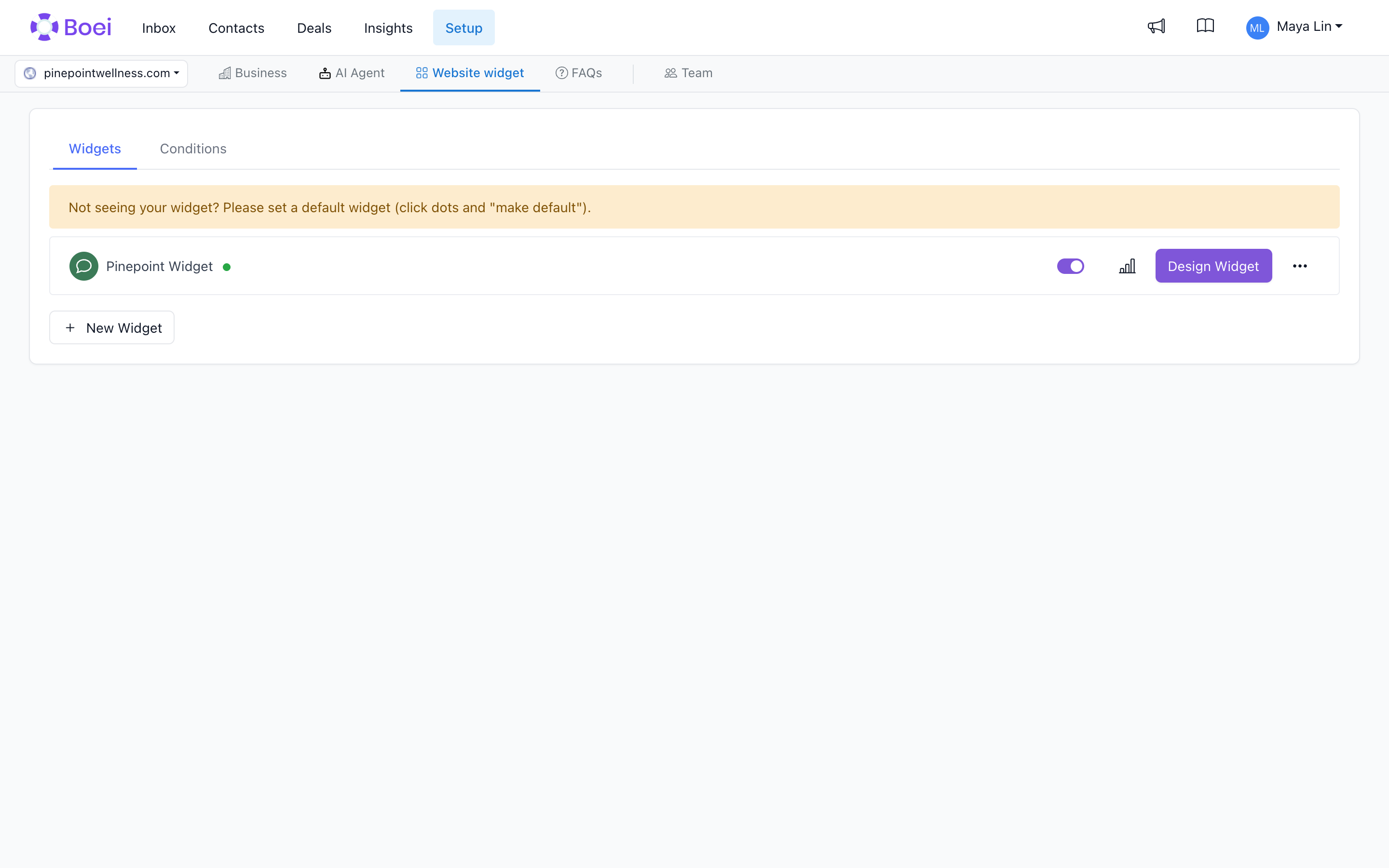
How to get there: Go to Setup → Website widget in the top menu → find the widget you want to duplicate.
Why Duplicate Widgets?
Duplicating a widget is useful when you want to:
- A/B test different designs, colors, or channel configurations
- Create variations for different pages or audiences
- Backup before making major changes to a widget
- Reuse a successful widget configuration for another website
- Test new features without affecting your live widget
How to Duplicate a Widget
- Go to your Widgets page
- Find the widget you want to copy
- Click the three dots menu (⋮) next to the widget
- Select "Duplicate" or "Copy Widget"
- A new widget will be created with "(Copy)" added to the name
The duplicated widget includes:
- All visual settings (colors, position, shape)
- All channels and their configurations
- Attention grabbers and triggers
- Business hours settings
- Page conditions and display rules
- Custom CSS and branding
The duplicated widget gets:
- A new unique widget key/ID
- Default status (usually inactive)
- No analytics history (starts fresh)
After Duplication
Rename Your Widget
- Double-click the widget name
- Give it a descriptive name like:
- "Homepage Widget - Green"
- "Pricing Page Test A"
- "Mobile Widget"
- "Holiday Promotion"
Make Your Changes
Now modify the duplicate without affecting the original:
- Change colors or branding
- Add or remove channels
- Adjust attention grabbers
- Configure different page rules
Activate When Ready
- Test the duplicated widget on your site
- Once confirmed working, set it as active
- Optionally deactivate the original
A/B Testing with Duplicated Widgets
Widget duplication is perfect for A/B testing. Here's a recommended workflow:
Step 1: Create Test Variants
- Start with your current (working) widget
- Duplicate it twice
- Rename them clearly:
- "Original Widget" (keep for baseline)
- "Widget A - Red Button"
- "Widget B - Green Button"
Step 2: Run Tests Sequentially
Week 1:
- Set "Widget A" as default
- Monitor analytics
Week 2:
- Set "Widget B" as default
- Monitor analytics
Week 3:
- Compare results
- Keep the winner as default
Step 3: Analyze Results
Compare these metrics between variants:
- Click-through rate (CTR)
- Total interactions
- Conversion rate
- Bounce rate impact
See our A/B Testing Guide for detailed instructions.
Use Cases
Testing Different Button Colors
- Duplicate your widget
- Change only the button color on the duplicate
- Run for 1 week each
- Keep the higher-performing color
Page-Specific Widgets
- Duplicate your main widget
- Configure page rules for specific sections:
- Product pages: Show chat + WhatsApp
- Pricing pages: Show phone + email
- Blog posts: Show social channels
- Activate all variants
Seasonal Variations
- Duplicate your widget before holidays
- Add holiday-specific:
- Colors and branding
- Countdown timers
- Special messages
- Activate for the promotion period
- Switch back to original after
Mobile vs Desktop
- Duplicate your widget
- Configure one for mobile-only:
- Smaller button
- Fewer channels
- Different position
- Use page conditions to show mobile variant on small screens
Language-Specific Widgets
- Duplicate for each language
- Translate channel labels and messages
- Use page conditions to show correct language widget:
/en/*→ English widget/es/*→ Spanish widget/de/*→ German widget
Tips & Best Practices
Naming Convention
Use clear, descriptive names:
- ✅ "Homepage - Blue Theme - Test A"
- ✅ "Pricing Widget - Aggressive CTAs"
- ✅ "Mobile Optimized - Minimal"
- ❌ "Widget Copy"
- ❌ "New Widget 2"
- ❌ "Test"
Keep It Organized
- Delete old test variants after deciding on a winner
- Don't accumulate dozens of unused duplicates
- Archive widgets you might need later (deactivate but don't delete)
One Active Per Page
Avoid having multiple widgets active on the same page without page rules:
- Use page conditions to control which widget shows where
- Or ensure only one is set as "default"
Test One Variable
When A/B testing, change only ONE thing:
- ✅ Same widget, different button color
- ✅ Same widget, different channel order
- ❌ Different colors AND different channels AND different position
Document Your Tests
Keep notes on what you're testing:
- What changed between variants
- Date ranges for each test
- Results and decisions made
Analytics Reset
Remember that duplicated widgets start with zero analytics:
- Compare equal time periods
- Wait for statistically significant data (usually 100+ interactions)
- Don't make decisions on just a few days of data
Limitations
- Duplicated widgets don't share analytics with the original
- You can't bulk-duplicate multiple widgets at once
- Duplicated widgets use your widget quota (check your plan limits)
- Changes to the original don't auto-sync to duplicates
Alternative: Widget Templates
If you create many similar widgets, consider using templates instead:
- Create a template with your common settings
- Apply the template to new widgets
- Customize as needed
Templates are better for:
- Onboarding new websites with similar setup
- Agency/whitelabel use cases
- Standardizing across multiple domains
Duplication is better for:
- Testing variations of an existing widget
- One-time copies
- A/B testing
Need Help?
Common questions:
- "Can I duplicate across different websites?" - No, duplication is per-website. Use templates for cross-site copying.
- "Do analytics copy over?" - No, the duplicate starts with fresh analytics.
- "Can I undo duplication?" - Just delete the duplicated widget.
- "How many times can I duplicate?" - As many as your plan's widget limit allows.
Adding a second widget
The installation code is shared by all widgets on the same website. If Boei is already installed, you do not need to add the code again for a second widget. Open Conditions on the Widgets page to choose when each widget appears, for example on different pages or in different languages.