Slack Integration
Post Boei events straight into a Slack channel: form submissions, new live-chat requests, AI escalations, and completed chatbot conversations. One Slack Incoming Webhook covers all of them.
Where to paste the webhook URL (three separate places, use whichever you need):
- Form submissions (contact, feedback, callback, newsletter): Widgets → click your widget → click on the channel → scroll to its Slack integration setting.
- New live-chat requests and AI escalations: Settings > Notifications → add a Handoff to a person rule → add a Slack recipient.
- Completed chatbot conversation summaries: Settings > Notifications → add a When chat ends rule → add a Slack recipient.
You can use the same webhook URL in more than one place, or different webhooks per event type so different channels get different alerts.
Overview
Connect Boei to Slack to:
- Receive form submissions in a channel
- Get an alert when the AI chatbot escalates a chat to a human
- Get an alert when a new live-chat visitor is waiting
- Get a summary in Slack after every completed AI conversation
- Share customer feedback with your team
No developer needed, setup takes just a few minutes.
Setting Up Slack
Step 1: Add Incoming Webhooks to Slack
- Open the Incoming WebHooks app on Slack
- Click Add to Slack
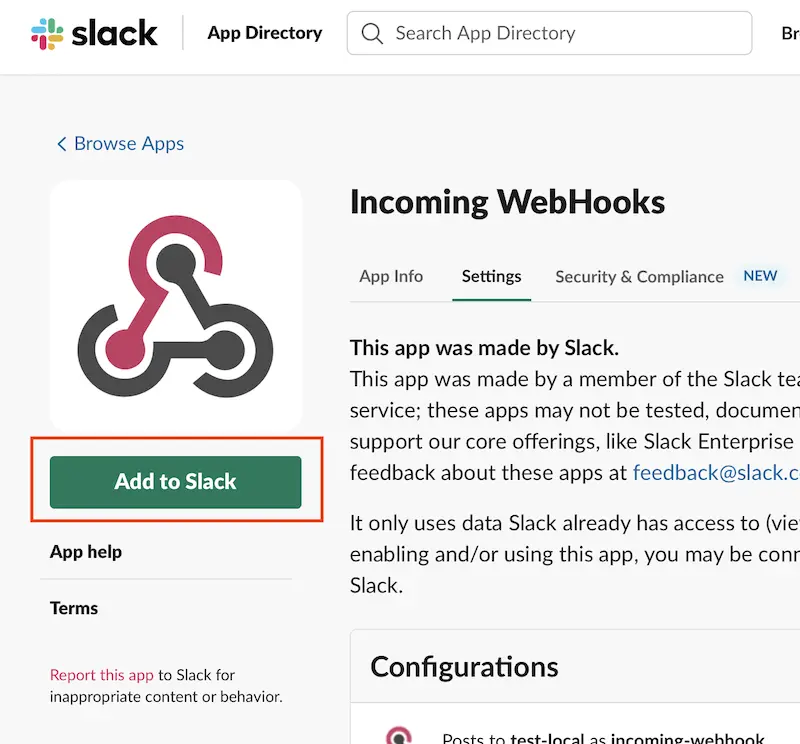
Step 2: Choose a Channel
Select the Slack channel where you want to receive Boei notifications.
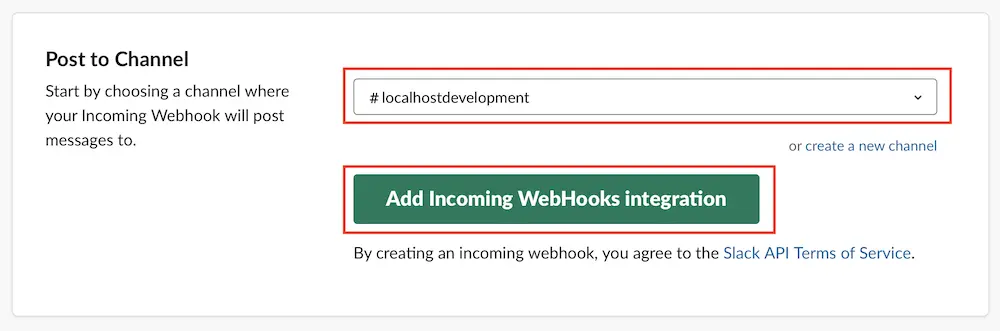
Step 3: Copy the Webhook URL
- Slack will generate a webhook URL that looks like
https://hooks.slack.com/services/T.../B.../... - Copy the full URL (we also accept just the part after
hooks.slack.com/, we normalize it on save) - Paste it into the Boei setting for the event type you want
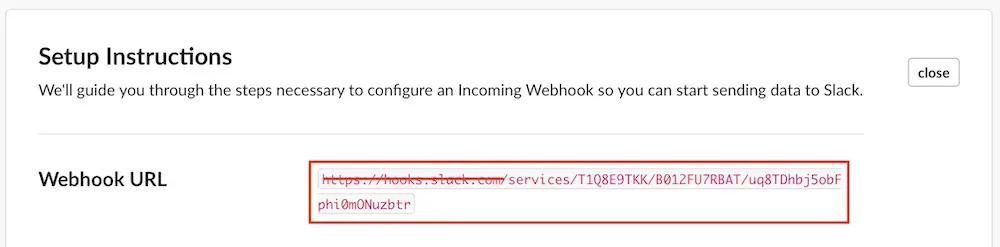
Step 4: Test the Integration
Submit a test form, start a chat that escalates to a human, or complete a chatbot conversation to verify messages appear in your Slack channel.
AI Chatbot Alerts (Live Chat)
For alerts when a new live-chat visitor is waiting or the AI chatbot escalates a conversation, paste the webhook URL into Settings > Notifications, in a Handoff to a person rule with a Slack recipient.
The Slack message includes:
- Escalation vs new-chat indicator (colour-coded)
- The customer's email (if known)
- Bot name and how long the visitor has been waiting
- The visitor's last message (truncated)
- The page URL they were on when the chat started
- The AI handoff summary (for escalations)
- A one-click link to open the conversation in your Boei inbox
You can add email and Slack recipients to the same rule. Add a team condition to limit which handoffs trigger it.
Chatbot Conversation Summaries
For a summary in Slack every time an AI conversation completes, add a Slack recipient under Settings > Notifications.
The Slack message includes:
- A short summary of the conversation
- Bot name
- Health score (Good / Decent / Poor / Failed)
- Any customer info the AI captured (name, email, phone, and any custom fields you enabled)
- A one-click link to open the transcript in your Boei inbox
This works alongside email recipients on the same rule. Slack posts respect the same conditions as email recipients, so a bot that only alerts on high-intent conversations will do the same on Slack.
Configuring Multiple Widgets
If you have multiple widgets, add the Slack webhook URL to each one individually in their settings.
What Gets Posted
Form Submissions
- Customer name and email
- Form type (contact, feedback, etc.)
- Message content
- Page URL where they submitted
- Timestamp
New Live Chat / AI Escalation
- Escalation vs new-chat header (red for escalations)
- Customer email
- Bot name, wait time, last visitor message, page URL
- AI handoff summary (escalations only)
- Link to open the conversation in Boei
Completed Chatbot Conversation
- Conversation summary
- Bot name and health score
- Captured customer info
- Link to open the transcript in Boei
Example Messages
Form submission:
New contact form submission from Boei

Name: John Doe
Email: [email protected]
Message: I'd like to learn more about your services
Page: yoursite.com/contact
AI escalation:
⚠️ Chat escalated - customer needs help

Customer: [email protected]
Bot: Sammy
Waiting: 2 minutes ago
Last message: I can't figure out how to cancel my plan
Page: https://example.com/pricing
Handoff summary: Customer wants to downgrade before renewal date.

[Open in Boei inbox]
Completed conversation:
💬 Chatbot conversation completed

Customer asked how to cancel their subscription and was pointed to /account/portal.

Bot: Sammy
Health: 82/100 (Good)
Name: Jane Doe
Email: [email protected]

[Open in Boei inbox]
Troubleshooting
Messages Not Appearing
- Verify the webhook URL is correct
- Check if the Incoming Webhook app is still installed in Slack
- Ensure the channel still exists and the webhook hasn't been revoked
- For completed-conversation summaries: check that at least one Inbox Follow-Up Rule matches (if none match, nothing is sent — same behaviour as the email version)
Duplicate Messages
- Check if the same webhook URL is pasted into more than one Boei setting (widget Slack + chatbot Live Chat + chatbot Notifications all fire independently)
- Check if the webhook is added to multiple widgets unintentionally
Related
- Webhooks - Connect to other services
- Contact Form - Form setup
- Newsletter Signup - Capture signups