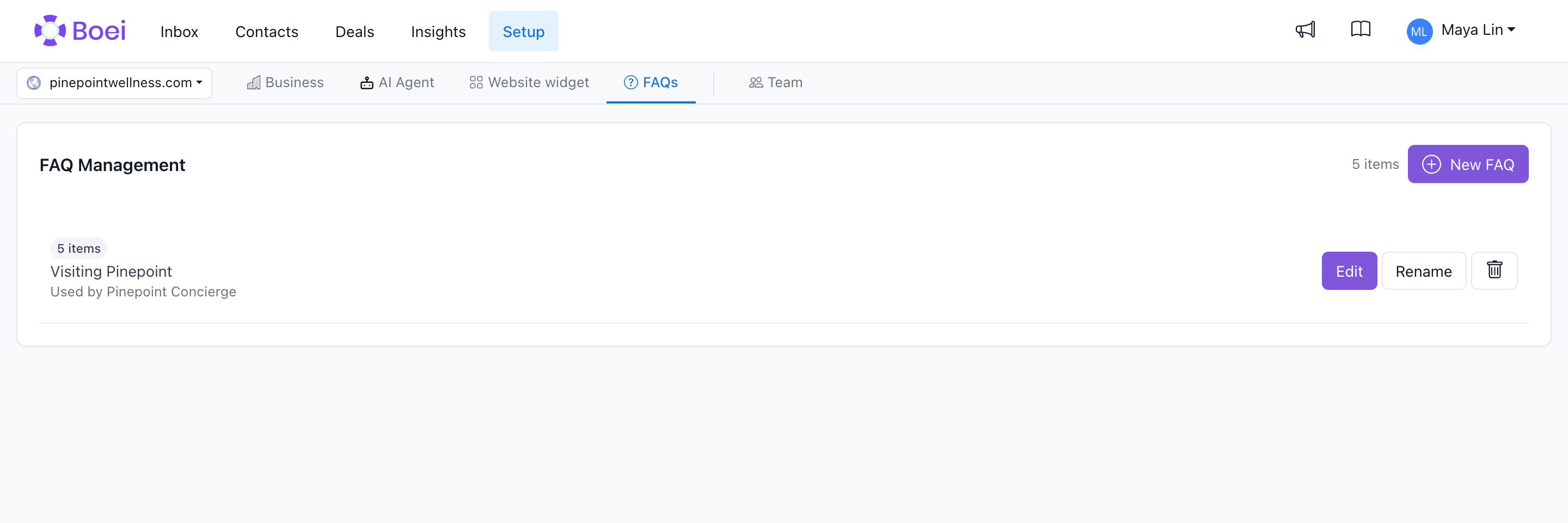
Create a searchable Frequently Asked Questions widget that helps visitors find answers instantly, right from your contact widget.
How to get there: Go to Setup → FAQs in the top menu → click your FAQ widget.
The FAQ Widget is a built-in feature that displays common questions and answers directly in your Boei widget. Visitors can:
- Browse through your FAQs
- Search for specific topics
- Get instant answers without contacting you
- Seamlessly transition to live chat if needed
Benefits
For Your Visitors
✅ Instant answers - No waiting for email replies or chat agents
✅ 24/7 availability - Get help anytime, even outside business hours
✅ Easy search - Find answers quickly with search functionality
✅ Self-service - Solve problems independently
For Your Business
✅ Reduce support volume - Answer common questions automatically
✅ Scale support - Help unlimited visitors simultaneously
✅ Improve efficiency - Free up your team for complex questions
✅ Better UX - Visitors get help faster
✅ SEO benefit - FAQ content is indexed by search engines
How It Works
- Visitor clicks your widget
- FAQ appears as a channel option (alongside chat, phone, etc.)
- Visitor clicks FAQ
- Search box and FAQ list appear
- Visitor searches or browses
- Clicks question to see answer
- Can transition to live chat if answer doesn't help
Step 1: Create an FAQ Collection
- Go to FAQs in your Boei dashboard
- Click "Create New FAQ"
- Give it a descriptive name (e.g., "Product FAQs", "Support Questions")
- Save
You can create multiple FAQ collections for different purposes.
Step 2: Add FAQ Items
For each FAQ collection:
- Click "Add Question"
- Enter the Question (what visitors ask)
- Enter the Answer (your response)
- Click Save
- Repeat for each question
Tips:
- Questions should match how visitors actually ask (check your support emails)
- Answers should be clear, concise, and complete
- Use formatting (bold, lists, links) for readability
- Include relevant links to documentation or product pages
- Go to your Widget Settings
- Navigate to Channels
- Find FAQ channel
- Enable it
- Select which FAQ collection to show
- Set the position (order in channel list)
- Save
Step 4: Customize Appearance (Optional)
You can customize:
- FAQ icon
- Channel label (e.g., "FAQs", "Help Center", "Common Questions")
- Color scheme (inherits from widget branding)
Creating Effective FAQs
Question Guidelines
Write questions as visitors would ask them:
✅ Good:
- "How do I reset my password?"
- "What's included in the Pro plan?"
- "Do you ship internationally?"
❌ Bad:
- "Password Recovery Protocol" (too formal)
- "Plans" (too vague)
- "Shipping" (not a question)
Answer Guidelines
Keep answers:
- Clear - Use simple language
- Complete - Fully answer the question
- Concise - Get to the point quickly
- Actionable - Include steps or next actions
- Formatted - Use headings, lists, bold
Good answer structure:
## Short direct answer first
Additional context if needed.
**Steps:**
1. Do this
2. Then this
3. Finally this
[Link to detailed documentation](URL)
Boei FAQ supports Markdown formatting:
Bold text:
**important point**
Bullet lists:
- Point one
- Point two
- Point three
Numbered lists:
1. First step
2. Second step
3. Third step
Links:
[Link text](https://example.com)
Headings:
## Subheading
Length Recommendations
- Question: 5-15 words
- Answer: 50-200 words
- For longer answers: Link to full documentation instead
Organizing Your FAQs
Reordering FAQ Items
Questions appear in the order you set:
- Go to your FAQ collection
- Find the list of questions
- Drag questions to reorder (or use position numbers)
- Save
Best practices:
- Put most common questions first
- Group related questions together
- Move rarely clicked questions to bottom (check analytics)
Multiple FAQ Collections
Create separate collections for different purposes:
Example setup:
- "Product FAQs" - For product pages
- "Billing FAQs" - For pricing/account pages
- "Technical FAQs" - For documentation/help center
Then use different widgets (or page conditions) to show the right FAQ for each section of your site.
FAQ Search Feature
The FAQ widget includes built-in search:
How Search Works
- Visitor types a query (e.g., "shipping")
- System uses AI to understand intent
- Shows most relevant questions/answers
- Results are ranked by relevance
- Visitor clicks to see full answer
Search is Powered by AI Embeddings
Behind the scenes:
- Each FAQ answer is converted to a semantic "embedding"
- When visitors search, their query is also embedded
- System finds FAQs with similar meaning (not just matching keywords)
- Results are sorted by semantic similarity
This means:
- "How to refund?" matches "What's your return policy?"
- "Shipping time?" matches "How long does delivery take?"
- Synonyms and related terms are understood
Optimizing for Search
To help visitors find answers:
Use natural language:
- ✅ "How long does shipping take?"
- ❌ "SLA: Delivery timeframes"
Include common variations in answers:
Q: How do I cancel my subscription?
A: To cancel your subscription (also called "downgrade"
or "close account"):
1. Go to Settings...
Cover related topics in one FAQ:
Q: What payment methods do you accept?
A: We accept credit cards (Visa, Mastercard, Amex),
PayPal, and bank transfers for enterprise customers.
Analytics & Optimization
Monitor:
- Search queries - What are visitors searching for?
- Click rates - Which FAQs get clicked most?
- Transition to chat - Which FAQs don't satisfy visitors?
Use this data to:
- Add missing FAQs (common searches with no good results)
- Improve low-performing FAQs (high search, low satisfaction)
- Reorder based on popularity
A/B Testing FAQs
Test different versions:
Test A:
Q: What's your return policy?
A: We offer 30-day returns on all products...
Test B:
Q: Can I return my order?
A: Yes! Returns are free and easy. You have 30 days...
Compare which gets better engagement.
Best Practices
1. Start with Top 10
Don't try to add 100 FAQs on day one:
- Start with 10 most common questions
- Check your support emails for patterns
- Add more over time
2. Update Regularly
FAQs should evolve:
- Add new questions as they emerge
- Update answers when products/policies change
- Remove outdated FAQs
- Refresh based on analytics
3. Link to Detailed Docs
For complex topics:
- Give short answer in FAQ
- Link to full documentation for details
Q: How do I integrate with Salesforce?
A: We offer a native Salesforce integration.
**Quick setup:** Install our app from AppExchange
and connect your account.
[See full integration guide](URL)
4. Include Visual Examples
When helpful, add images or videos:
Here's what the settings page looks like:

5. Cross-reference FAQs
Link related FAQs:
A: ...steps to upgrade your plan.
**Related:**
- How to change your billing cycle
- What's included in each plan
6. Encourage Chat Transition
End complex FAQs with:
"Still have questions? Click 'Chat' to speak with our team."
This bridges self-service and human support.
Common Use Cases
E-commerce
Top FAQs:
- Shipping time and costs
- Return/refund policy
- Product sizing/specifications
- Order tracking
- Payment options
SaaS Product
Top FAQs:
- How to get started
- Pricing and plan differences
- Integration options
- Account management
- Billing questions
Service Business
Top FAQs:
- How to book/schedule
- Pricing and packages
- Service area/availability
- Cancellation policy
- What to expect
Local Business
Top FAQs:
- Hours of operation
- Location and parking
- Accepted payment methods
- Appointment required?
- Contact information
Advanced Features
FAQ + AI Chatbot Integration
If you have both FAQ and AI Chatbot:
- AI can reference your FAQs in responses
- FAQ searches use same AI embedding system
- Visitors can start with FAQ, then chat with AI
- Seamless experience between both
FAQ Translations
For multi-language sites:
- Create separate FAQ collections per language
- Use page conditions to show correct language
- Or use same FAQ with translated questions/answers
FAQ for Different User Segments
Create targeted FAQs:
- Free users: Basics and limitations
- Premium users: Advanced features
- Enterprise: SLA, support options
- Show different FAQ based on user login status
Requires custom implementation.
Troubleshooting
Visitors can't find answers
Check:
- Are you using natural question phrasing?
- Do answers contain relevant keywords?
- Are embeddings generated? (may take a few minutes)
Fix:
- Rewrite questions to match how users ask
- Add common search terms to answers
- Wait for embeddings to process, then test search
Check:
- FAQ channel is enabled in widget settings
- FAQ collection is selected
- FAQ collection has at least one question
- Widget is properly installed on website
Fix:
- Enable FAQ channel
- Add questions to collection
- Verify widget installation
Search returns wrong results
Cause: Semantic search might match unexpected similarities
Fix:
- Add more context to answers
- Use specific terminology
- Include common keywords visitors might search
FAQ items not appearing
Check:
- Items are saved (not in draft)
- Collection is selected in widget
- No custom filters applied
Use Markdown syntax:
**bold** for bold
- item for bullets
[text](url) for links
Test in preview mode.
Quick Start Checklist
- [ ] Create FAQ collection
- [ ] Add 5-10 common questions
- [ ] Write clear, formatted answers
- [ ] Enable FAQ channel in widget
- [ ] Select FAQ collection
- [ ] Set channel position
- [ ] Test search functionality
- [ ] Check on mobile device
- [ ] Monitor analytics
- [ ] Iterate based on data
Maintenance Schedule
Weekly:
- Review search queries (what are people looking for?)
- Check unanswered searches
Monthly:
- Add 2-3 new FAQs based on recent support questions
- Update outdated answers
- Review analytics, reorder based on popularity
Quarterly:
- Full content audit (remove outdated, consolidate similar)
- A/B test question phrasing for top FAQs
- Verify all links still work
FAQ vs AI Chatbot
| Feature |
FAQ Widget |
AI Chatbot |
| Type |
Static Q&A |
Dynamic conversation |
| Setup |
Manual (you write each answer) |
Train on documentation |
| Maintenance |
Update manually |
Auto-updates when training data changes |
| Coverage |
Only questions you add |
Any question in training data |
| Accuracy |
100% (you wrote it) |
95%+ (AI interpreted) |
| Best for |
Common questions, official answers |
Broad coverage, complex queries |
Use both together:
- FAQ for top 20 most common questions
- AI Chatbot for everything else
- Visitors can easily switch between them
Summary
FAQ Widget is a powerful self-service tool that:
- Answers common questions instantly
- Reduces support workload
- Improves visitor experience
- Scales infinitely
Start with 10 FAQs, enable search, monitor analytics, and iterate. Most businesses see 20-40% reduction in support volume after implementing a well-maintained FAQ widget.