Analytics Integration
Connect Boei with your analytics platform to track widget interactions and measure conversions.
How to get there: Go to Insights in the top menu.
How It Works
When someone uses Boei on your site:
- Boei sends events to your analytics platform
- Track opens, clicks, and conversions
- Customize event names per channel
- When a lead is collected (via lead flow, contact form, call me back, or escalation email), the lead's email, phone, and name are included in the analytics event
Supported Platforms
- Google Analytics 4 - Full website analytics
- Google Tag Manager - Tag management without code changes
- Facebook Pixel - Track conversions from Facebook and Instagram ads
- Simple Analytics - Privacy-focused analytics
- Plausible Analytics - User-friendly, privacy-first stats
Setting Up Analytics
- Open your widget and go to Integrations
- Select your analytics platform
- Review its settings
- Toggle it on
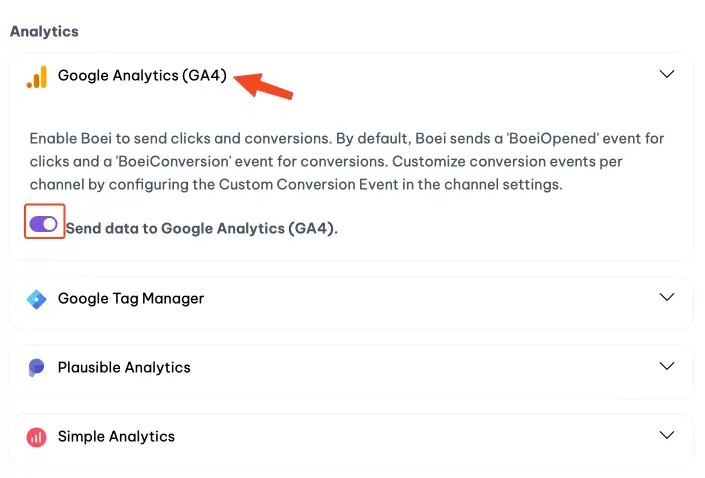
That's it! Boei will now send events to your analytics platform.
Default Events
Boei sends two types of events:
| Event | Triggered When |
|---|---|
BoeiOpened |
Widget is clicked/opened |
BoeiConversion |
Form submitted or action completed |
Lead Conversion Data
When a visitor submits their contact details through any Boei form or chatbot, the following data is sent to your analytics platforms:
Google Tag Manager (dataLayer)
| Field | Description |
|---|---|
event |
Your conversion event name (e.g. BoeiConversion) |
event_type |
lead_collected |
lead_email |
The lead's email address |
lead_phone |
The lead's phone number |
lead_name |
The lead's name |
lead_source |
Where the lead came from: chatbot, contact_form, call_me_back, newsletter_signup, feedback_form |
page_url |
The page URL where the lead was collected |
enhanced_conversion_data |
Object with email and phone_number for Google Ads Enhanced Conversions |
Google Analytics 4
Sends a conversion event with lead_email, lead_phone, lead_name, and lead_source as event parameters.
Facebook Pixel
Fires a standard Lead event with Facebook Advanced Matching parameters (em, ph, fn) for improved ad attribution and audience matching.
Lead Sources
Lead data is sent from all Boei lead capture points:
- AI Chatbot - lead flow forms, lead flow conversations, and escalation emails
- Contact forms - email, name, and message submissions
- Call me back forms - phone number and name submissions
- Newsletter signups - email submissions
- Feedback forms - when email is included
Using with Google Ads Enhanced Conversions
The enhanced_conversion_data object in the dataLayer is formatted for Google Ads Enhanced Conversions. In your GTM container, configure your Google Ads conversion tag to use this data for better conversion matching.
Chat Engagement Events
In addition to the events above, Boei fires four engagement events from chat conversations (AI chatbot, live chat, and AI agents). These let you build a full funnel (opened → consent → started → escalated → assigned → lead) and create remarketing audiences for high-intent visitors.
| Event | Triggered When |
|---|---|
chat_started |
Visitor submits their first message (send button, Enter, or quick-prompt button click). Fires before any consent or lead-flow gate, so it represents intent to chat. |
chat_consent_accepted |
Visitor accepts the consent checkbox (only if consent is enabled). Use chat_started as the denominator to measure consent acceptance rate. |
chat_escalated |
Conversation is handed off from AI to a human (queued for an agent) |
chat_assigned |
A human agent actually picks up / is assigned to the live chat |
Each event includes a payload your tags can read:
| Field | Description |
|---|---|
chatbot_id |
The widget UUID (on chat_started, chat_escalated, chat_assigned) |
consent_given_at |
ISO timestamp of consent acceptance (on chat_consent_accepted) |
waiting_for_agent |
true if no agent picked up yet (on chat_escalated) |
agent_name |
Name of the assigned agent (on chat_assigned) |
Do these fire automatically?
Yes. As soon as you toggle on Google Analytics 4, Google Tag Manager, Facebook Pixel, or Simple Analytics, these events flow automatically. No code changes on your site.
- Google Analytics 4 - appears in Reports → Engagement → Events within ~24h.
- Google Tag Manager - events are pushed to
window.dataLayer. To forward them to a downstream tag (Google Ads, Meta CAPI, etc.), create a Custom Event trigger in GTM matching the event name (e.g.chat_started) and attach it to your tag. - Facebook Pixel - fired as
trackCustomevents. Visible in Events Manager under Custom Events. Useful for building Custom Audiences (e.g. "people who started a chat but didn't convert"). - Simple Analytics - fired as named events.
Example: GTM trigger for chat starts
- In GTM, go to Triggers → New → Custom Event.
- Set Event name to
chat_started(exact match). - Save and attach it to your Google Ads / Meta / LinkedIn tag.
Custom Conversion Events
Customize the conversion event name per channel:
- Open the channel settings
- Find Custom Conversion Event
- Enter your preferred event name
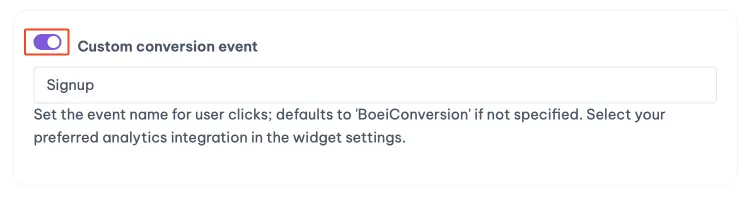
This is useful for tracking different types of conversions separately.
Use Cases
Track Widget Engagement
See how often visitors:
- Open your widget
- Click different channels
- Submit forms
Measure Conversions
Create goals based on:
- Contact form submissions
- Newsletter signups
- Chat conversations started
Compare Channels
Identify which channels drive the most engagement and conversions.
Google Analytics 4 Setup
- Ensure GA4 is installed on your site
- Enable the integration in Boei
- Events automatically appear in GA4 reports
- Create custom reports or audiences based on Boei events
Google Tag Manager Setup
- Ensure GTM is installed on your site
- Enable the integration in Boei
- Create triggers based on Boei events
- Fire additional tags when events occur